
Forms & inputs
Color picker
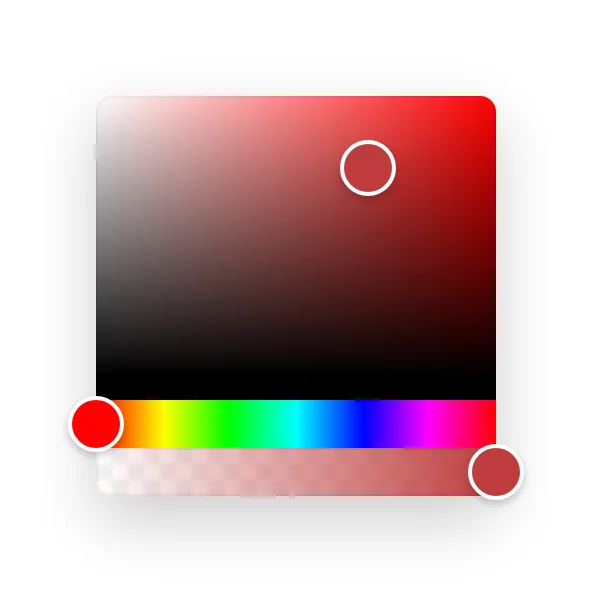
A color picker is a control for choosing a color, usually a set of preset swatches, a gradient area with a hue slider, and a field for typing a hex value.
- Also called
- Colour picker, Color selector, Swatch picker, Color input
What is a color picker?
Few SaaS marketing sites need a working color picker, but many show one. Design tools, website builders, form builders, email editors and auth or checkout products that let customers theme a widget all use the color picker as proof of control: "make it look like your brand". Onlook, for example, puts a color picker beside a layers panel so its editing claims are visible rather than described.
On the rare marketing page where a real picker appears, it is usually inside an interactive demo: change the accent color and the preview beside it updates. That is a strong move for any product sold on customization, because the visitor tries the feature before signing up.
Good pickers offer a handful of preset swatches first, since most people want a sensible color rather than an exact one, then a hex field for brand-exact values. Every swatch needs an accessible name ("Indigo", not just a colored square), and the chosen color should be confirmed in text, not only by a border around the swatch.
When to use a color picker, and when not to
Use it for
- Customization is the pitchThe product lets customers match their brand, and seeing a color change in a preview proves it.
- Interactive previewsA hero or feature demo where the visitor changes a color and the mock UI updates instantly.
- Brand-exact inputInside the product, when users need to enter a specific hex or RGB value.
Avoid it for
- A few fixed themesIf only light and dark (or three presets) exist, a segmented control or swatch row is simpler.
- Decoration onlyA picker in a mockup for a product that has nothing to do with color confuses the message.
- Marketing formsLead forms never need a color input; every extra control lowers completion.
Anatomy of a color picker
- 1Swatch rowPreset colors shown as small circles or squares, each one clickable.
- 2Saturation areaA square gradient where the visitor drags a handle to set saturation and brightness.
- 3Hue sliderA rainbow strip, often with an opacity slider beneath it, that sets the base hue.
- 4Value fieldA text field for hex, RGB or HSL values, so exact brand colors can be pasted in.
- 5Preview chipA sample of the current color, ideally next to its value in text.
Common color picker variants
1. Swatch-only picker
A row of preset colors with no free selection, common in simple theming demos.
2. Full picker popover
A popover with a saturation square, hue slider and hex field, the standard in design tools.
3. Native color input
The browser's built-in color control: free and accessible, but its look varies by browser and OS.
Spotted in our design reviews
Where our reviews mention a color picker:
One chat card shows a request to design an inventory tracker, while a color picker and layers panel make the product claims materially visible.
Onlook · Design and code capabilities
Often confused with
Frequently asked
Should I use the browser's native color input or a custom picker?
Use the native input for simple internal needs; it is accessible and free. Build or adopt a custom picker when you need preset brand swatches, opacity or a consistent look across browsers.
How do you make a color picker accessible?
Give each swatch a text name, make the handles keyboard-operable with arrow keys, and always show the selected value as text so the choice doesn't rely on seeing color.