SaaS Website Design Glossary
The names behind the patterns on modern SaaS websites, from the announcement bar above the nav to the oversized wordmark at the bottom of the footer. Each term has a plain definition, its anatomy, common variants, when to use it and when not to, and real examples from the 422 SaaS homepages we've reviewed.
109 terms
A
6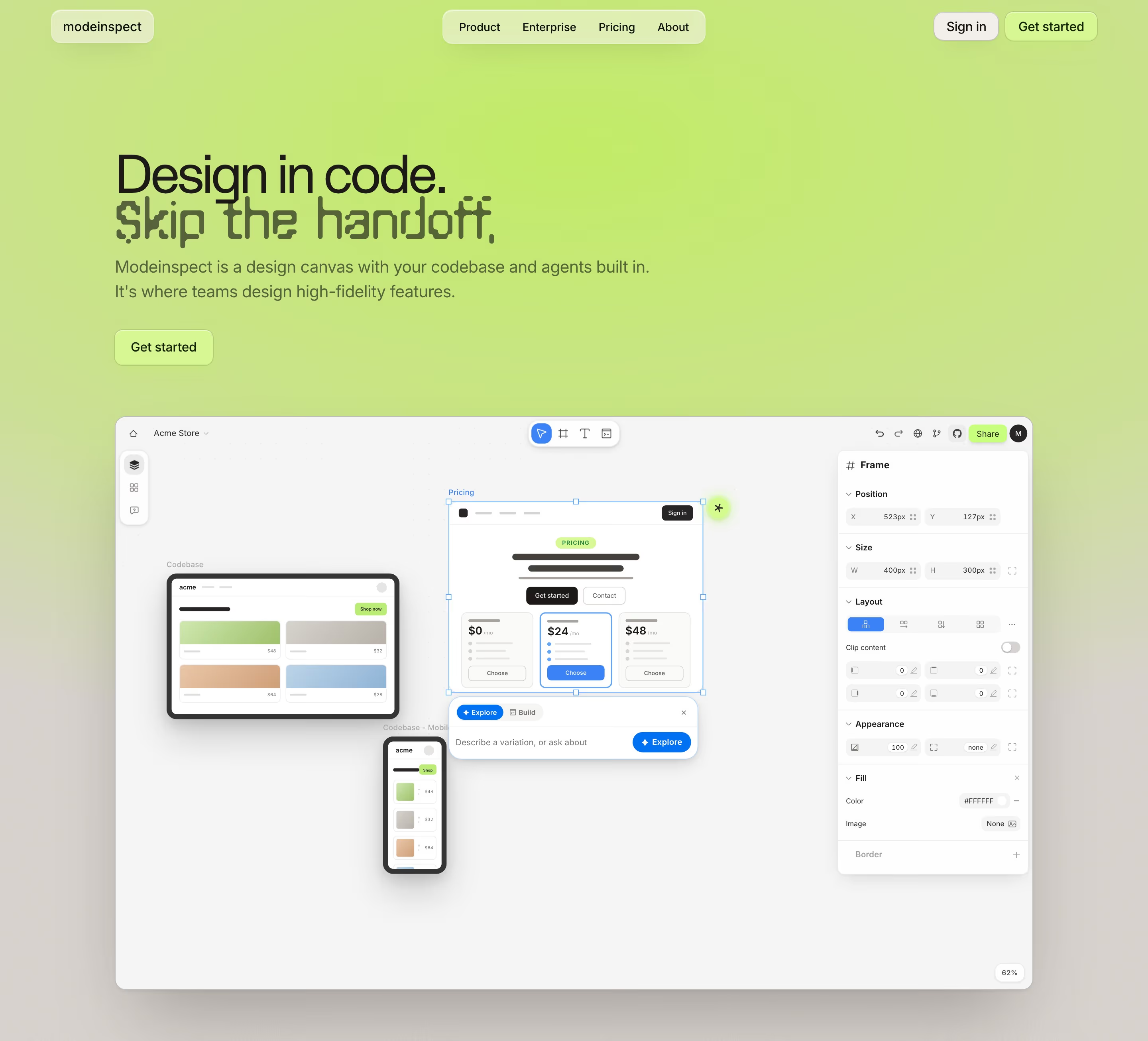 Above the fold48 sitesAbove the fold is the part of a web page visible before any scrolling, which on a SaaS homepage usually holds the navigation, the hero and its main CTA.
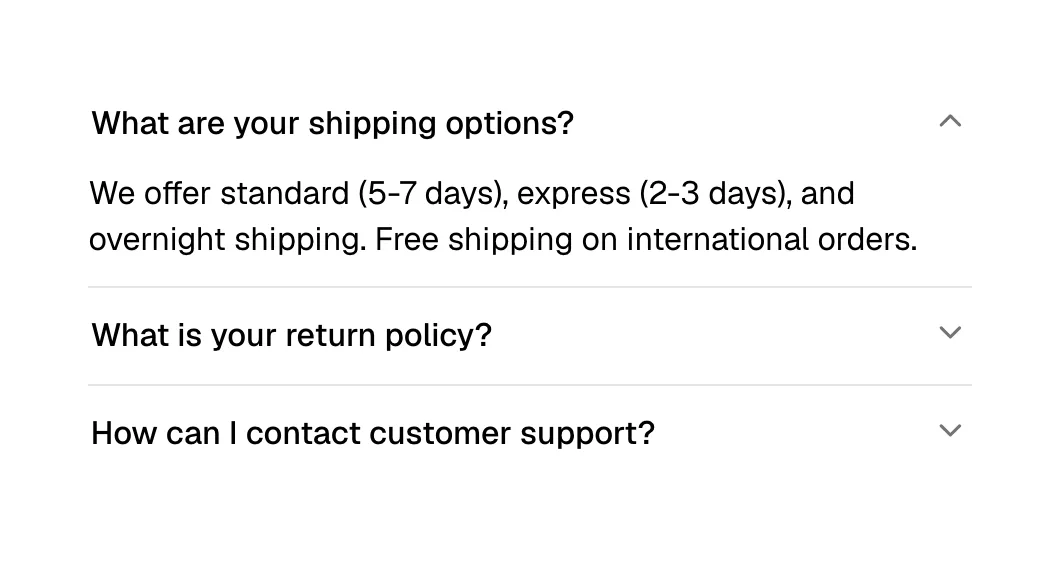 Accordion113 sitesAn accordion is a vertical list of headings that each expand to reveal their content when clicked, keeping long material collapsed until it's needed.
- Action sheetAn action sheet is a short list of choices that rises from the bottom of a phone screen after a tap, with a Cancel option at the end.
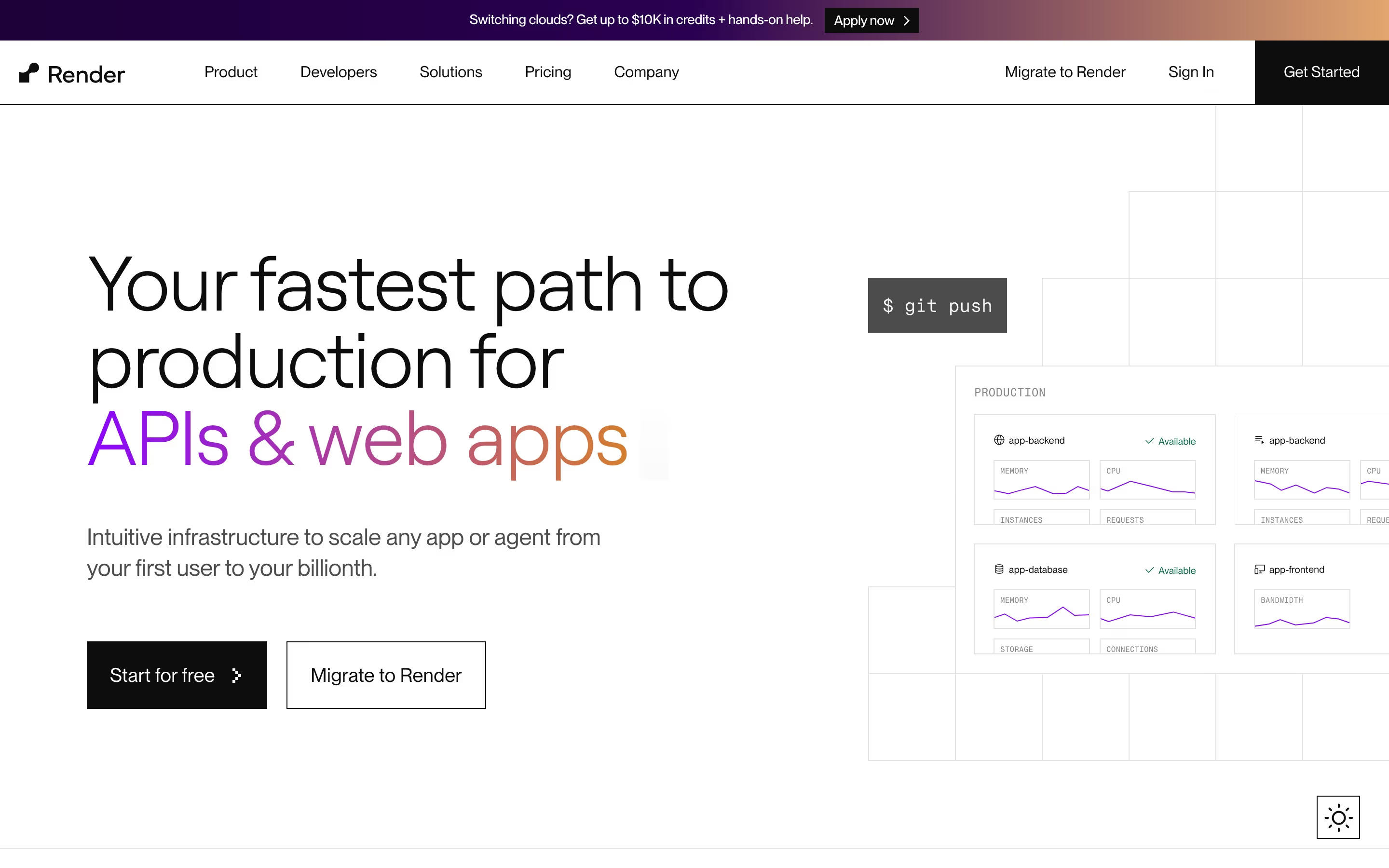 Announcement bar72 sitesAn announcement bar is a thin, full-width strip above the main navigation that carries one short, time-sensitive message and usually a link.
 Avatar26 sitesAn avatar is a small image, usually a circle, that stands for one person through a photo, an illustration or their initials, next to their name.
 Avatar stack5 sitesAn avatar stack is a row of small, round, often overlapping profile photos beside a user count, showing that real people already use the product.
B
5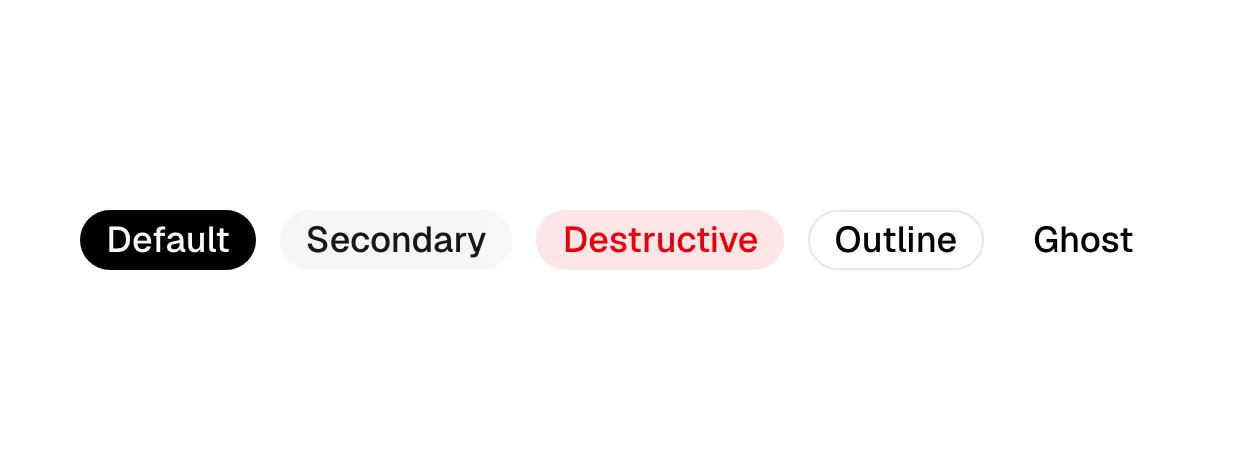 Badge29 sitesA badge is a tiny label, such as "New", "Beta" or "Soon", attached to a link, card or heading to flag its status without adding a sentence.
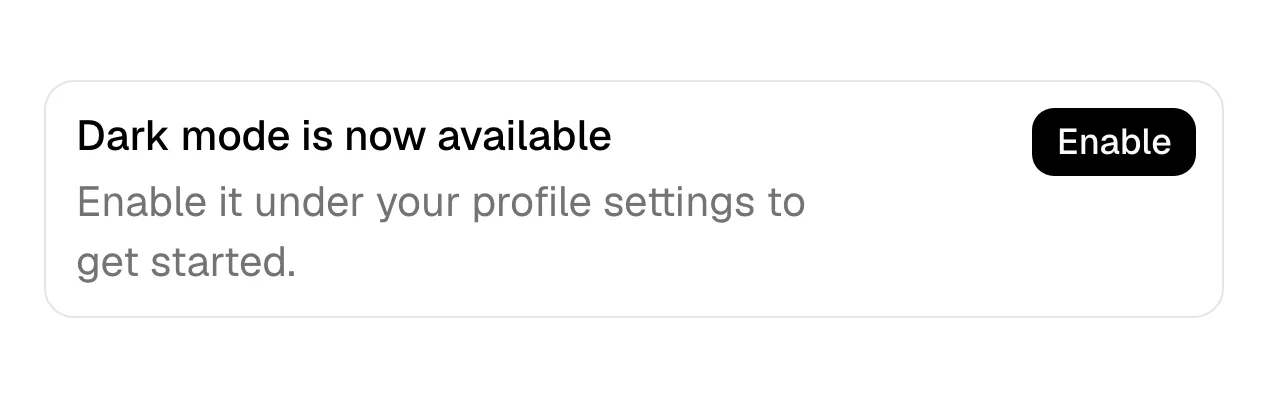 BannerA banner is a full-width message strip placed inside the page content that flags information, a warning or a promotion without blocking anything else.
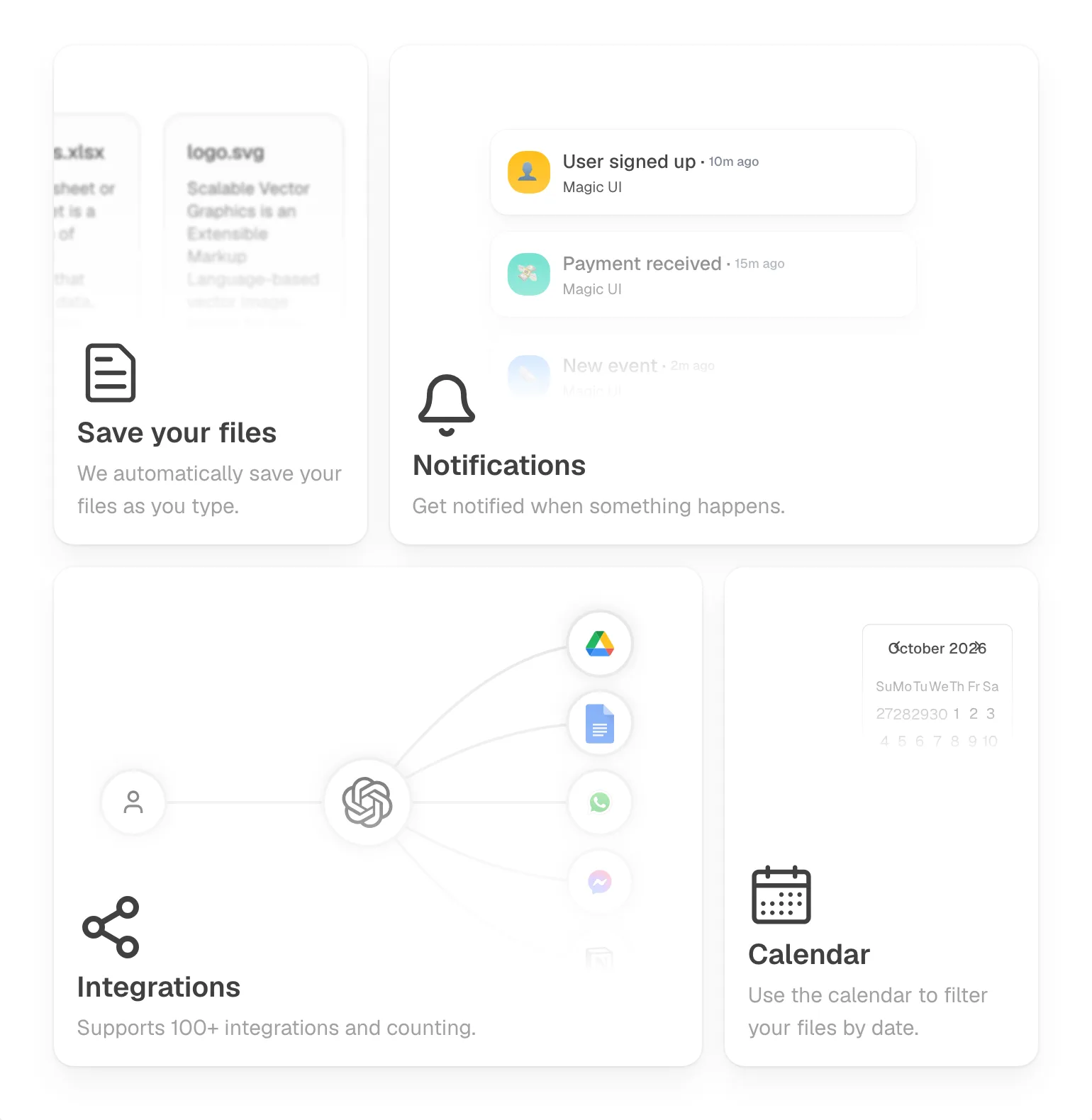 Bento grid11 sitesA bento grid is a layout of rounded tiles in mixed sizes fitted into one rectangle, like a bento lunch box, used to show several features at once.
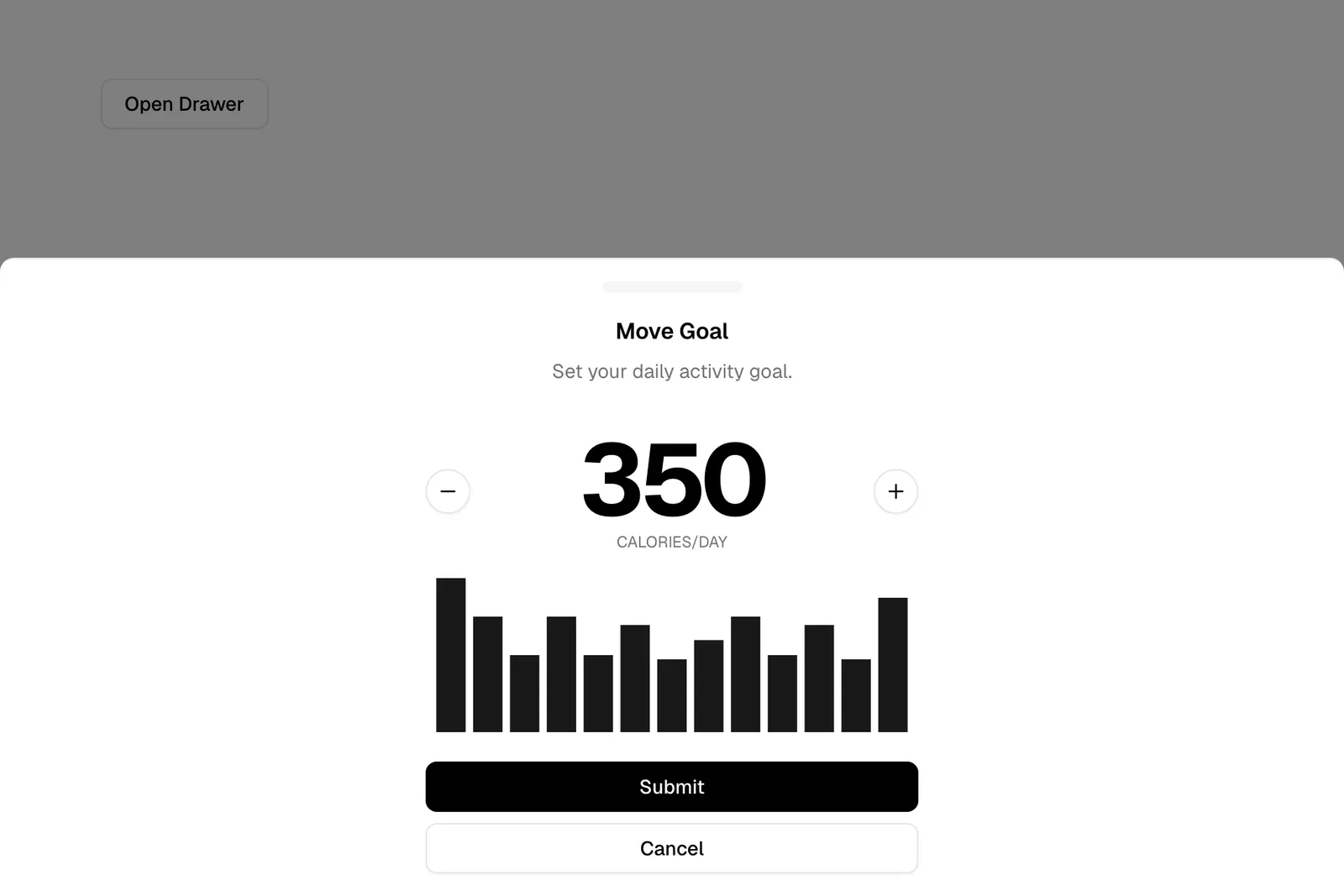 Bottom sheetA bottom sheet is a panel anchored to the bottom of a mobile screen that slides up over the page to show extra content, and can be dragged or swiped away.
 Button416 sitesA button is a clickable control with a short verb label, styled to look pressable, that triggers an action such as signing up, submitting or opening.
C
15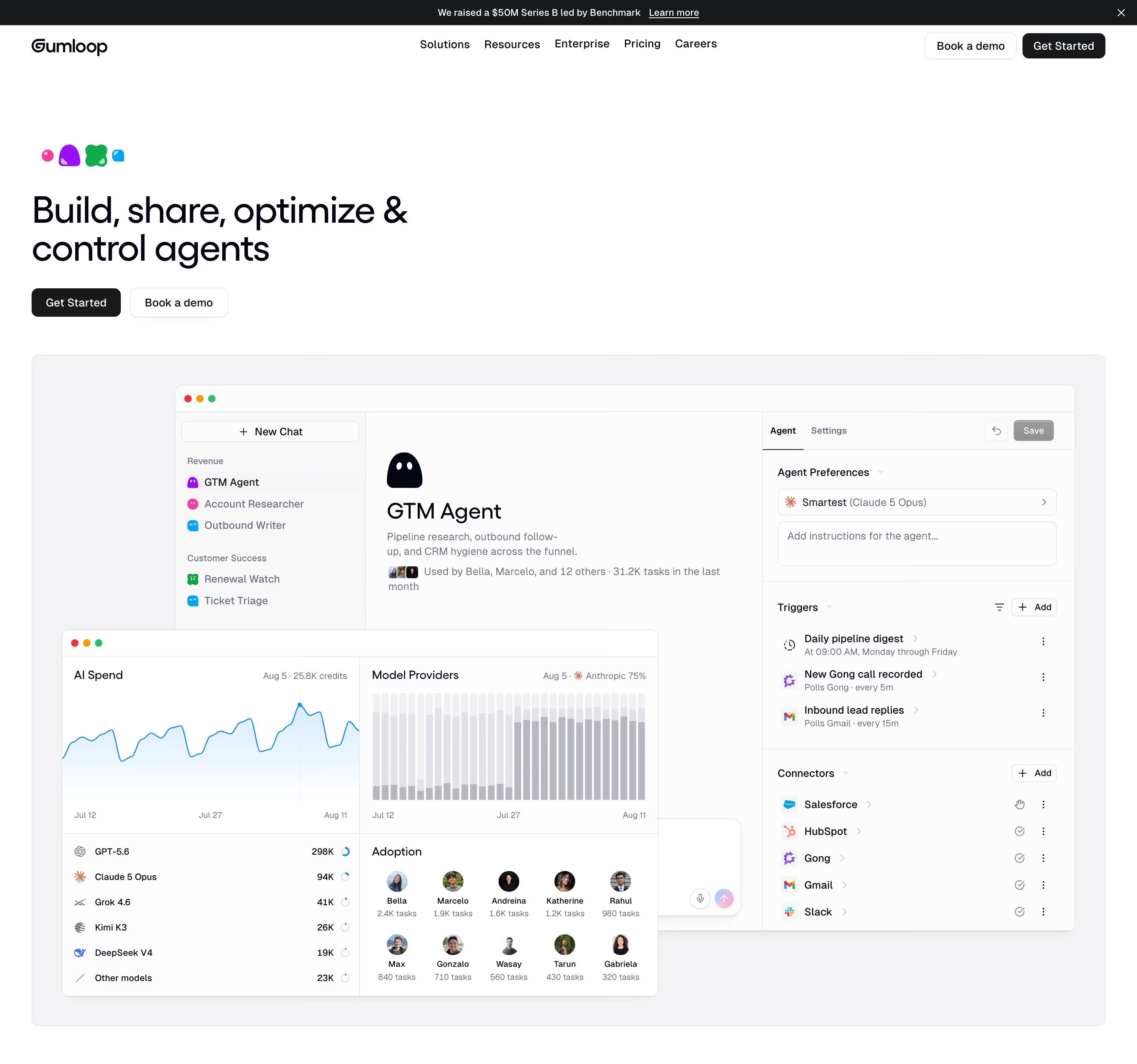 Call to action166 sitesA call to action is a button or link that asks the visitor to take one specific next step, such as starting a free trial, booking a demo or signing up.
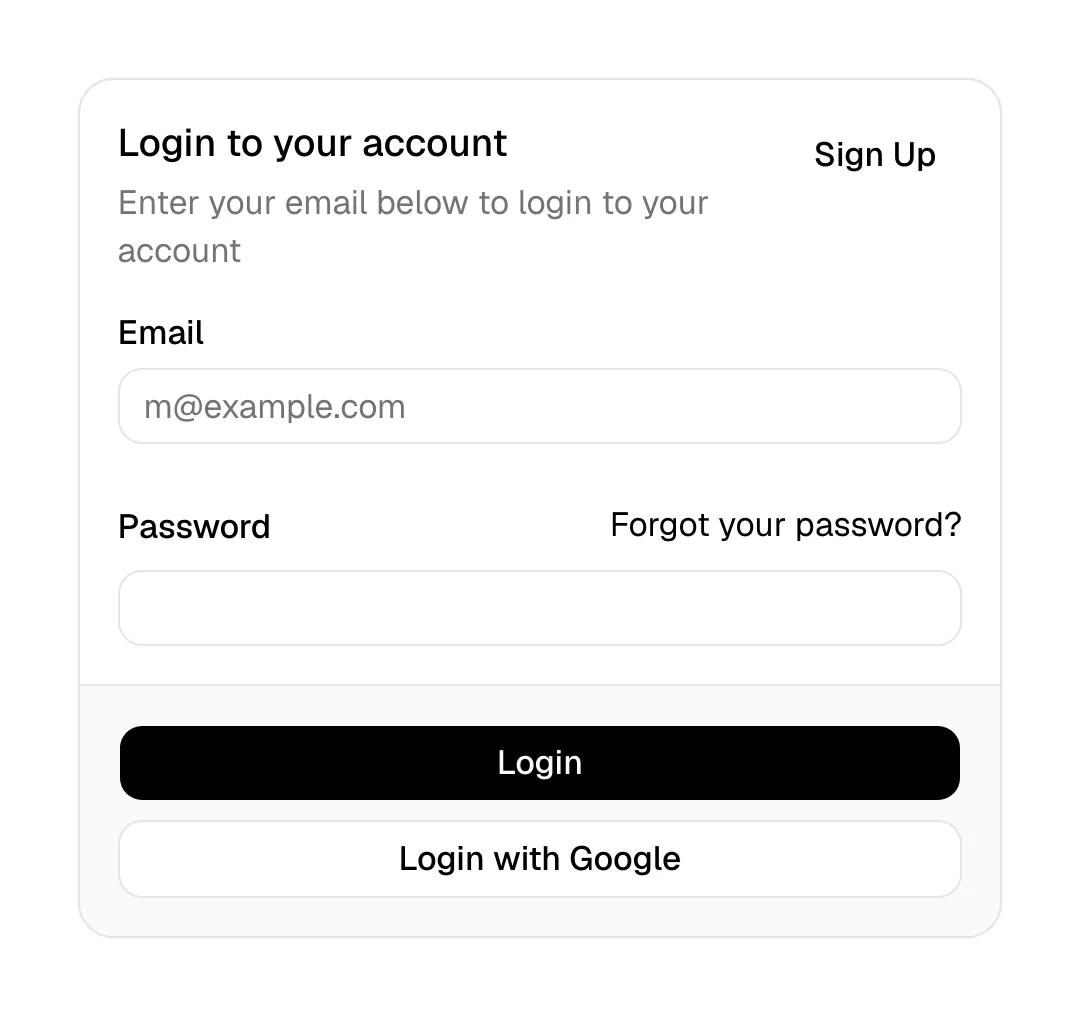 Card407 sitesA card is a bounded container, usually a rounded rectangle, that groups an image, a heading, short text and often a link into one self-contained unit.
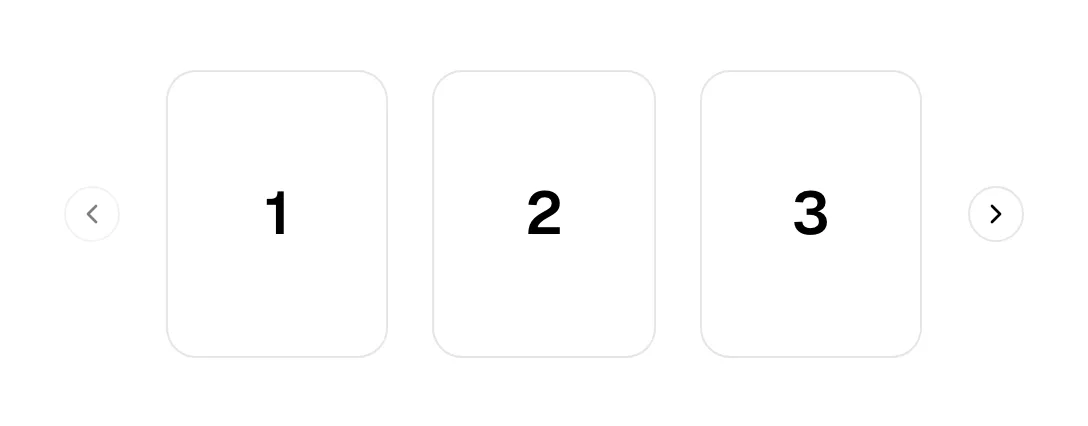 Carousel113 sitesA carousel is a horizontal set of slides or cards shown a few at a time, advanced by arrows, dots, swipes or a timer, so one strip can hold many items.
- Case study31 sitesA case study is a customer story told with context and numbers, shown on SaaS homepages as cards, a slider or a feature block linking to the full write-up.
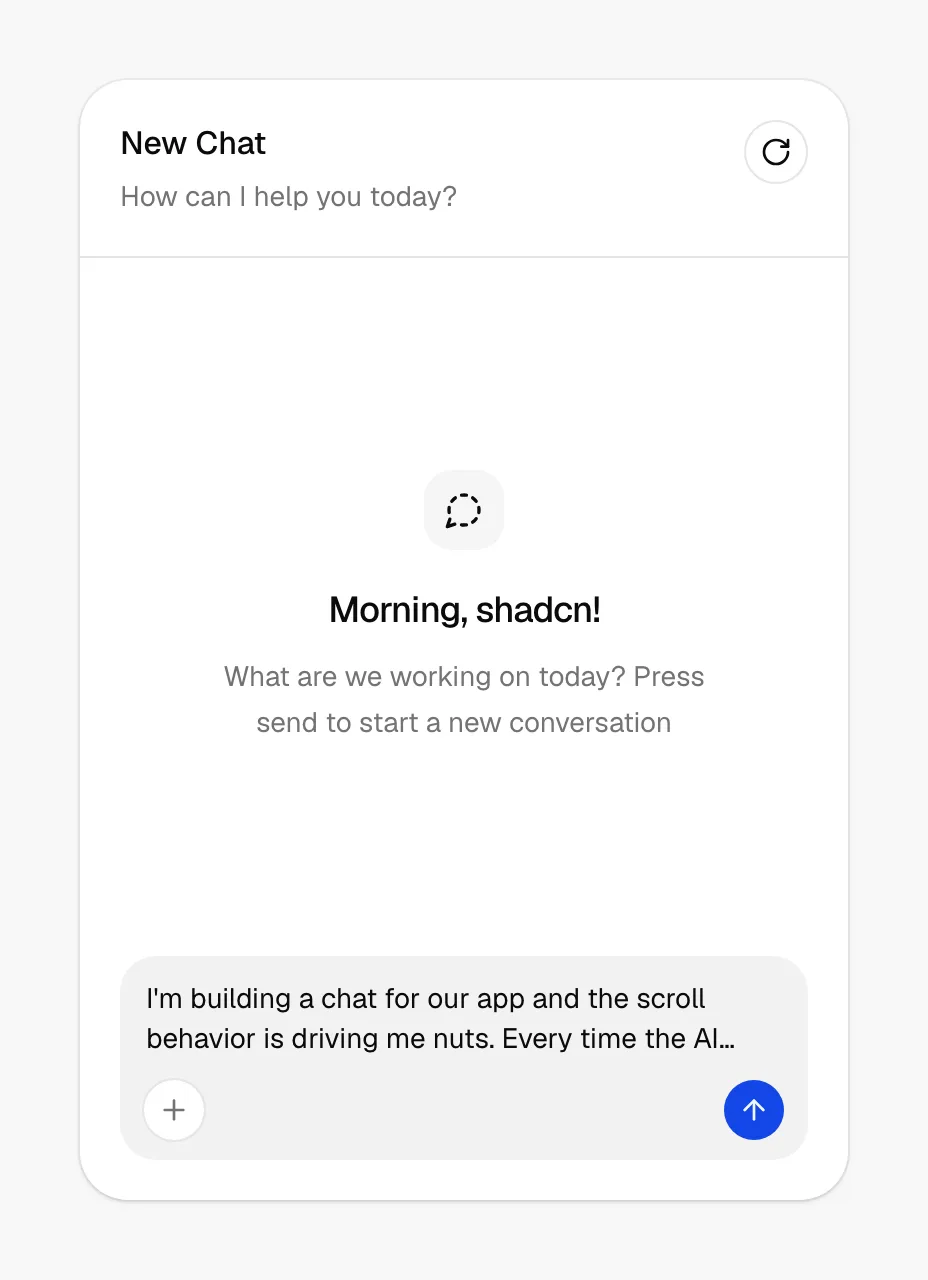 Chat widget9 sitesA chat widget is a floating button, usually in the bottom-right corner, that opens a live or AI-assisted chat window without leaving the current page.
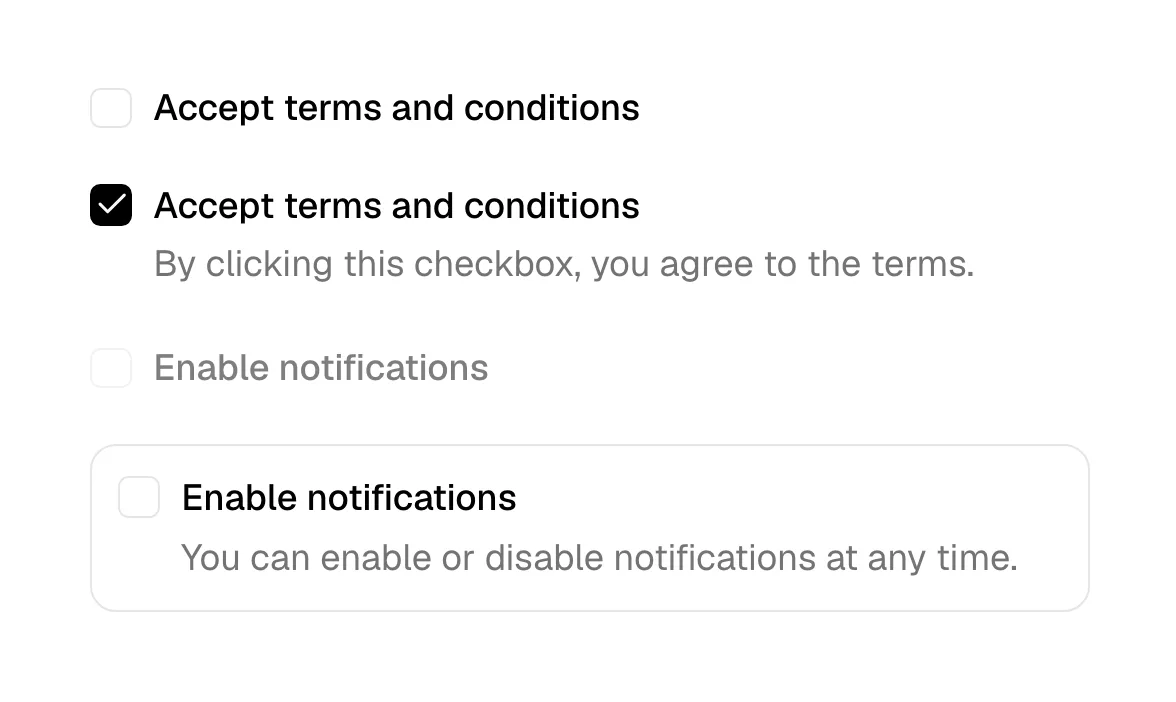 Checkbox8 sitesA checkbox is a small square input that a visitor ticks or clears to say yes or no to one option, or to pick any number of options from a list.
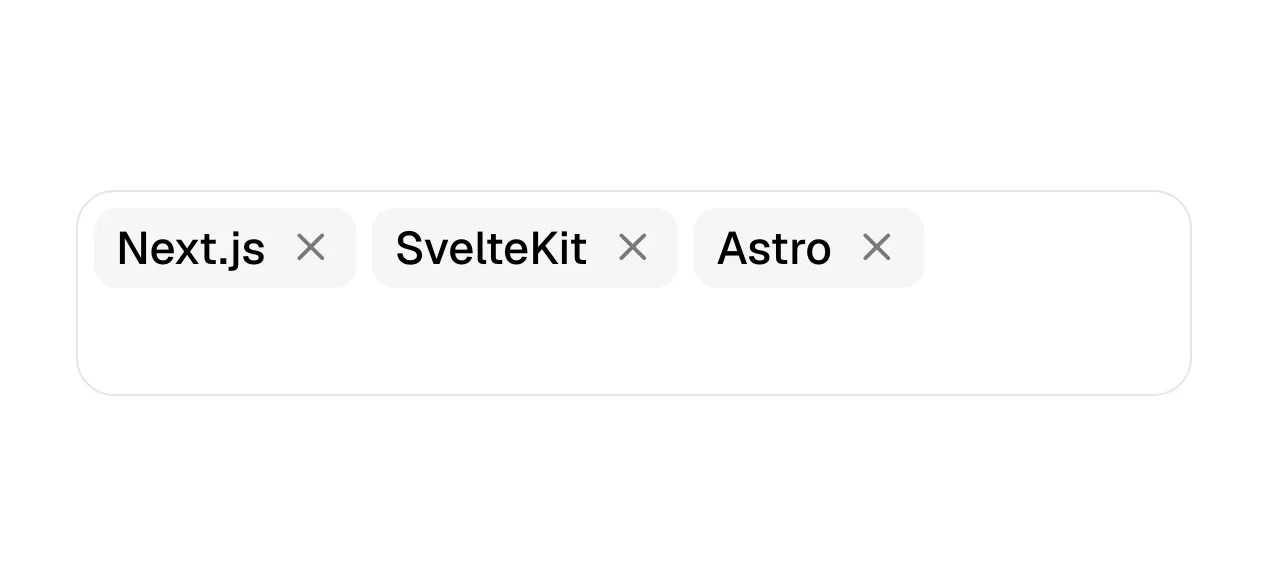 Chip72 sitesA chip is a compact, rounded element holding a short label, used to filter content, show a selected value or offer a suggestion that can be tapped.
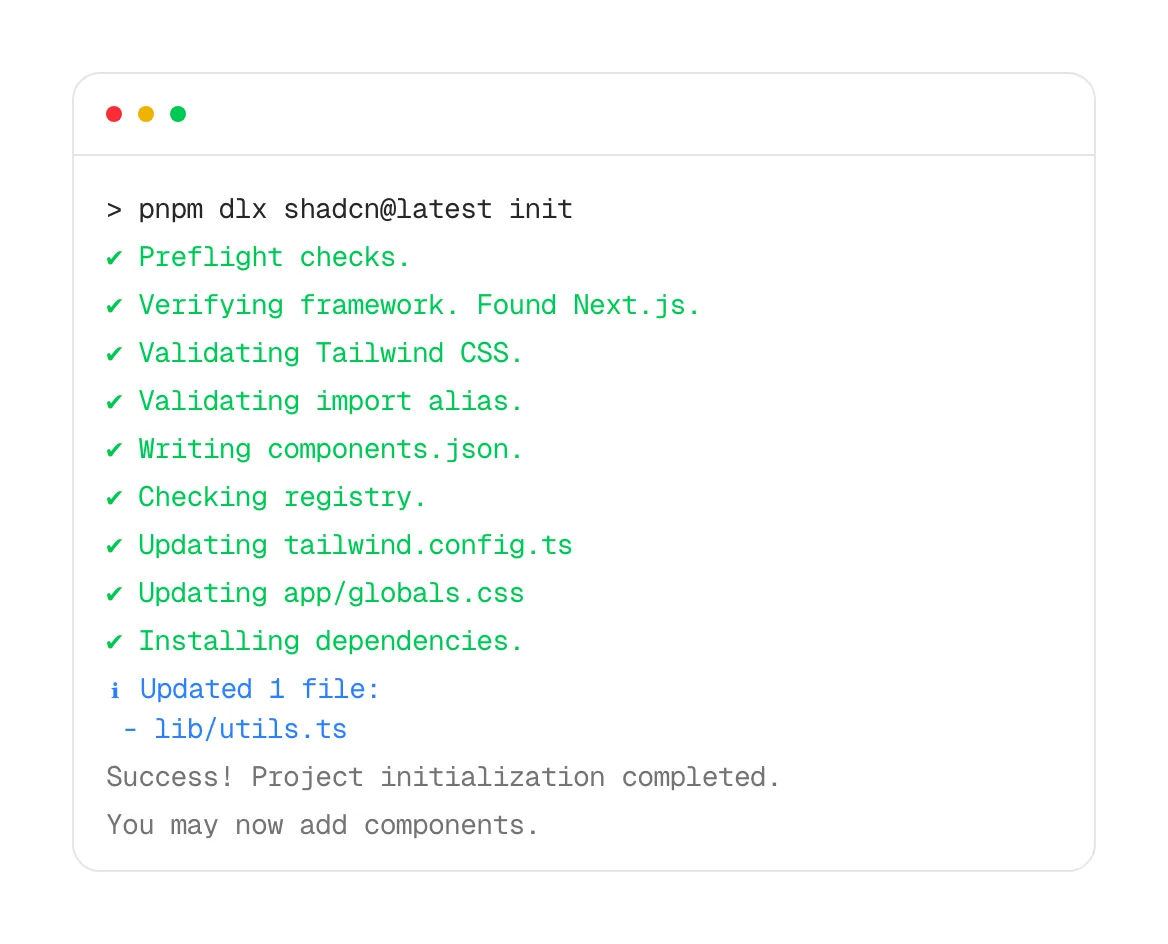 Code snippet72 sitesA code snippet is a short block of real code or a terminal command, set in monospace with a copy button, showing developers how easy the product is to use.
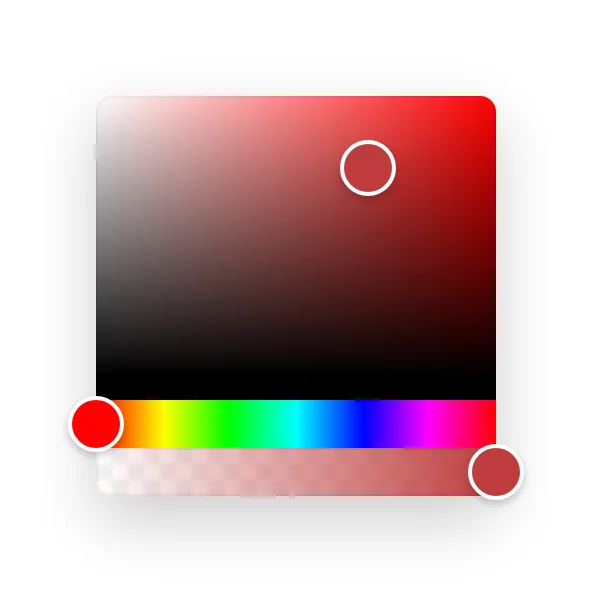 Color pickerA color picker is a control for choosing a color, usually a set of preset swatches, a gradient area with a hue slider, and a field for typing a hex value.
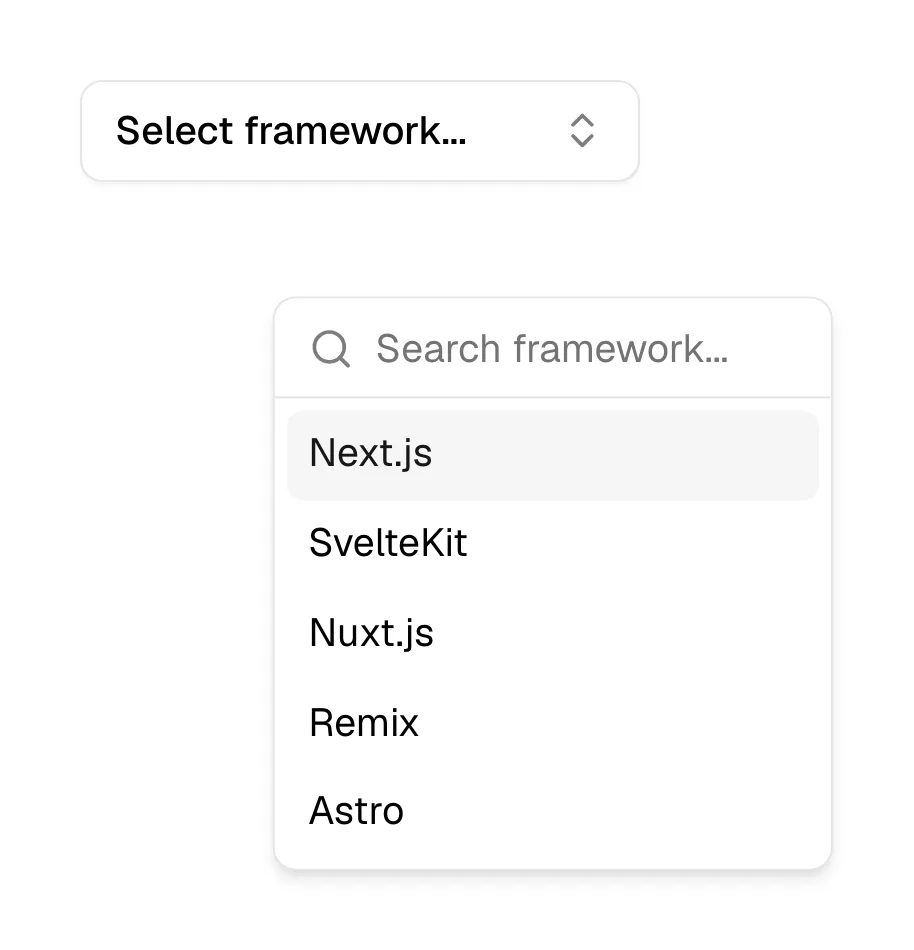 ComboboxA combobox is a text input joined to a dropdown list of suggestions, so a visitor can either type to filter the options or pick one straight from the list.
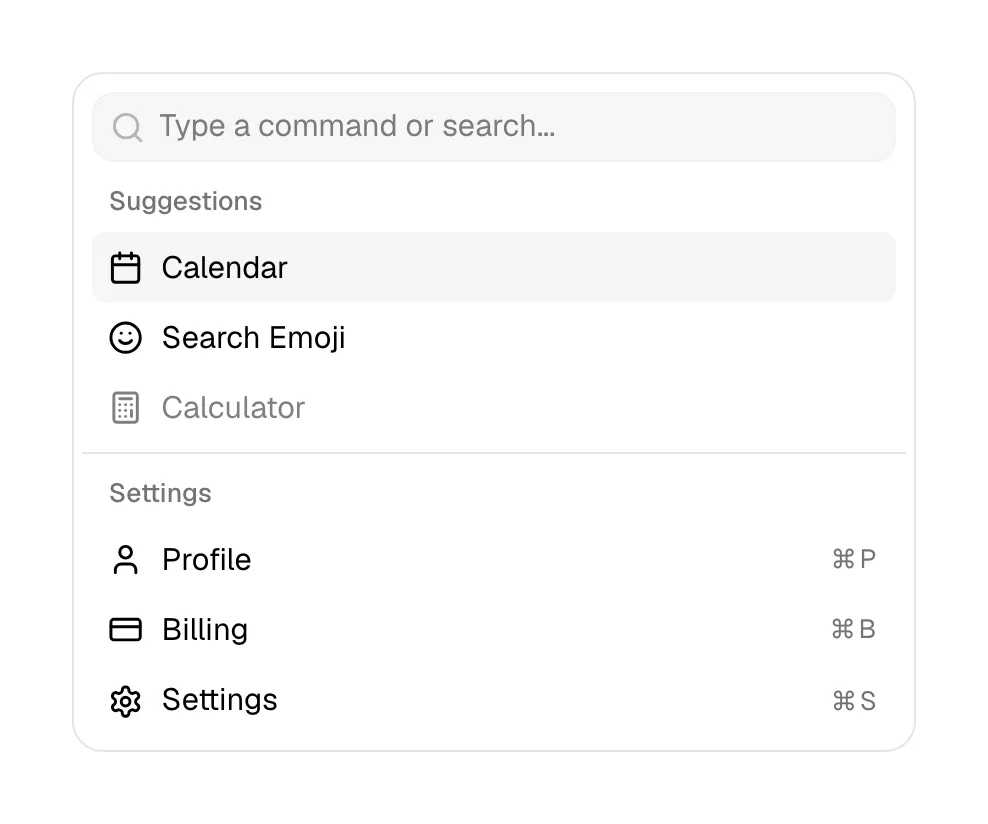 Command paletteA command palette is a keyboard-opened search box, usually summoned with ⌘K or Ctrl+K, that lets users jump to any page or action by typing its name.
 Comparison table18 sitesA comparison table is a grid with options as columns and features as rows, using checkmarks or values to show exactly what each plan or product includes.
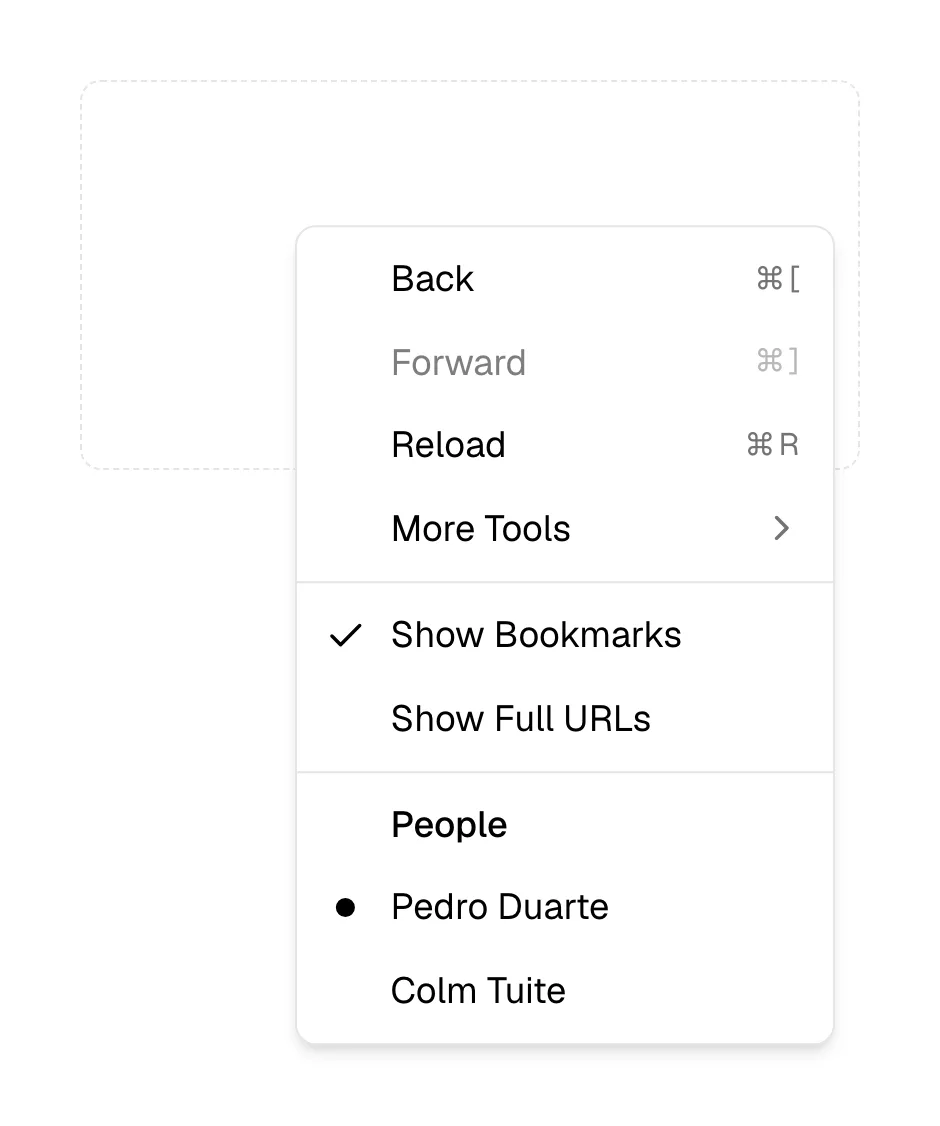 Context menuA context menu is a list of actions for one specific item, opened by right-clicking it or tapping its three-dot icon, shown right beside it.
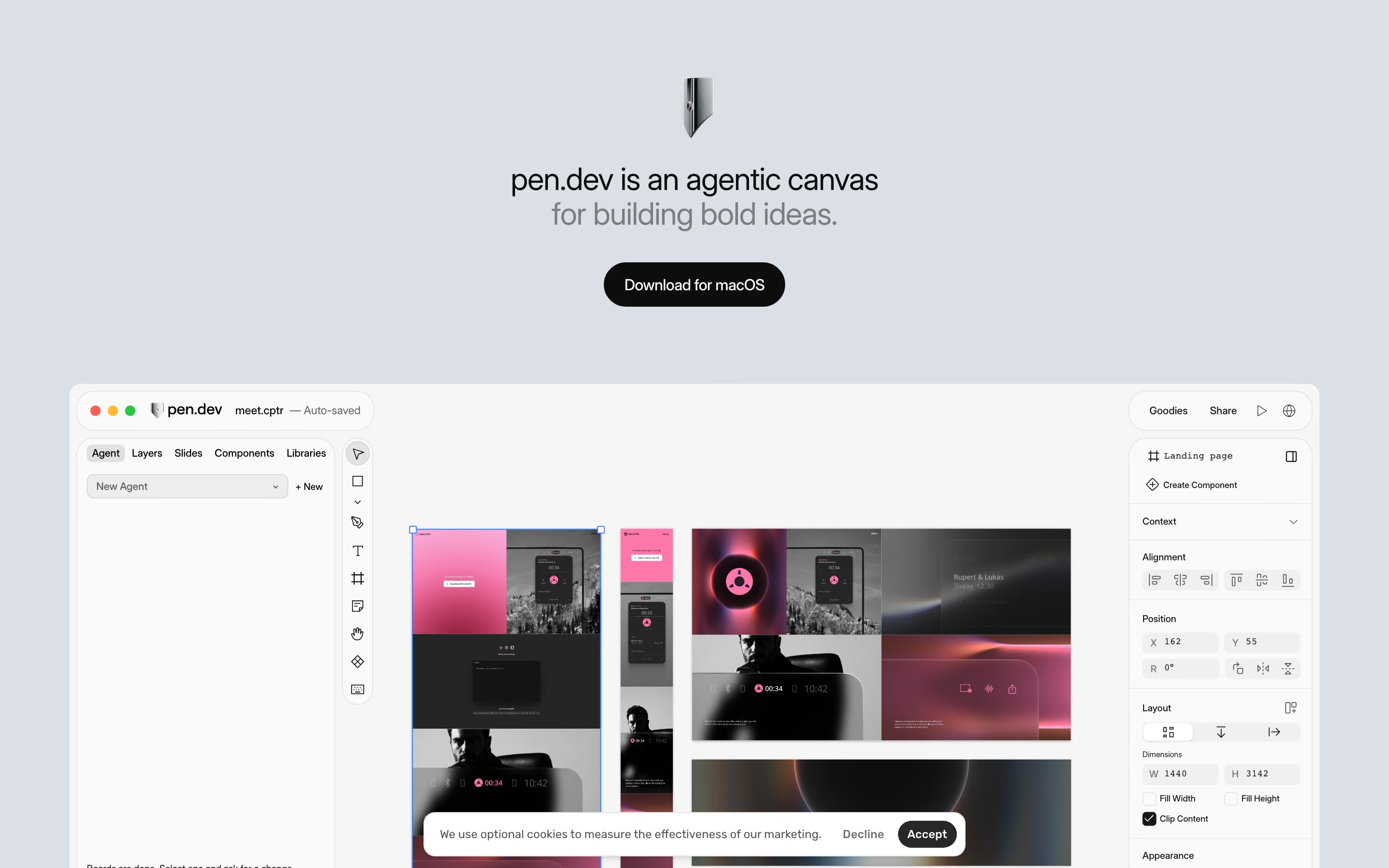 Cookie banner5 sitesA cookie banner is a consent prompt shown on a visitor's first page view, asking them to accept or decline tracking cookies before analytics or ads load.
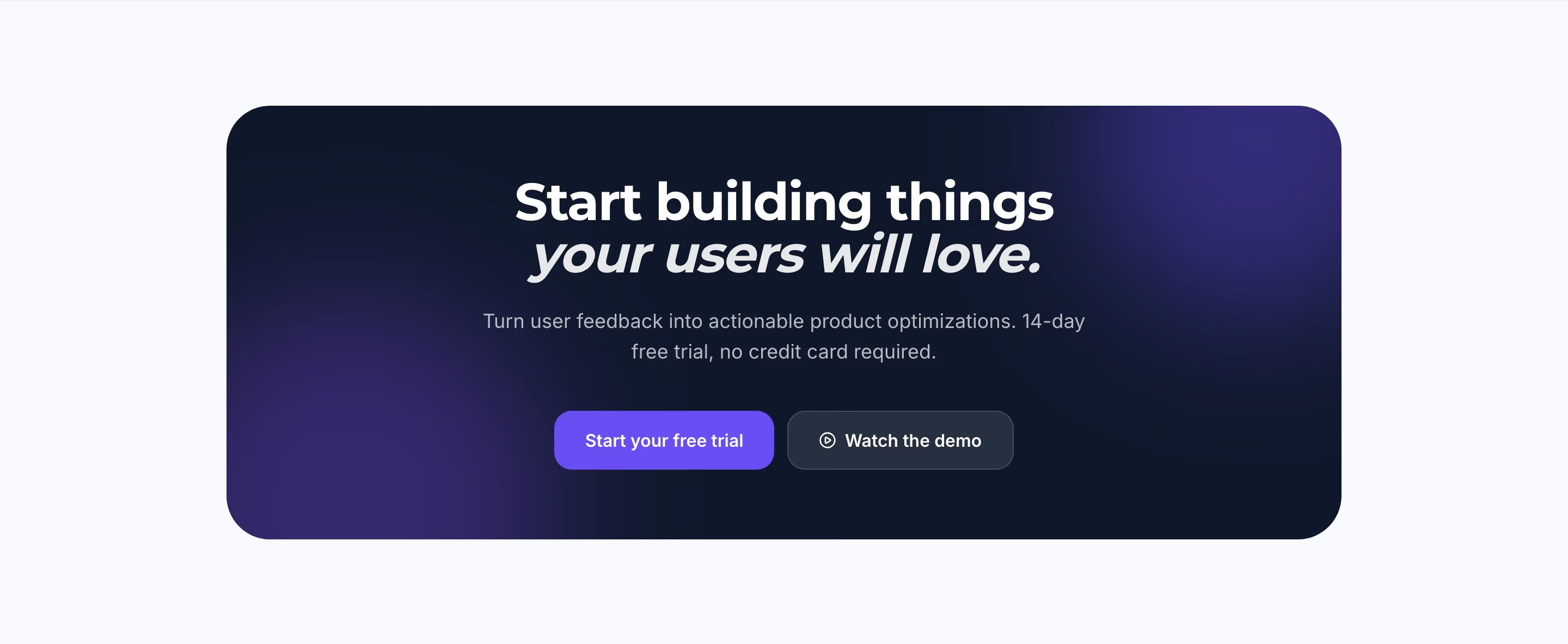 CTA section196 sitesA CTA section is a full-width band near the end of a page that restates the core offer in one headline and repeats the primary button before the footer.
D
6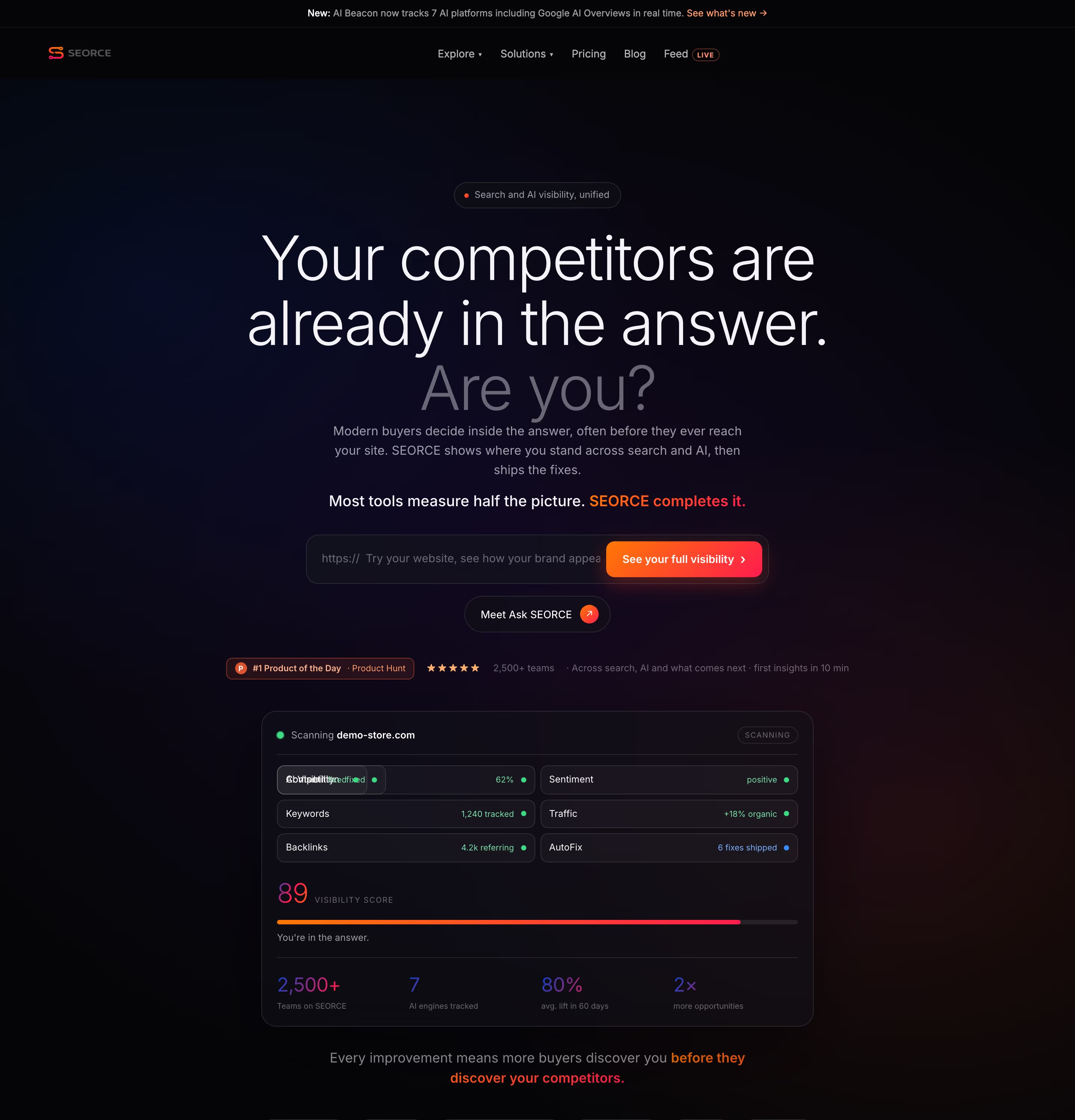 Dark mode46 sitesDark mode is a visual style that sets a page on a near-black background with light text, so product UI, accent colors and light effects stand out.
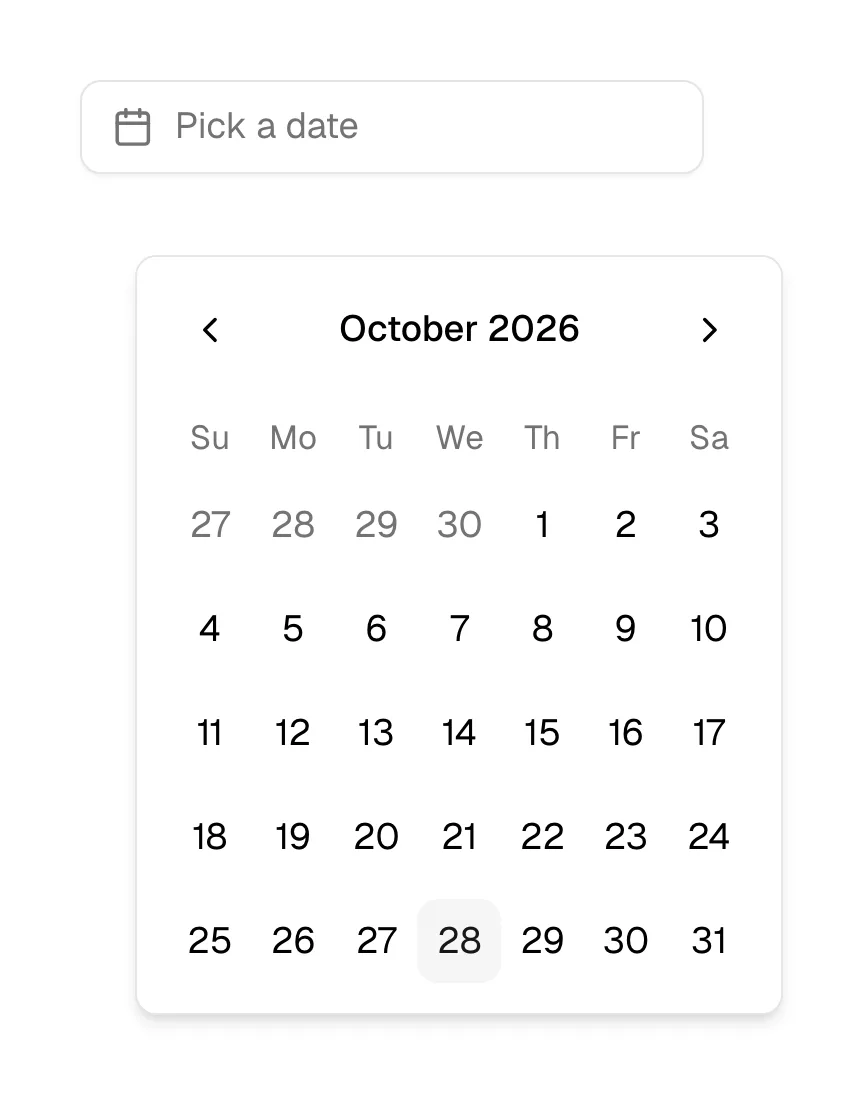 Date pickerA date picker is an input for choosing a calendar date, usually a field that opens a month grid where the visitor clicks a day instead of typing it.
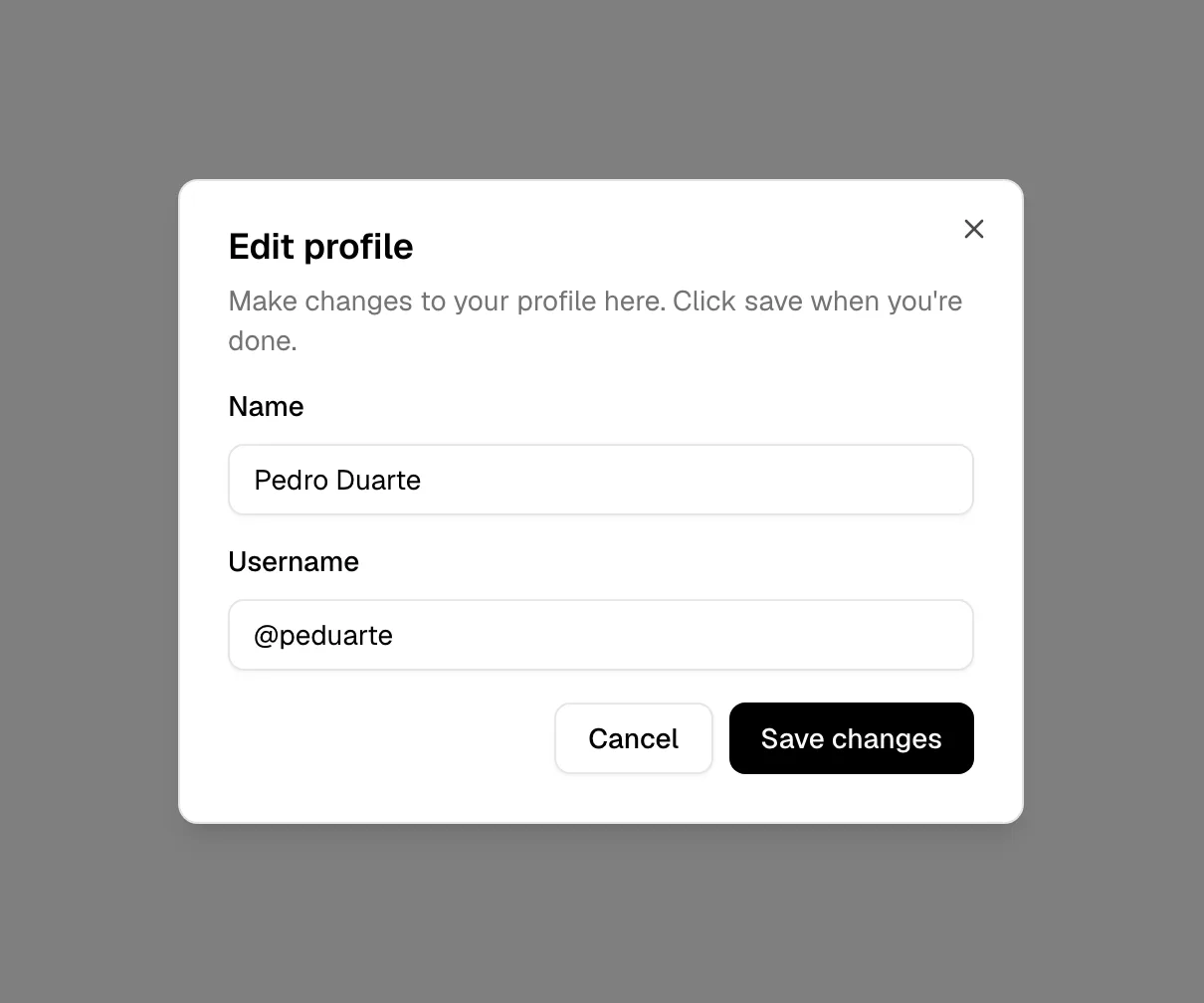 Dialog8 sitesA dialog is a window that opens on top of the page, dims what is behind it and holds the visitor's attention until they complete or dismiss a single task.
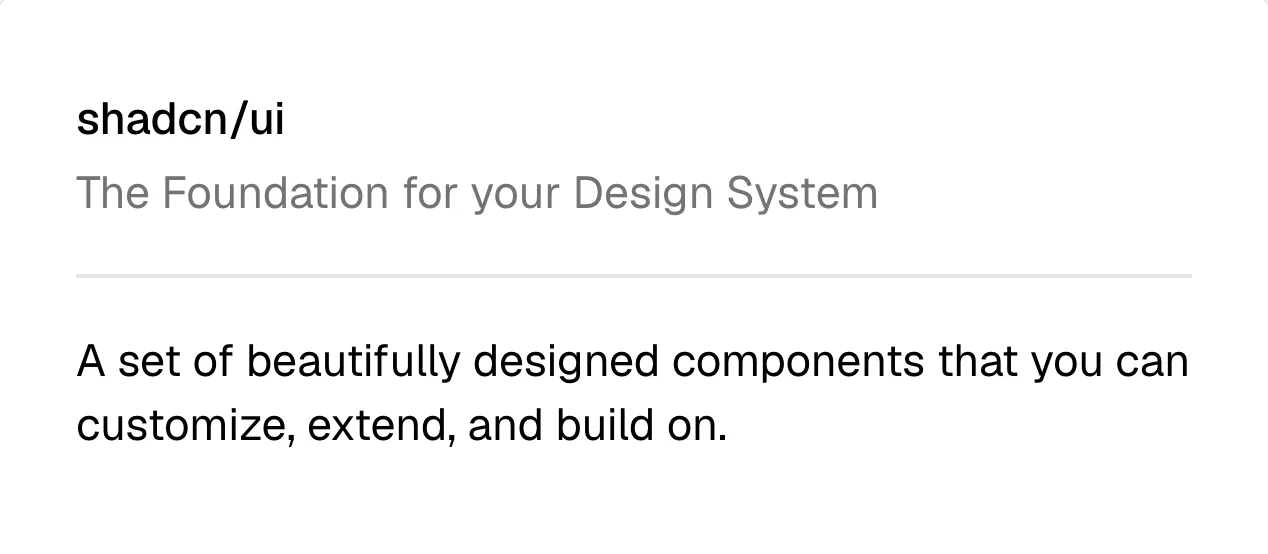 Divider34 sitesA divider is a thin line, horizontal or vertical, that separates groups of content such as list rows, footer areas or page sections without boxing them in.
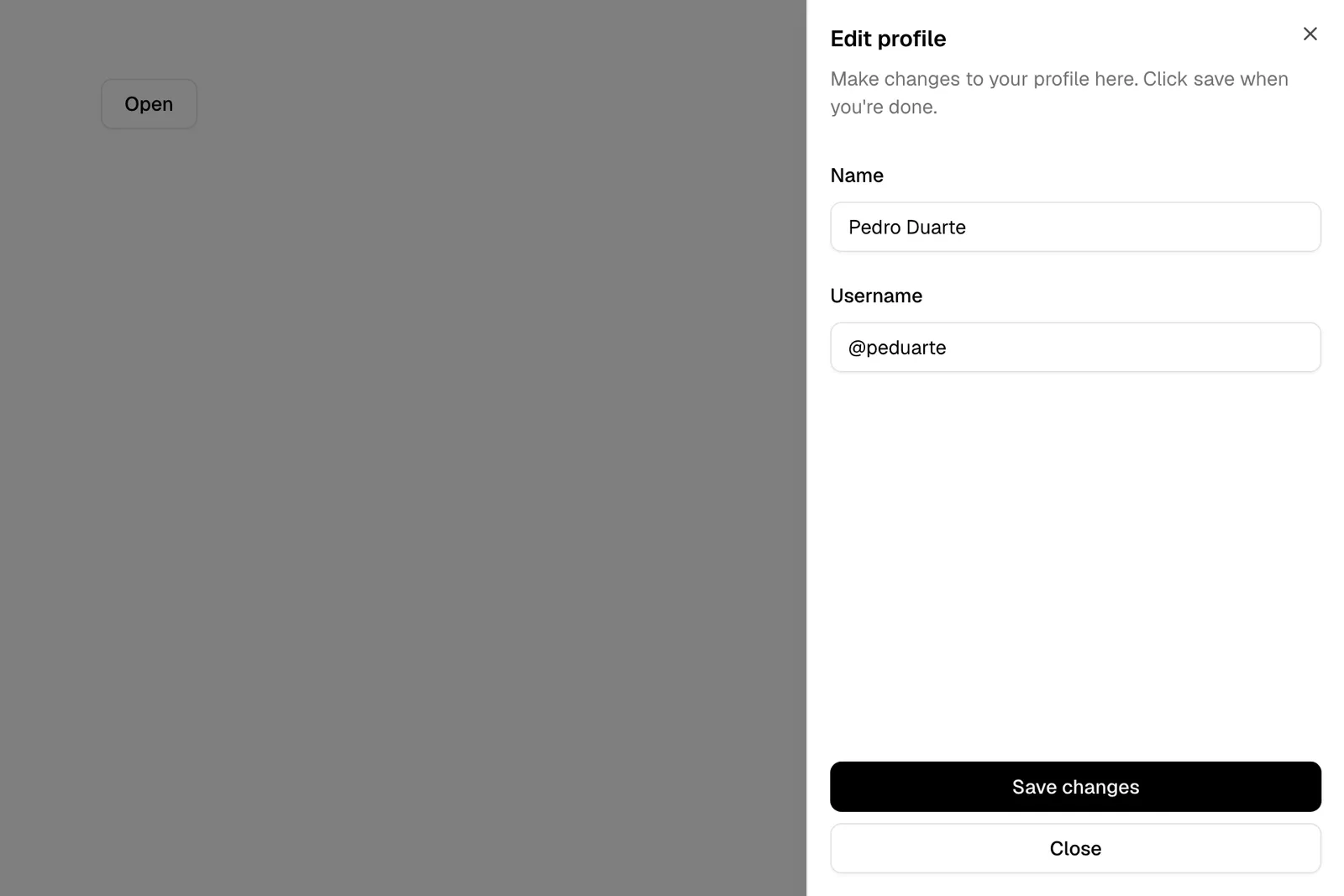 DrawerA drawer is a panel that slides in from the left or right edge of the screen over the page, holding navigation, details or settings until closed.
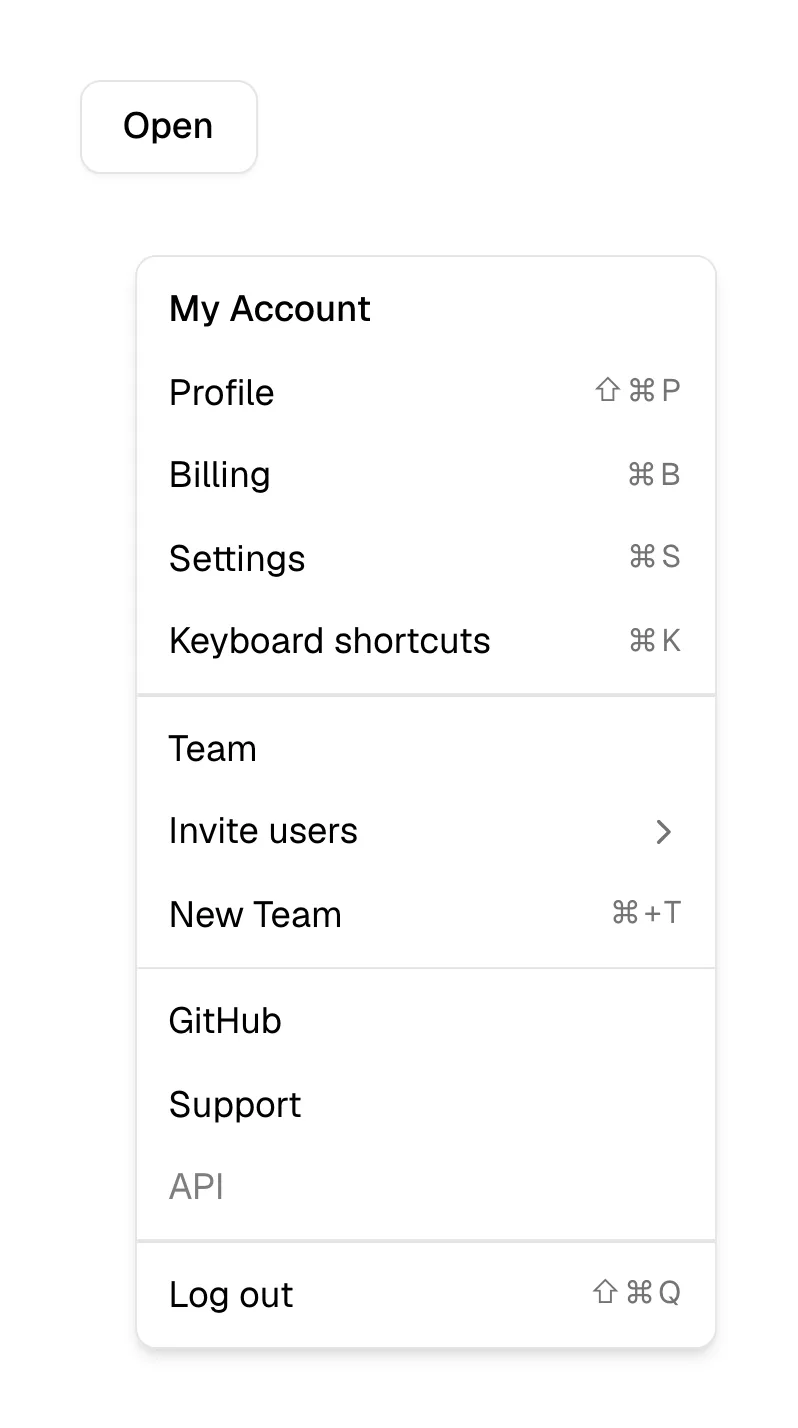 Dropdown menu29 sitesA dropdown menu is a list of links or options that opens below a button or nav item when it is clicked or hovered, and closes once something is chosen.
E
3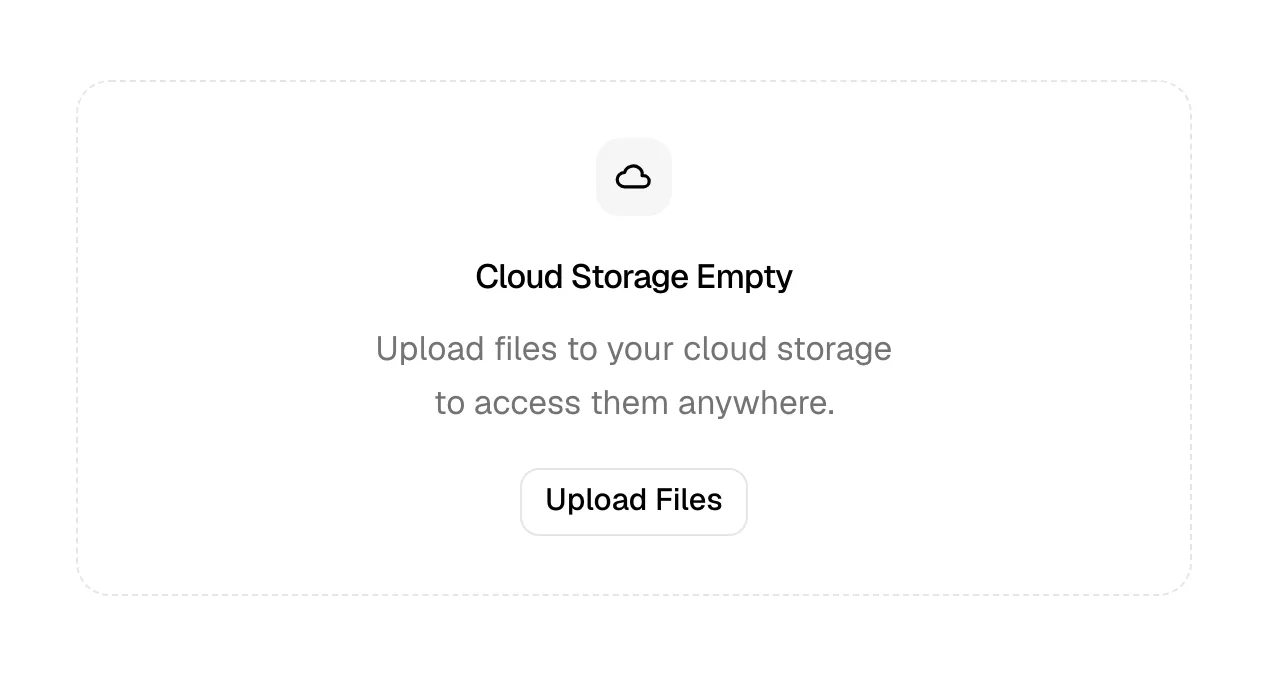 Empty stateAn empty state is what a screen shows when there is nothing to display yet, such as no results or no data, usually with a short note and a next step.
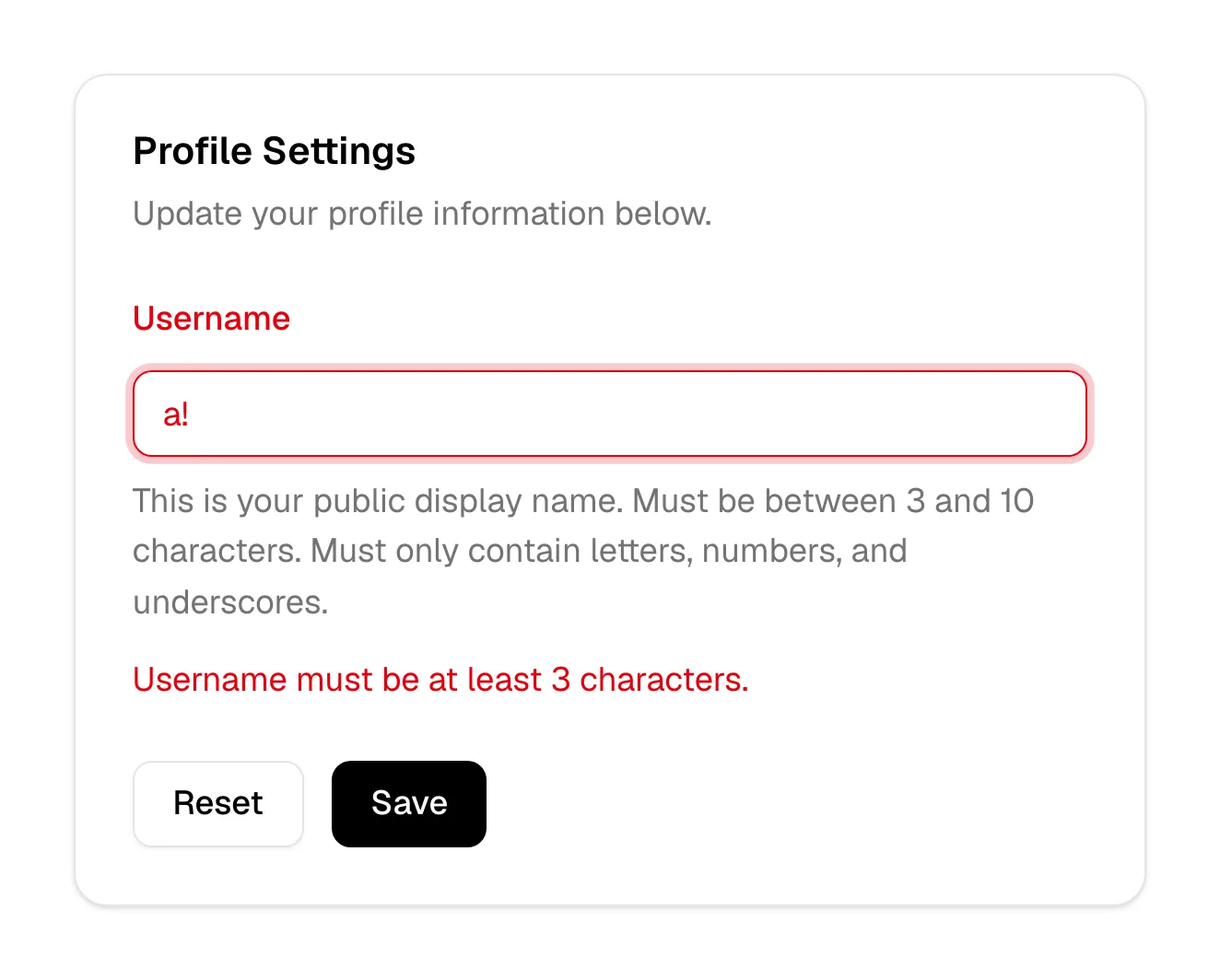 Error messageAn error message is text that tells people something went wrong, such as an invalid field or a failed action, and explains plainly how to fix it.
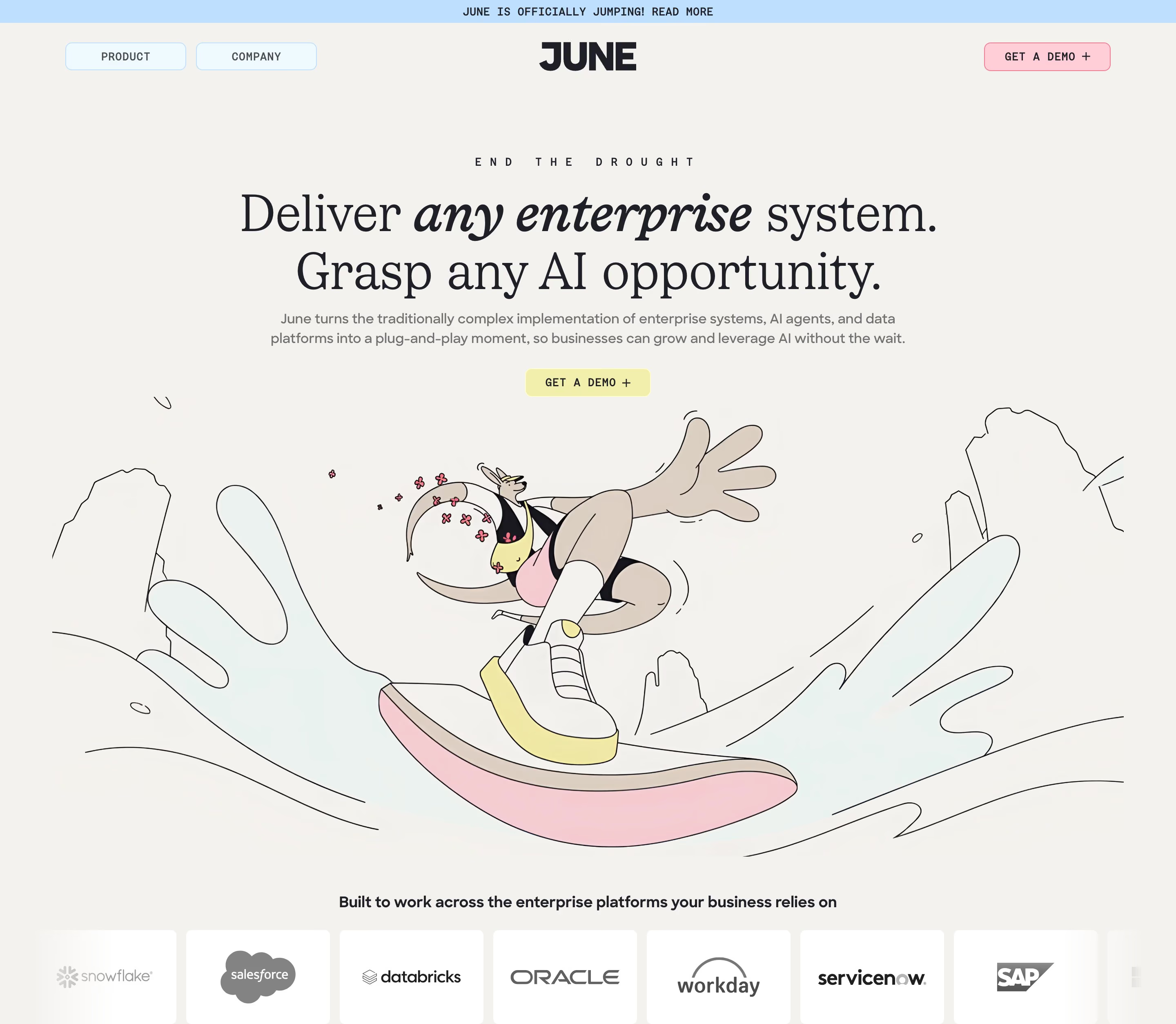 Eyebrow48 sitesAn eyebrow is a short label in small, often uppercase or monospace type directly above a headline, naming the topic before the headline makes its claim.
F
8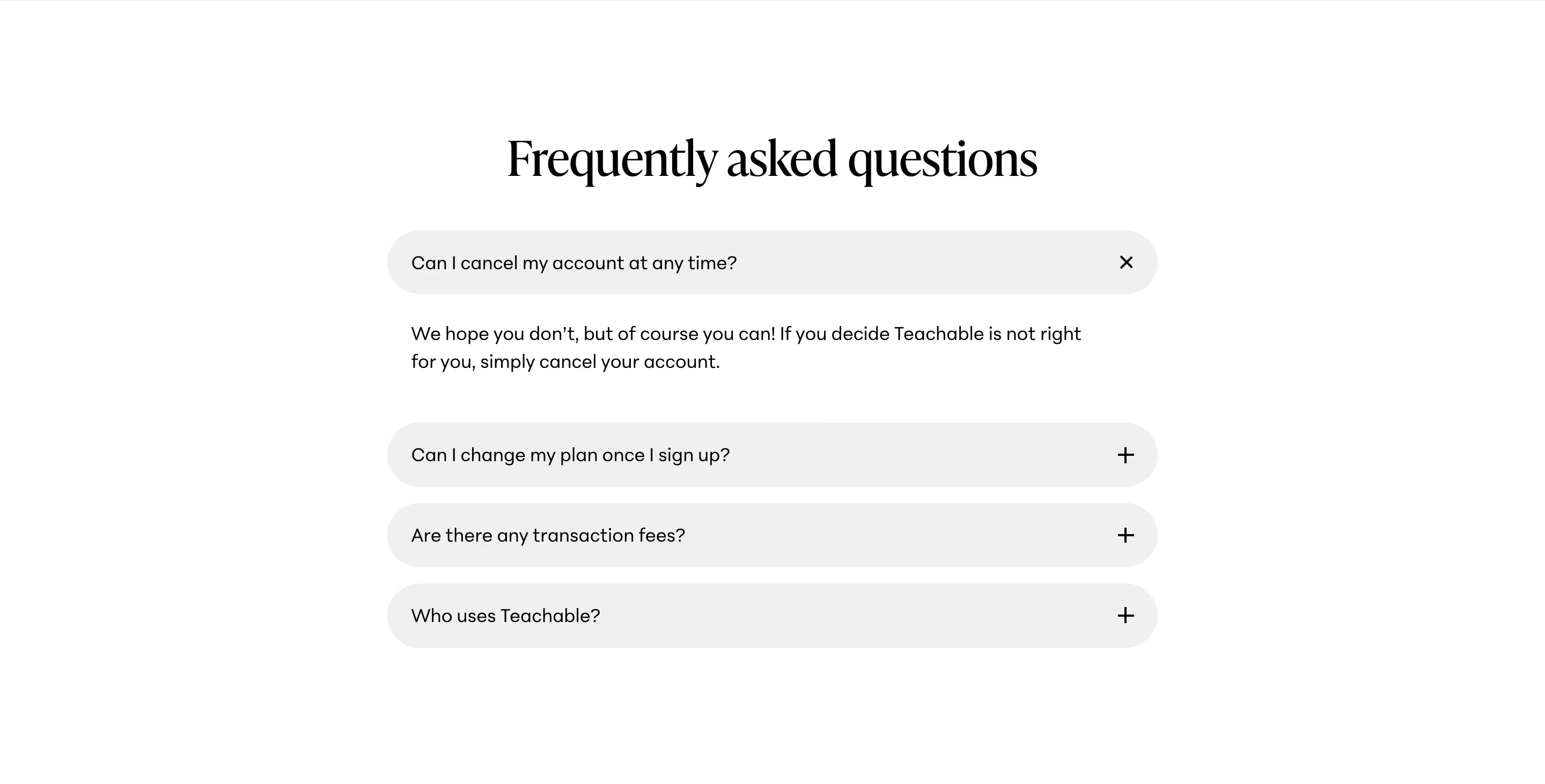 FAQ section126 sitesAn FAQ section is a list of common questions with short answers, usually in an accordion, placed near pricing or the page end to clear last objections.
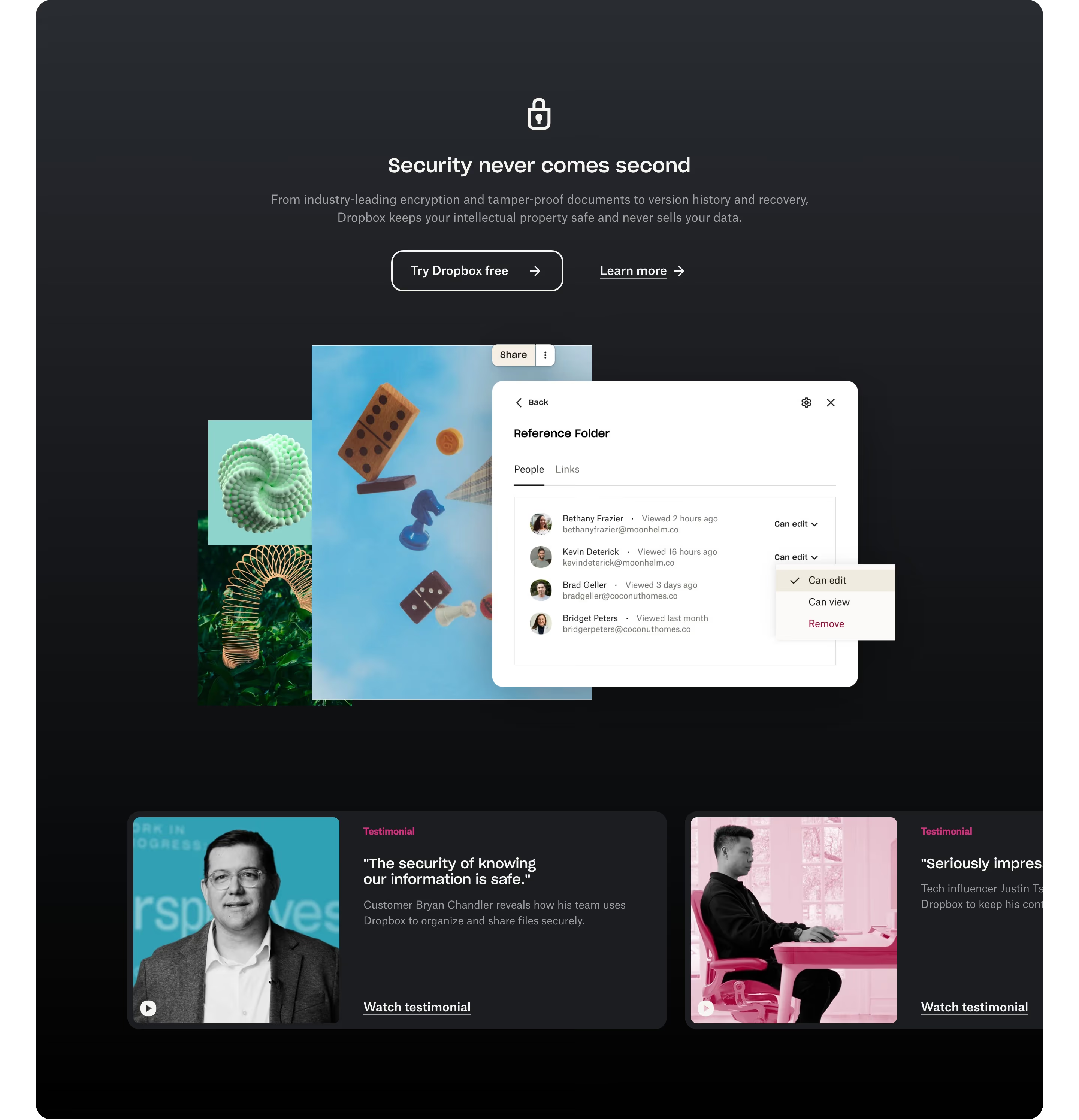 Feature section196 sitesA feature section is a block of a SaaS page that explains what the product does, usually as a grid of cards or alternating rows of copy and screenshots.
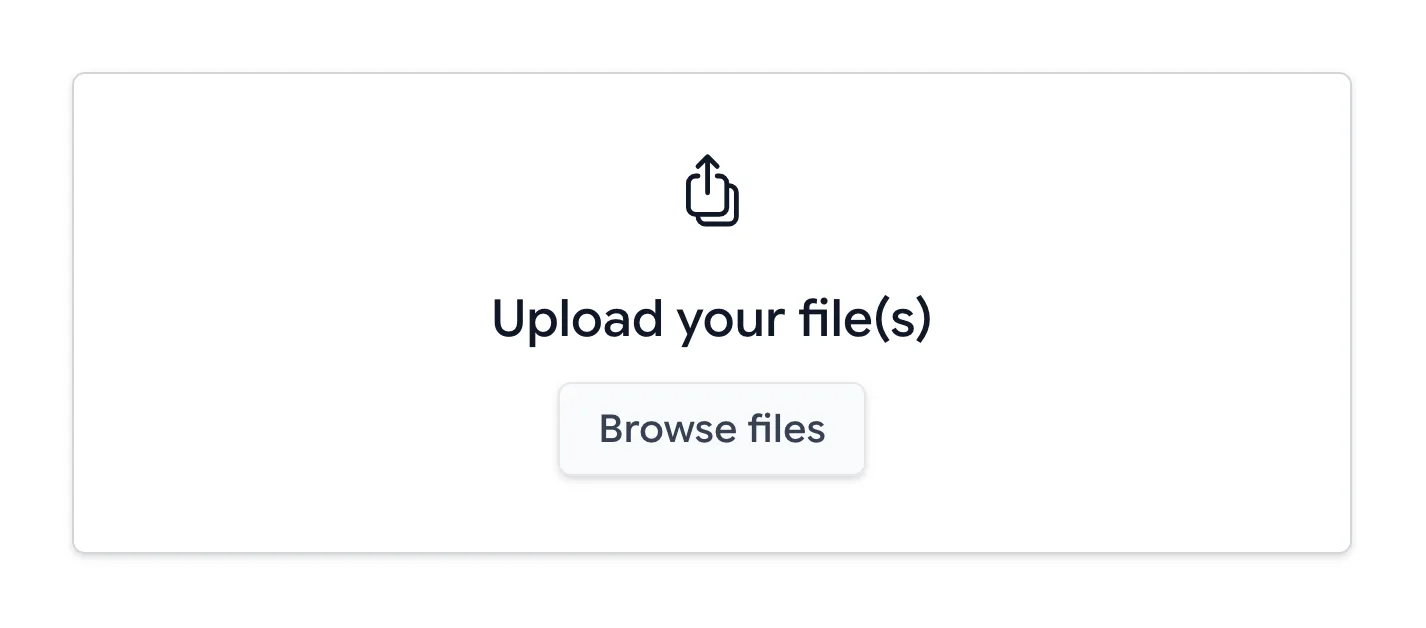 File uploader4 sitesA file uploader is a control that lets a visitor attach files to a form or product, by browsing the device or dragging files onto a highlighted drop area.
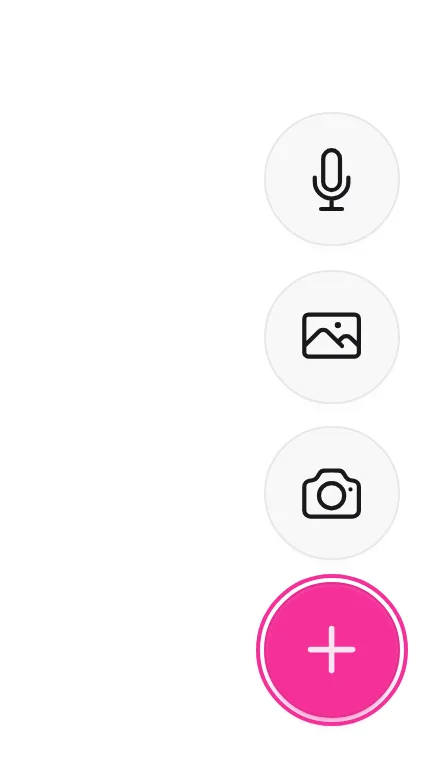 Floating action button4 sitesA floating action button is a round button fixed to a screen corner, above the page content, that opens one key action such as chat, help or create.
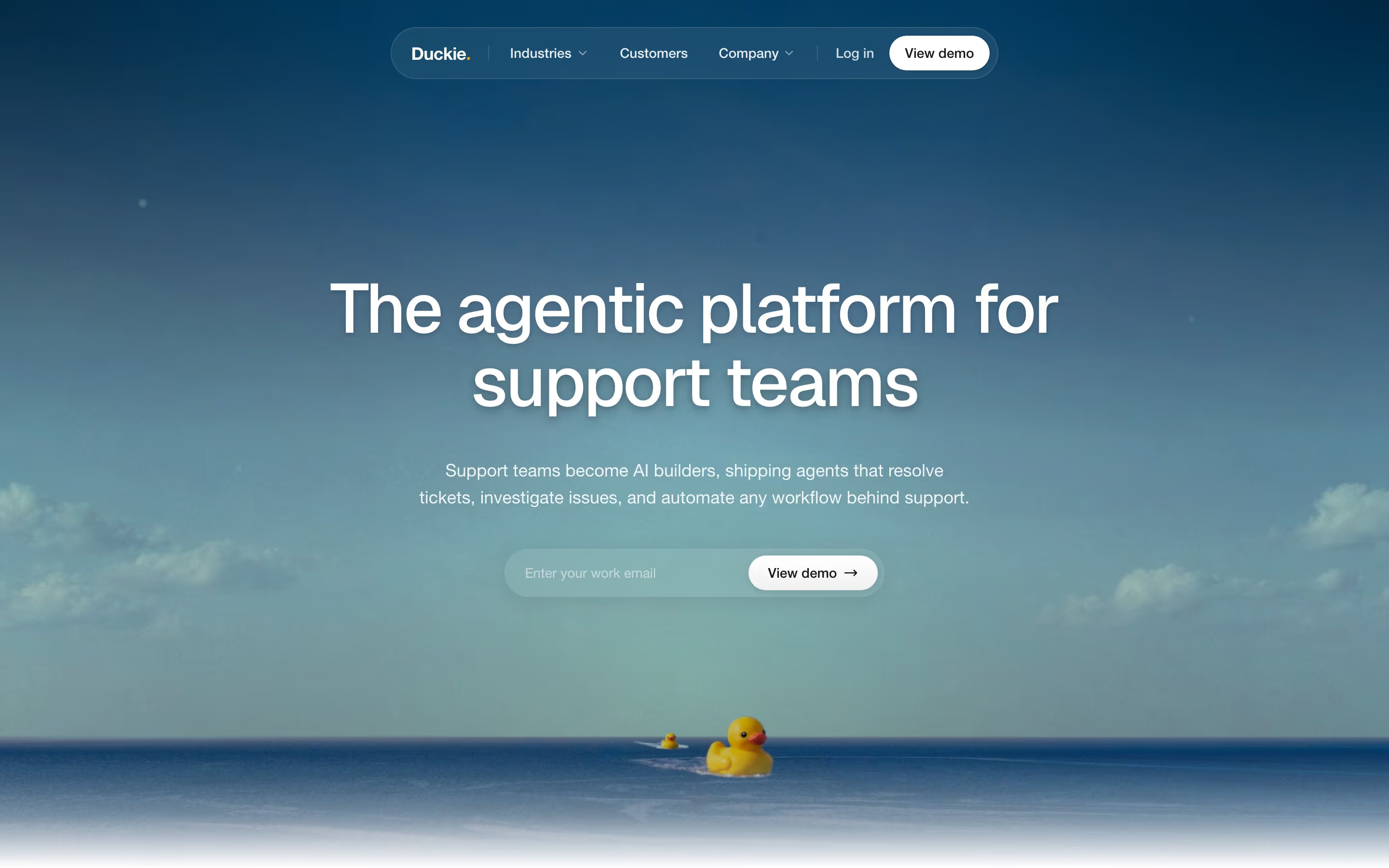 Floating navbar15 sitesA floating navbar is a navigation bar detached from the page edges, usually a rounded pill with a gap around it, that hovers over the content below.
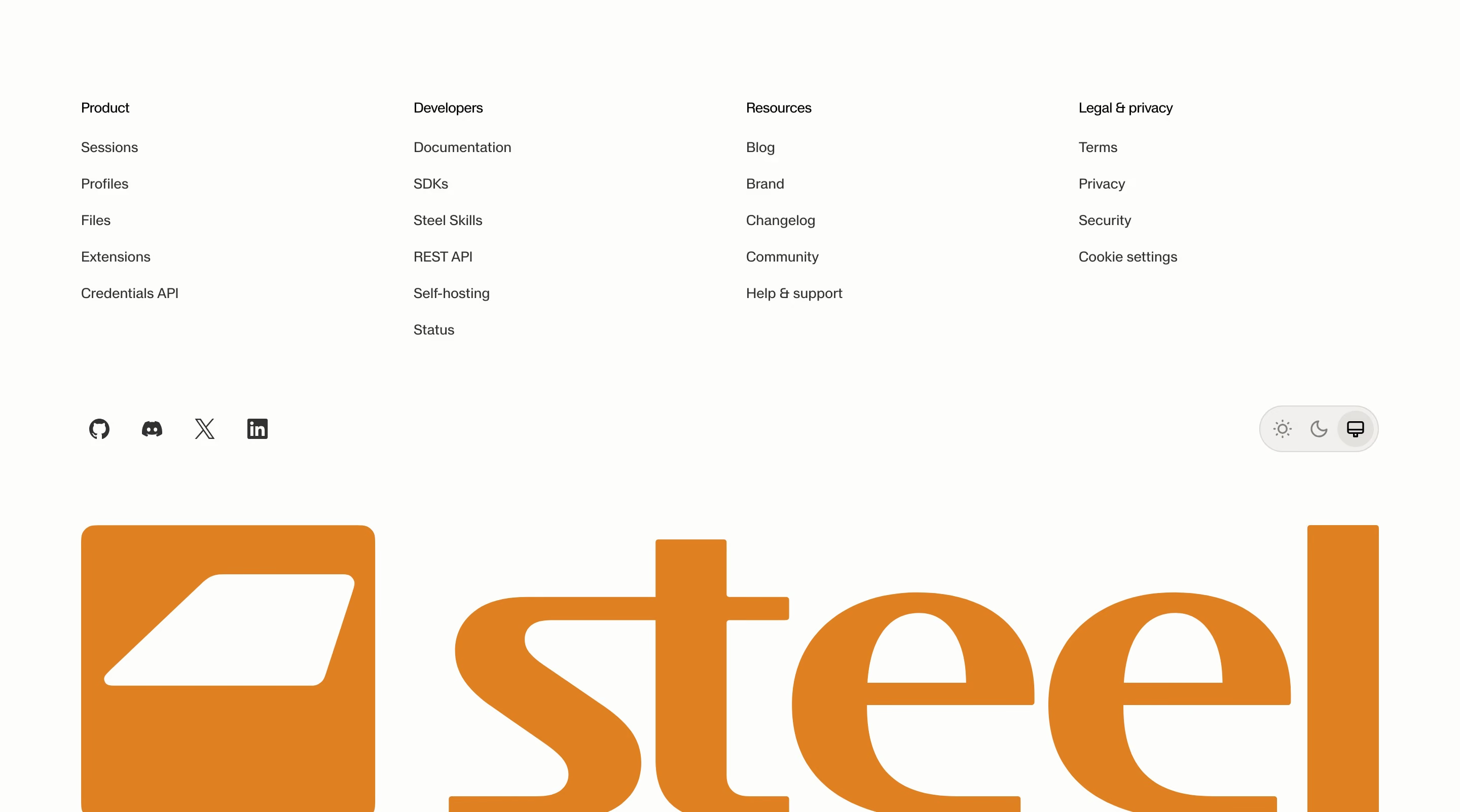 Footer410 sitesA footer is the block at the bottom of every page that holds site-wide links, legal text, social icons and often compliance badges or a newsletter field.
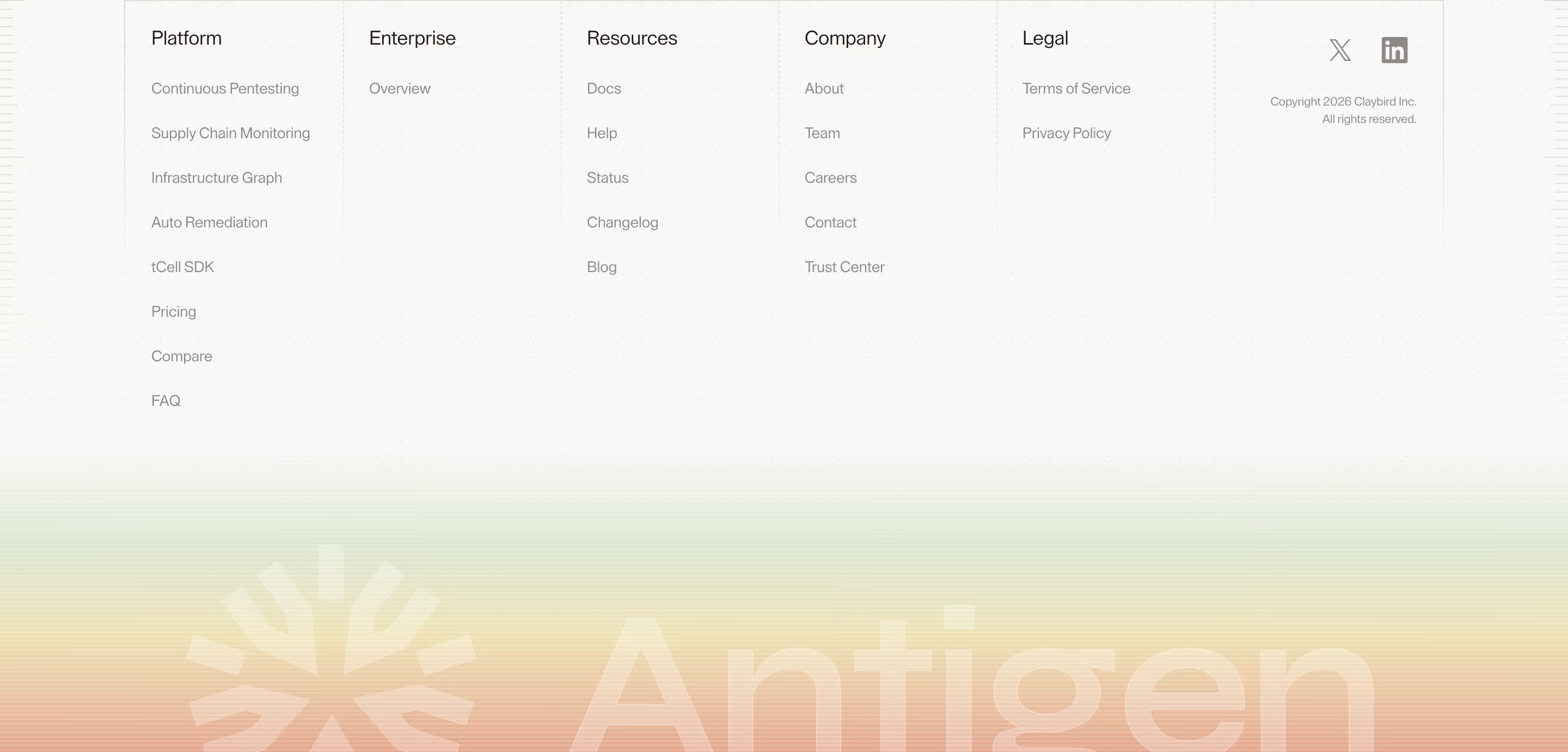 Footer wordmark32 sitesA footer wordmark is the company name set very large across the bottom of the footer, often faded or cropped, so the page ends on the brand itself.
- Full-screen overlayA full-screen overlay is a layer that covers the entire viewport above the page, used for mobile menus, video lightboxes and focused tasks.
G
7 Gallery10 sitesA gallery is a grid or scrolling row of images, such as photos, templates or customer work, that visitors browse visually instead of by reading.
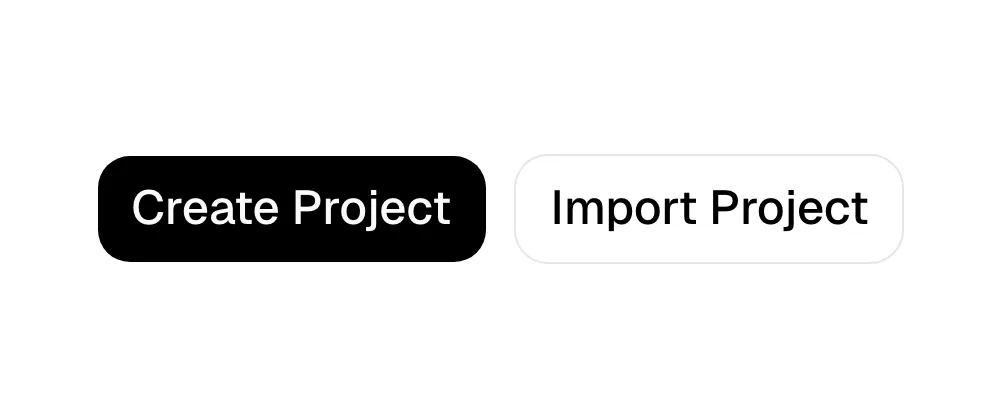 Ghost button38 sitesA ghost button is a button with a transparent fill and a thin border, used for the secondary action beside a solid primary button.
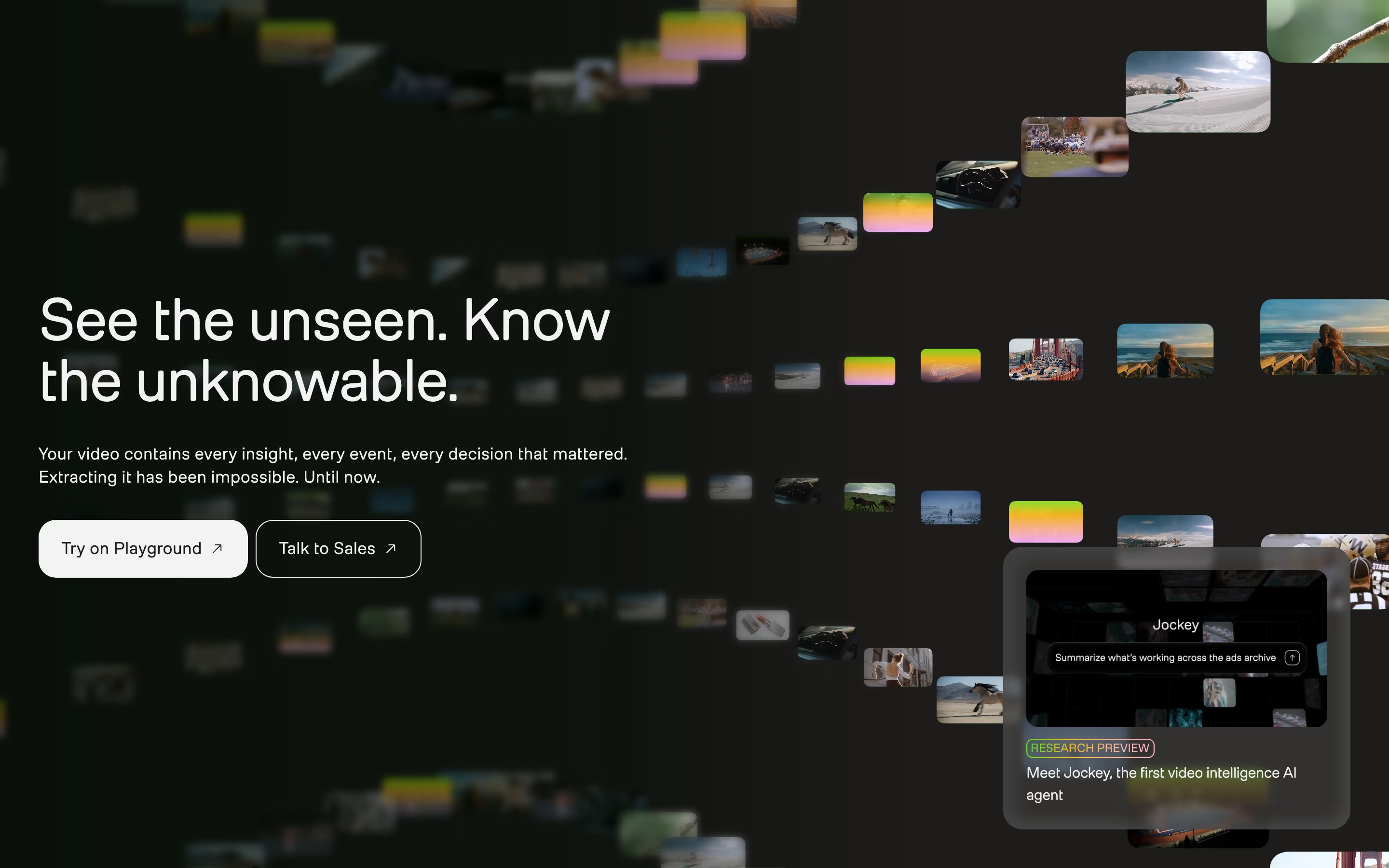 Glassmorphism12 sitesGlassmorphism is a style where panels look like frosted glass: semi-transparent, blurring whatever sits behind them and edged with a thin light border.
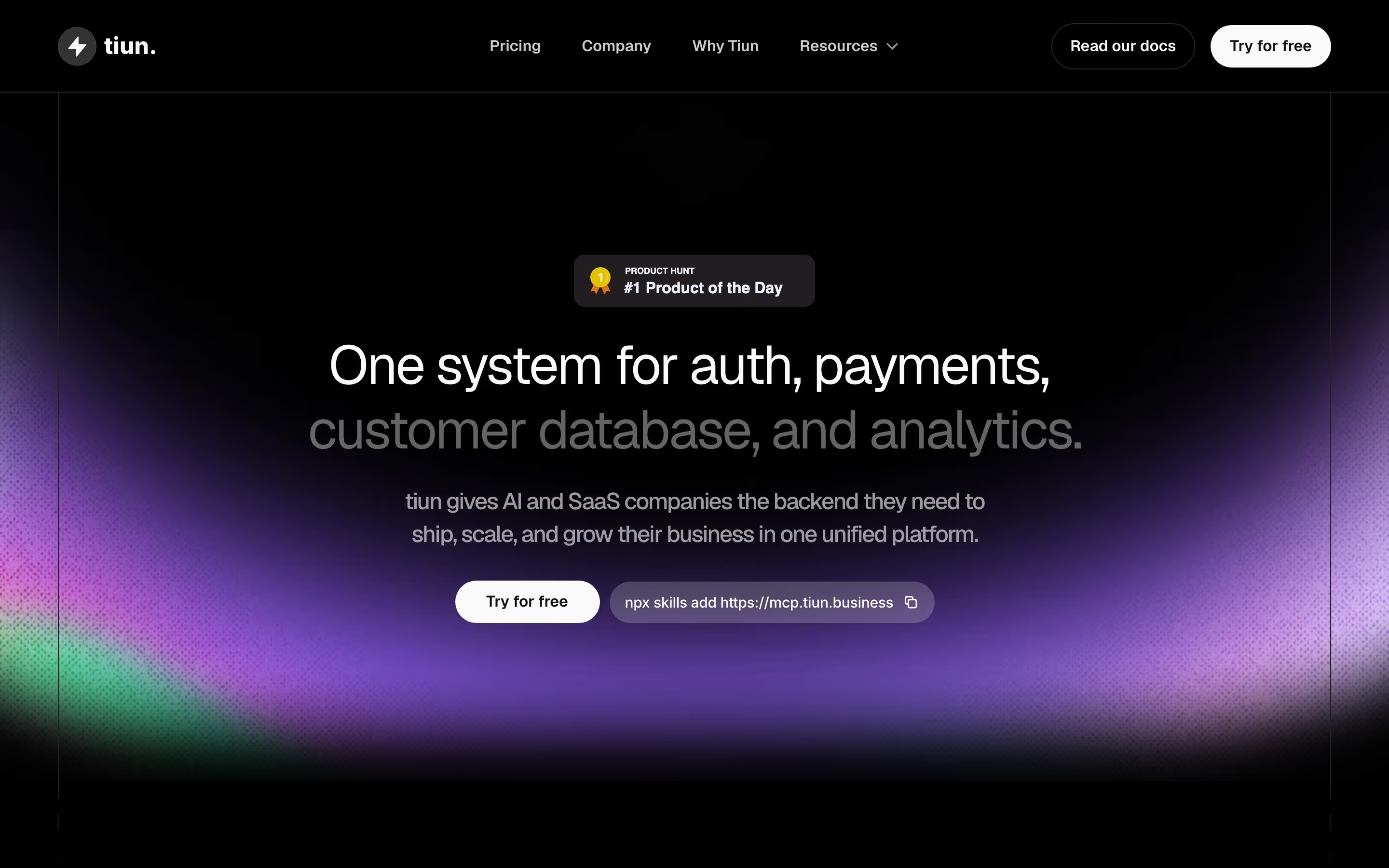 Glow effect39 sitesA glow effect is a soft, blurred patch of colored light placed behind a headline, screenshot or graphic, so it looks lit from behind against the page.
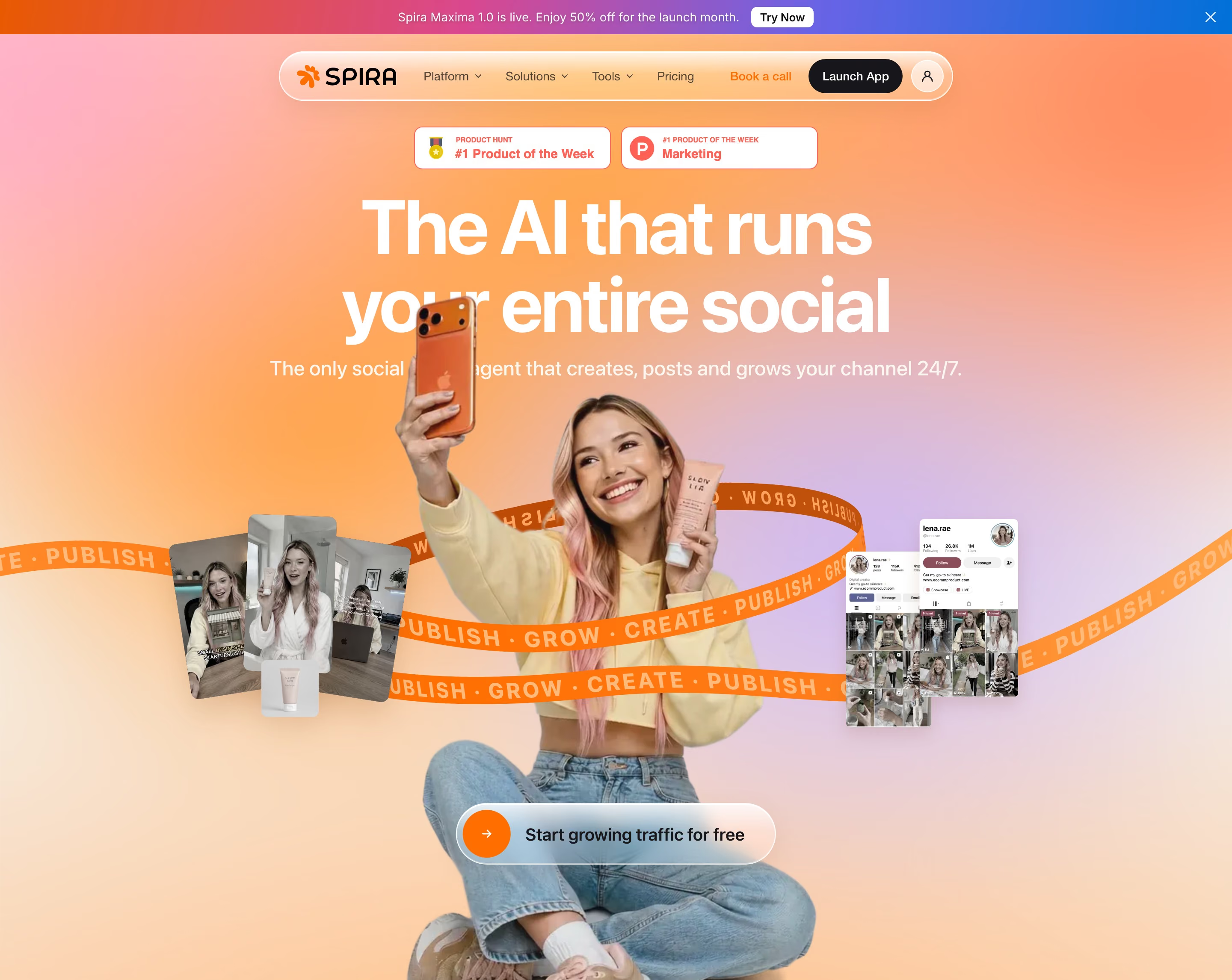 Gradient119 sitesA gradient is a smooth blend between two or more colors, used on SaaS sites as a hero backdrop, a panel fill or a highlight on key headline words.
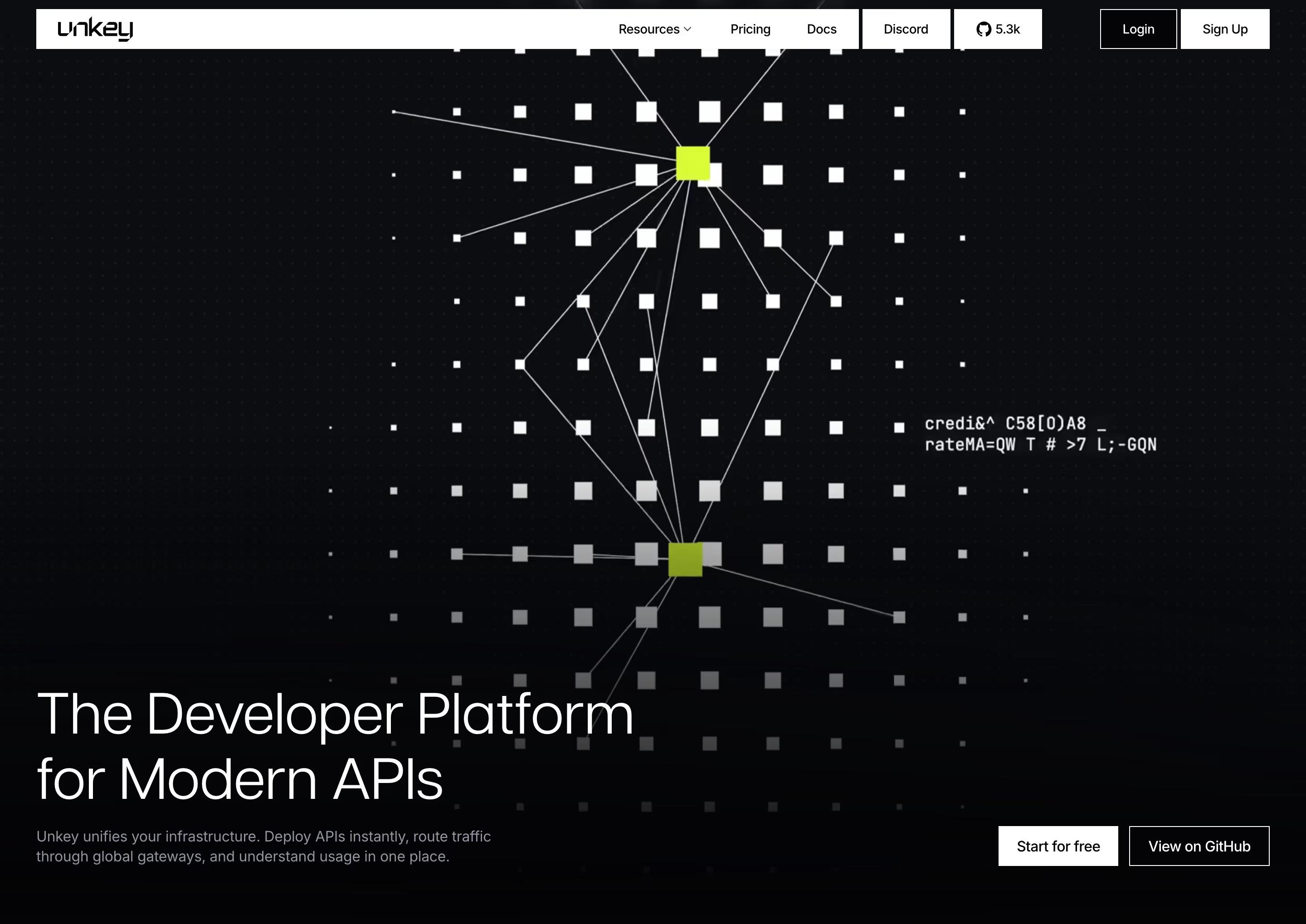 Grain texture10 sitesA grain texture is a fine layer of visual noise over flat color, gradients or images, giving a digital page the speckled feel of film or print.
 Grid background20 sitesA grid background is a faint pattern of lines or dots behind a page or section, making the layout look drafted on graph paper or a blueprint.
H
3 Hamburger menu52 sitesA hamburger menu is a three-line icon that hides a site's navigation links behind a tap, used almost universally to collapse the header on mobile screens.
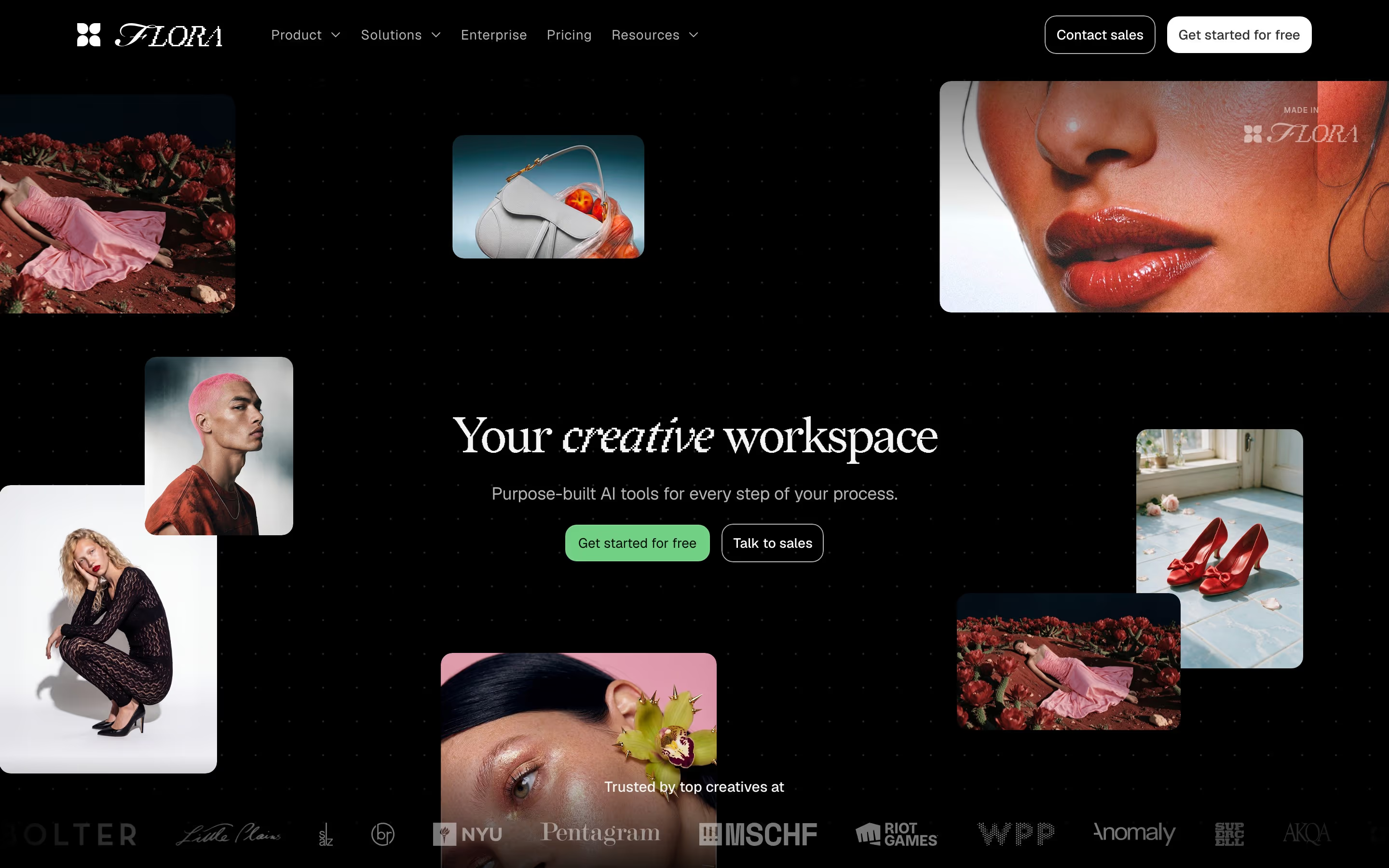 Hero section400 sitesA hero section is the first block under the navigation of a landing page: a headline, a short subhead, one or two buttons and usually a product visual.
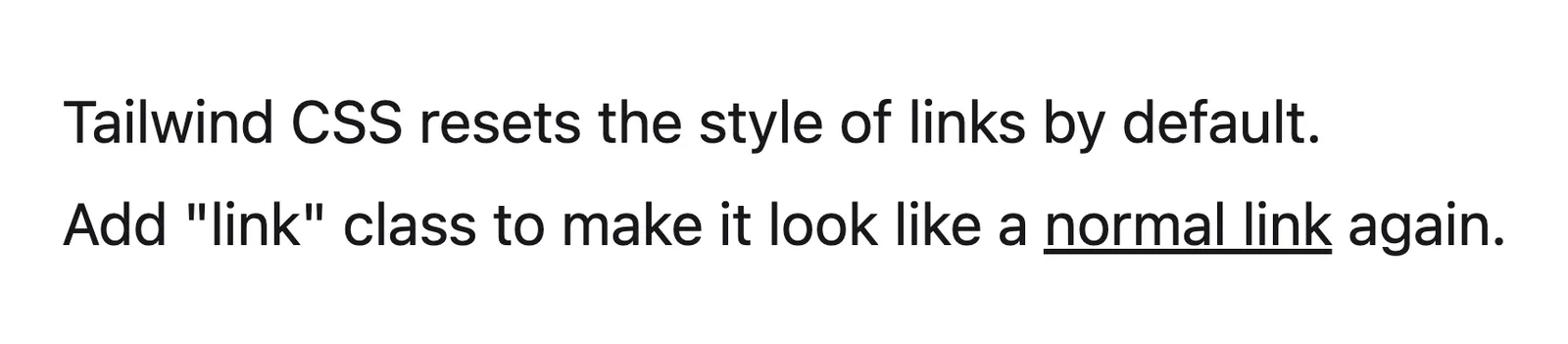 Hyperlink21 sitesA hyperlink is clickable text or an element that takes the reader to another page or place, marked out from body copy by color, underline or an arrow.
I
3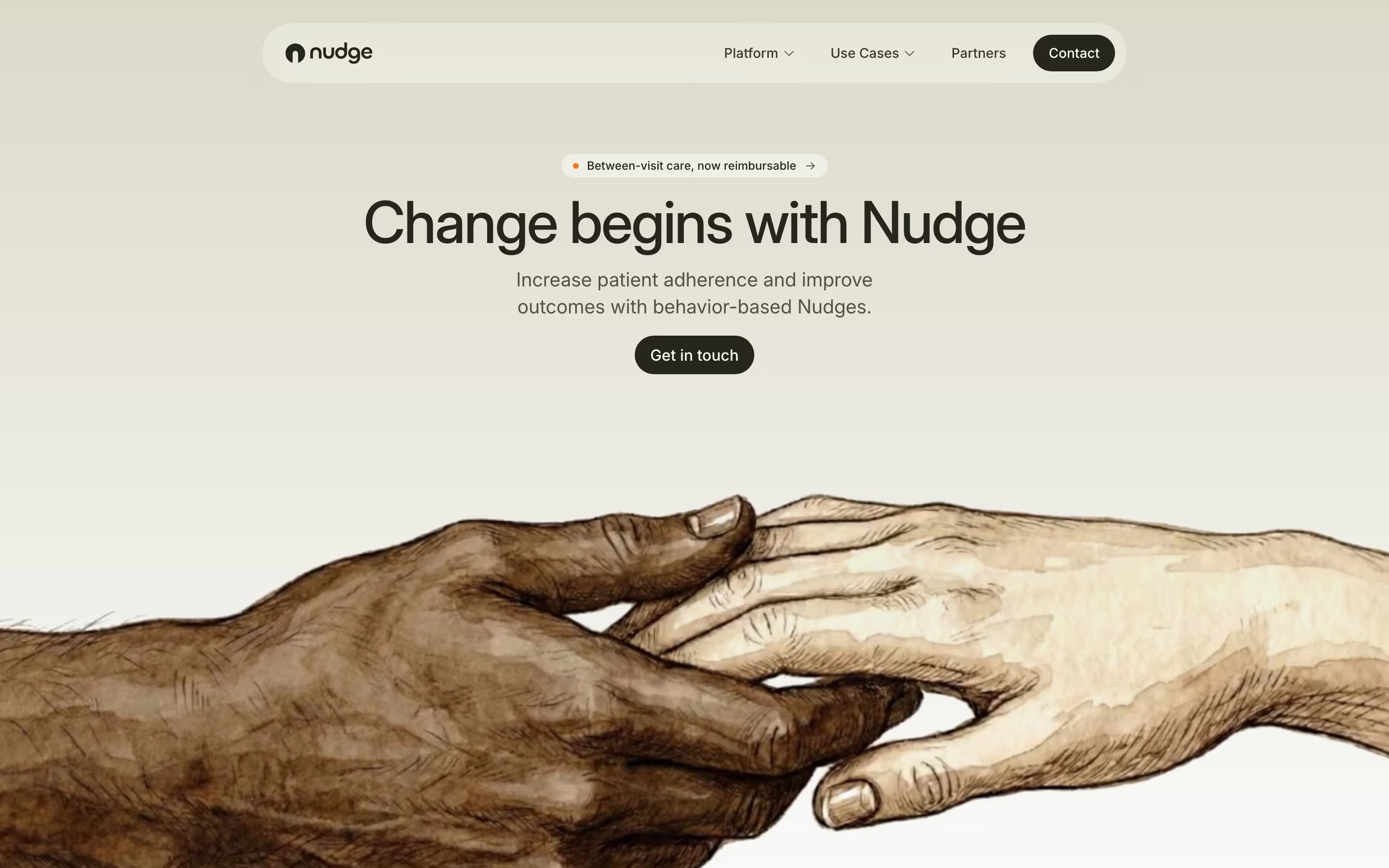 Illustration123 sitesAn illustration is drawn or rendered artwork, not a photo or screenshot, used on a SaaS site to explain ideas, set a mood or give the brand personality.
- Integrations section60 sitesAn integrations section is a block of app logos or cards showing which tools a SaaS product connects to, often with a link to its integrations directory.
- Interactive demoAn interactive demo is a clickable version of the product embedded on a page, letting visitors try real features before signing up or talking to sales.
L
3- Launch screenA launch screen is a full-screen view shown while an app or page starts up, usually a logo on a solid color, before the real interface appears.
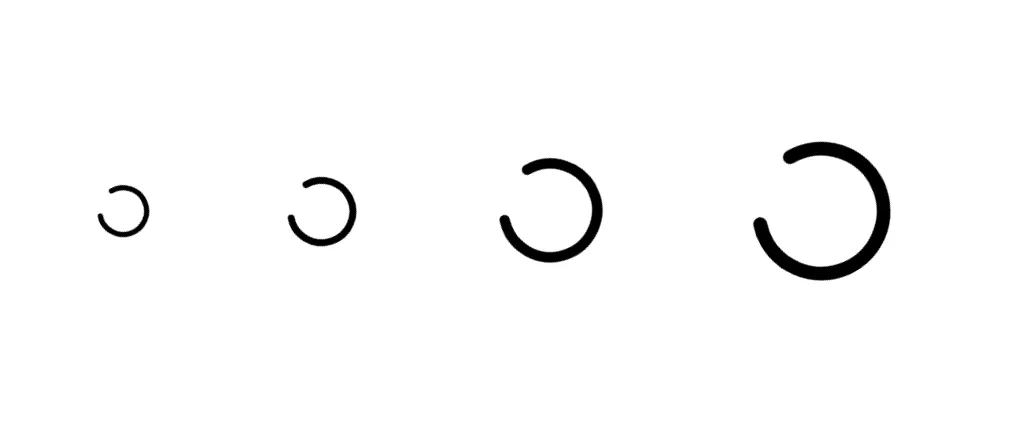 Loading indicatorA loading indicator is an animated element, often a spinner or pulsing dots, that shows the interface is working when a wait has no known length.
 Logo cloud269 sitesA logo cloud is a row or grid of customer or partner logos, usually under a line like "Trusted by", placed near the hero to borrow credibility.
M
6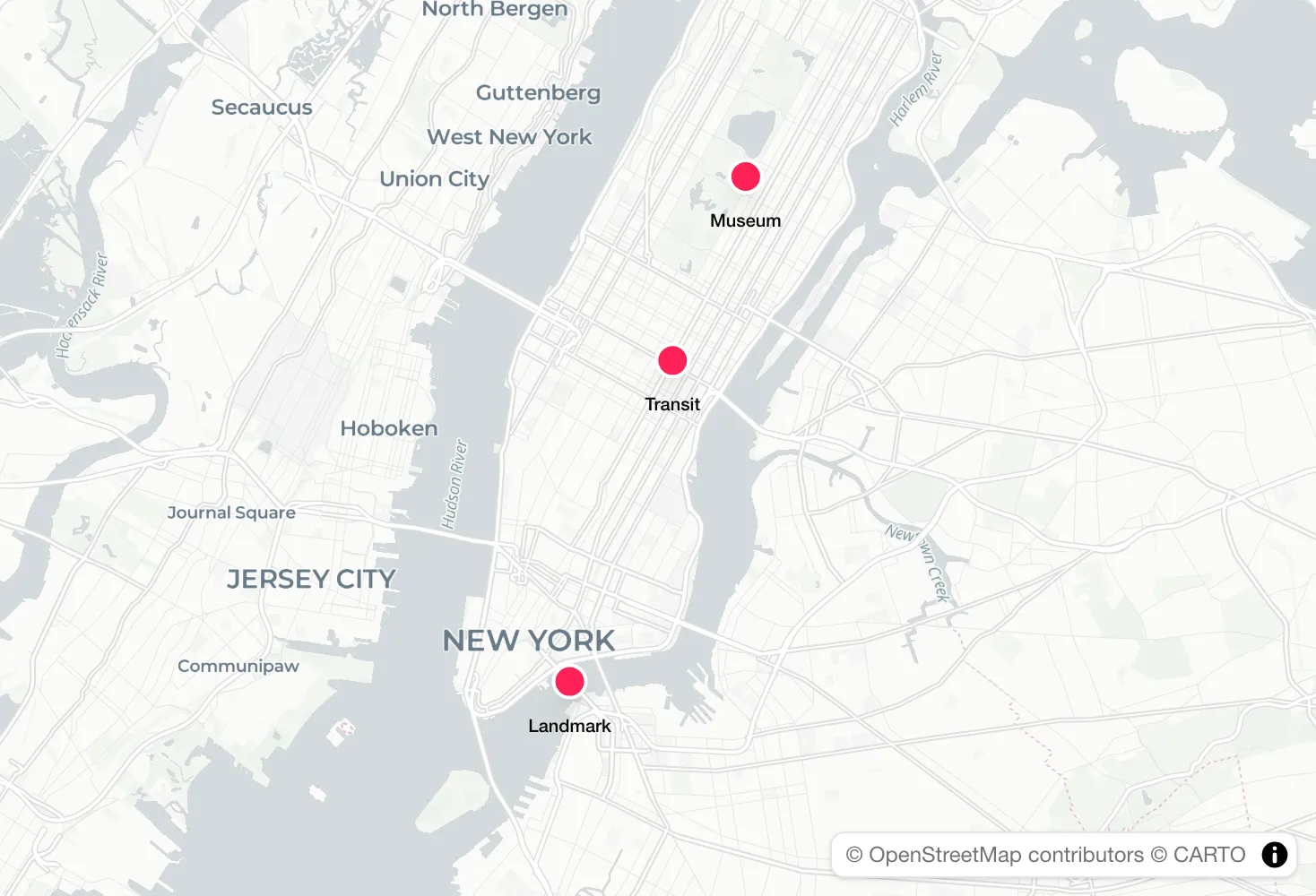 Map pinA map pin is a marker, usually a teardrop or dot, placed on a map to show one location, such as an office, a data center or a customer's city.
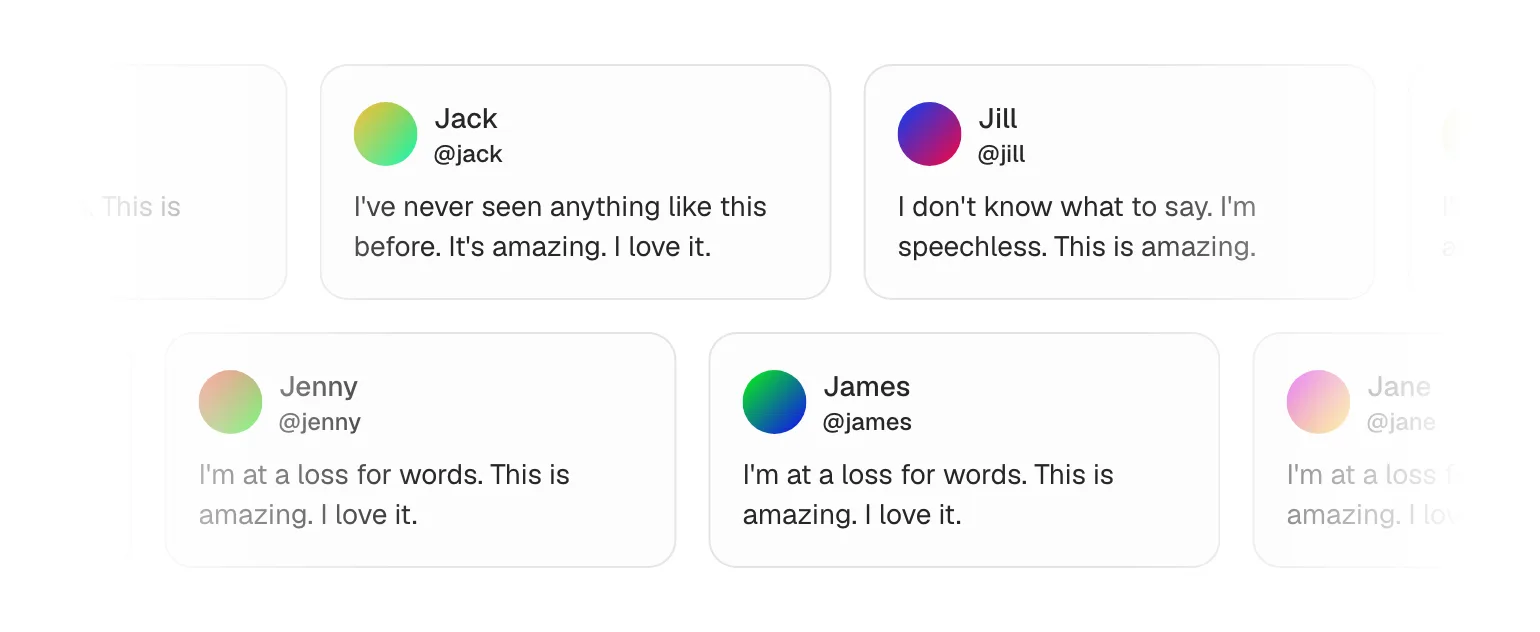 Marquee30 sitesA marquee is a strip of logos, words or cards that scrolls sideways on its own in an endless loop, with no controls, showing more than fits in one row.
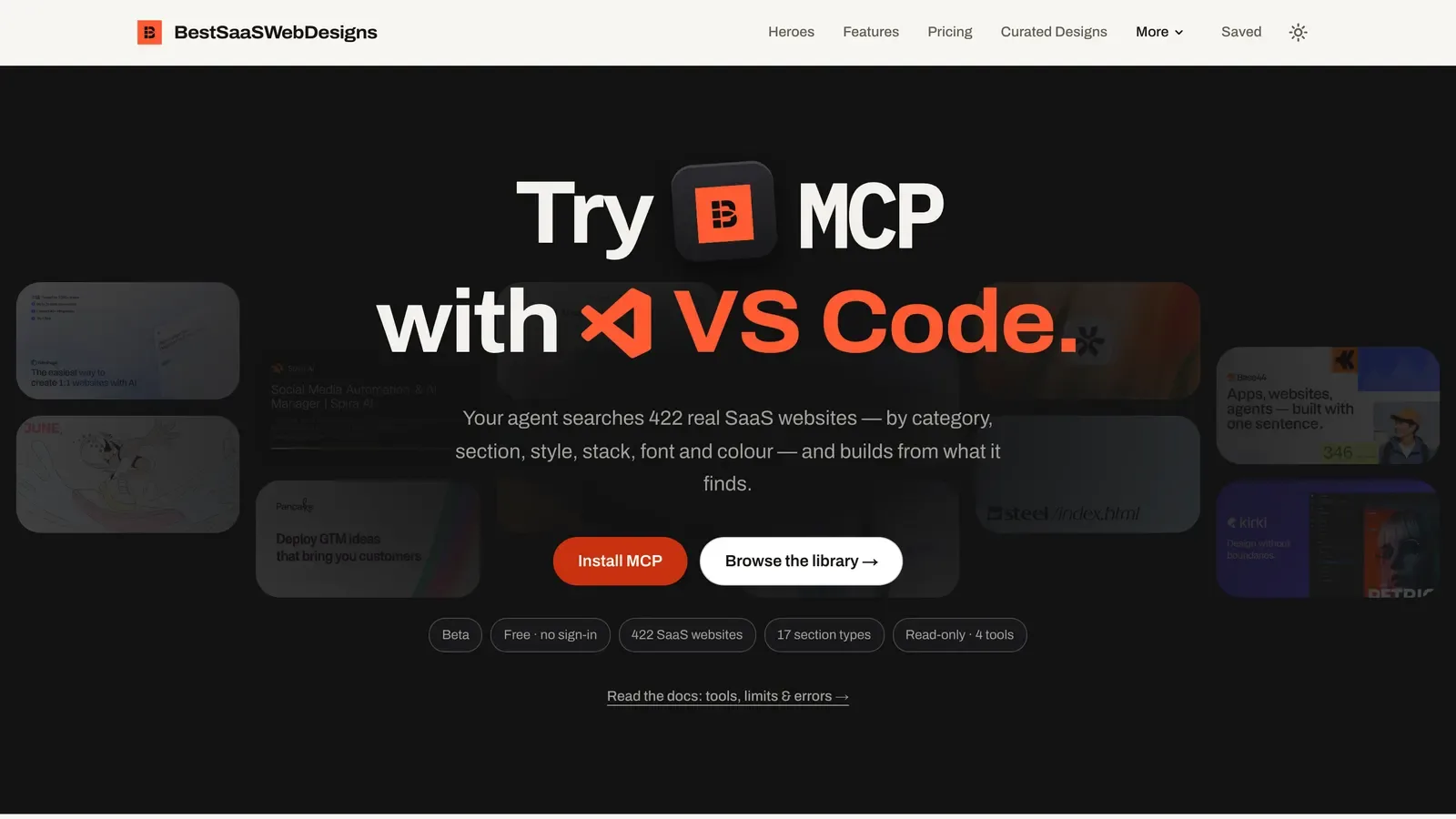 MCP (Model Context Protocol)MCP (Model Context Protocol) is an open protocol that lets AI assistants call external tools and data sources through one standard connection.
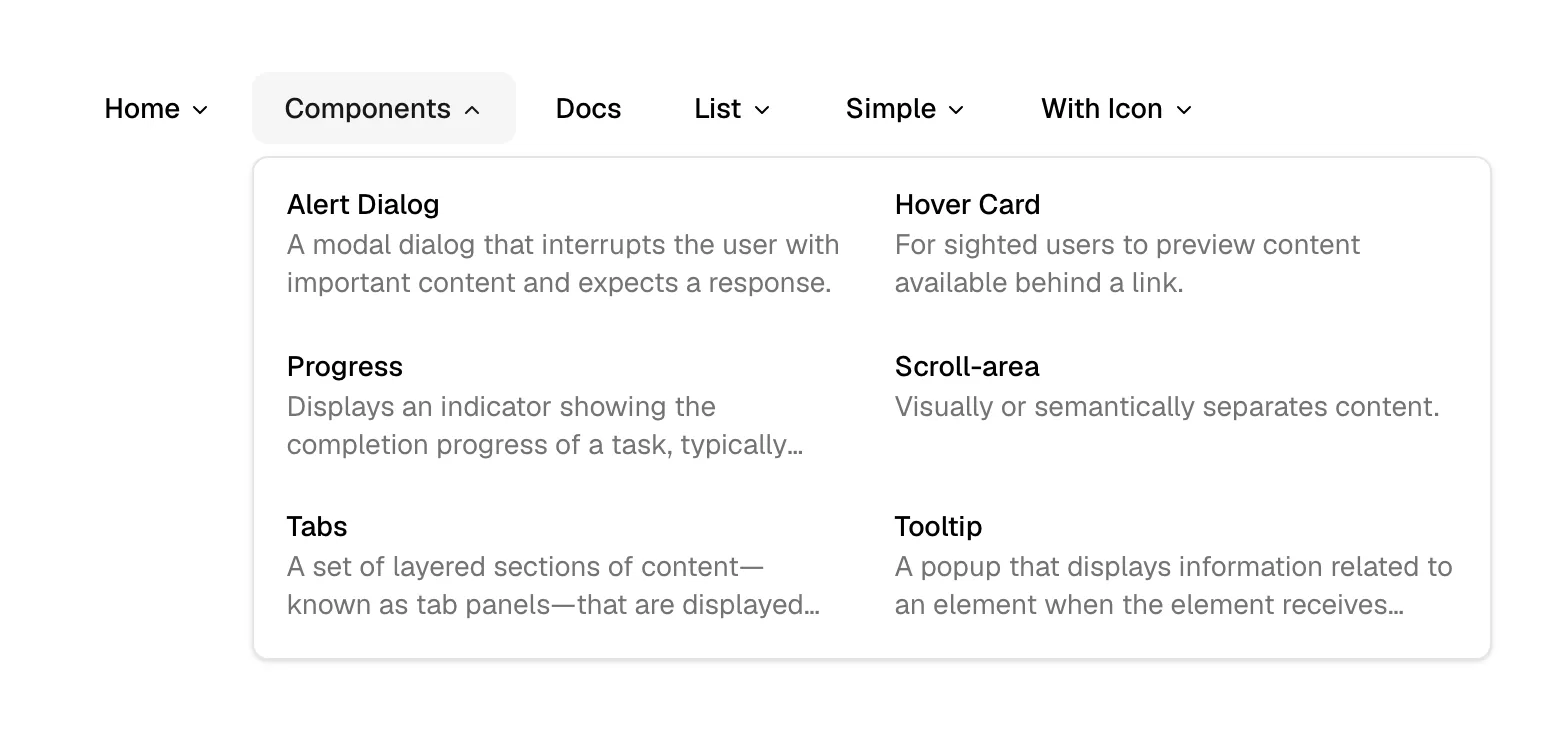 Mega menuA mega menu is a large dropdown panel that opens from a nav link and lays out many pages at once in columns, often with icons and short descriptions.
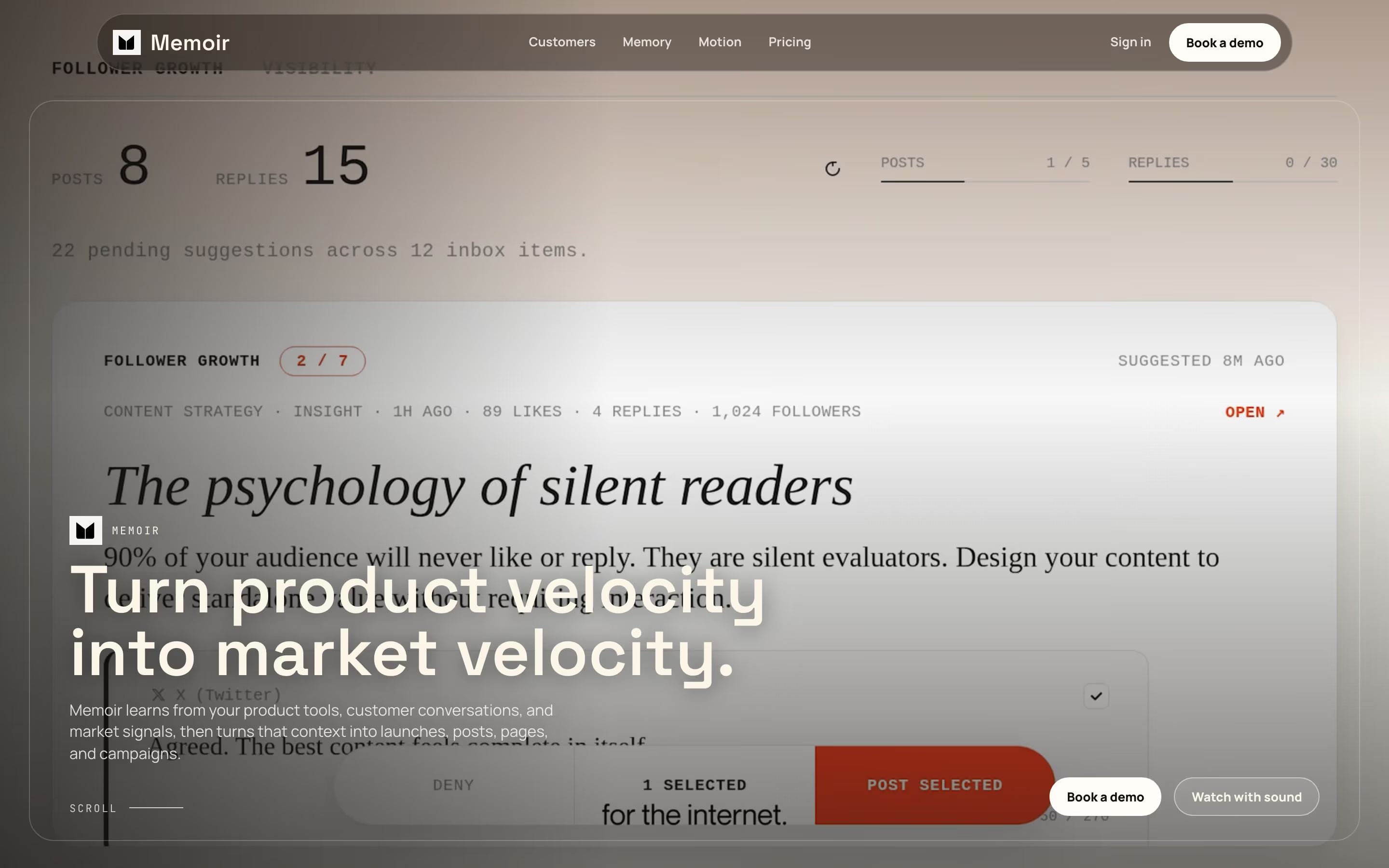 Minimalism19 sitesMinimalism is a visual style that strips a page to a few elements, generous space and a restrained palette, so type and one focal object carry the design.
- Monospace font103 sitesA monospace font is a typeface in which every character takes the same width, borrowed from code editors and used for labels, numbers and code.
N
2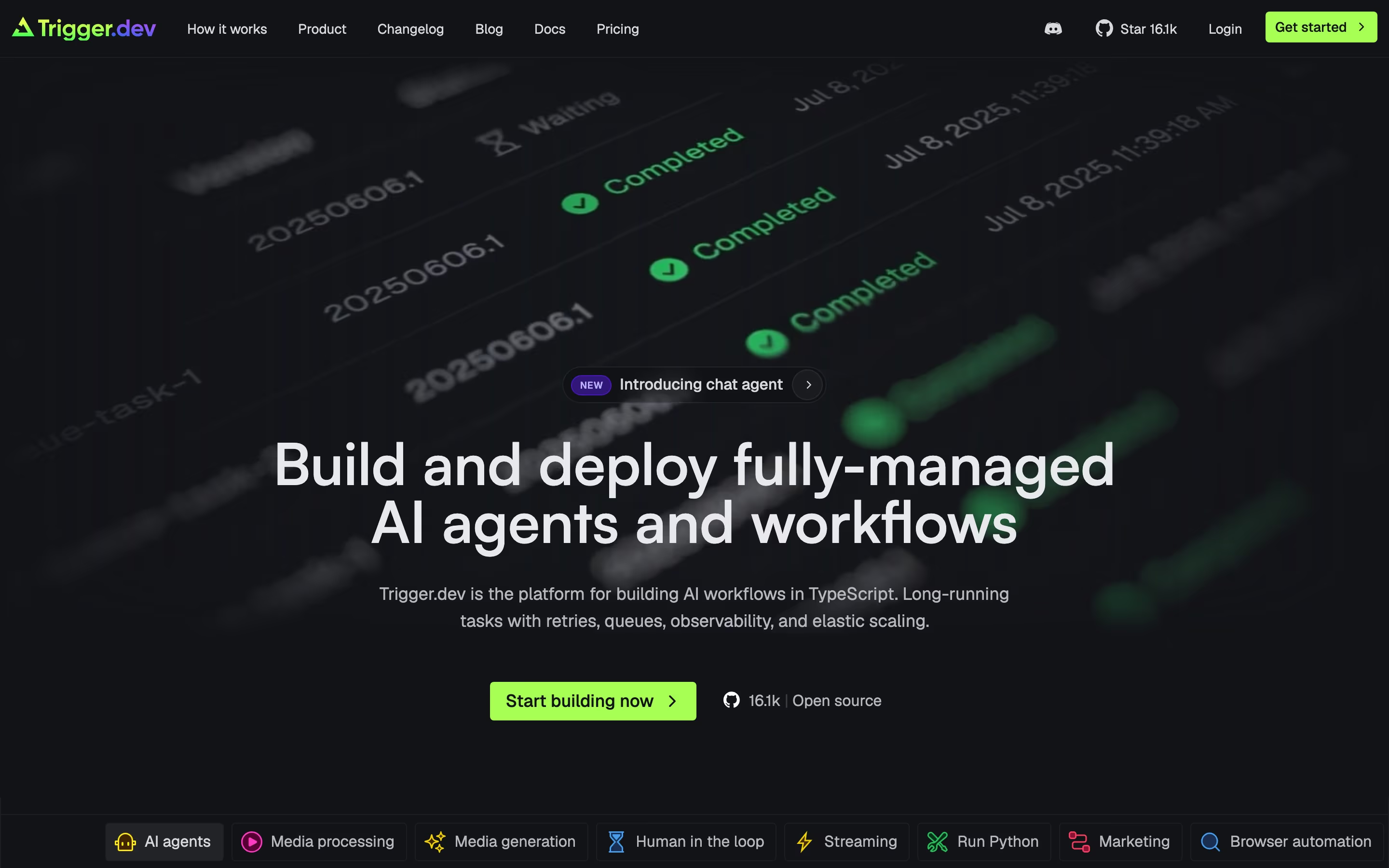 Navigation bar255 sitesA navigation bar is the horizontal strip at the top of every page holding the logo, the main site links, a login link and the primary sign-up button.
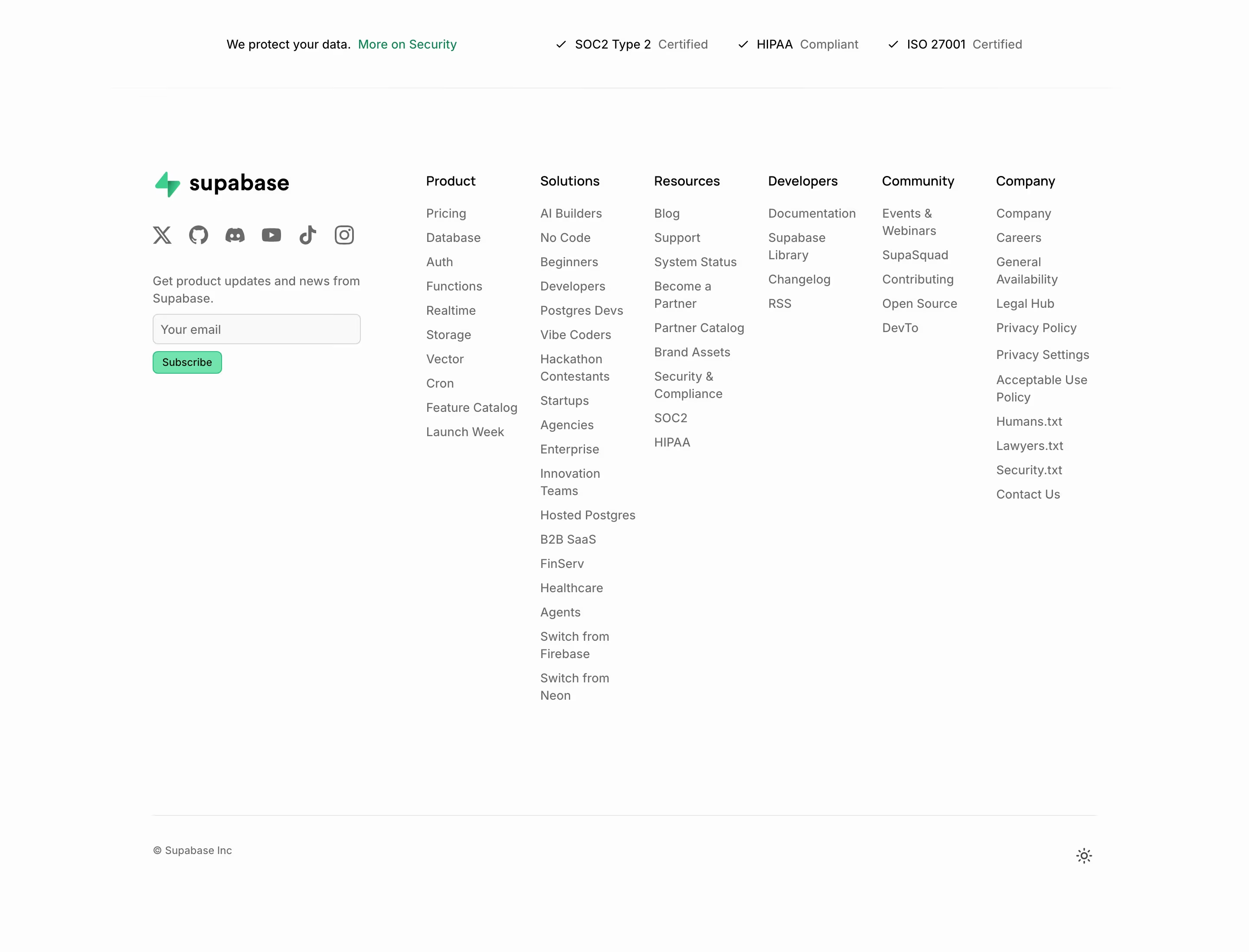 Newsletter signup35 sitesA newsletter signup is a small form, usually one email field and a subscribe button, inviting visitors to get updates by email without starting a trial.
O
1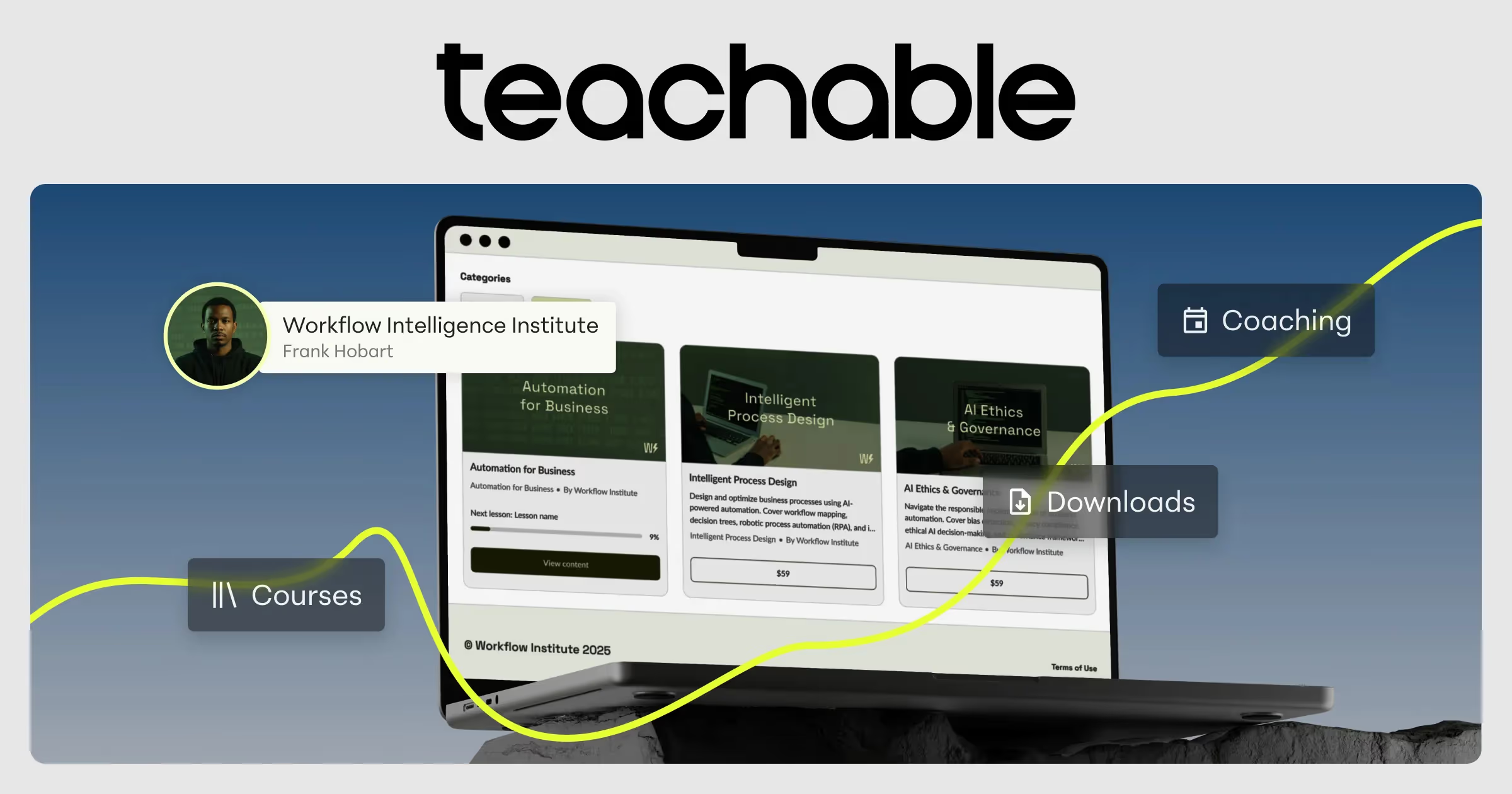
P
9- Page control15 sitesA page control is a short row of dots below a carousel or slider, one dot per slide, with the active slide's dot filled or stretched to show position.
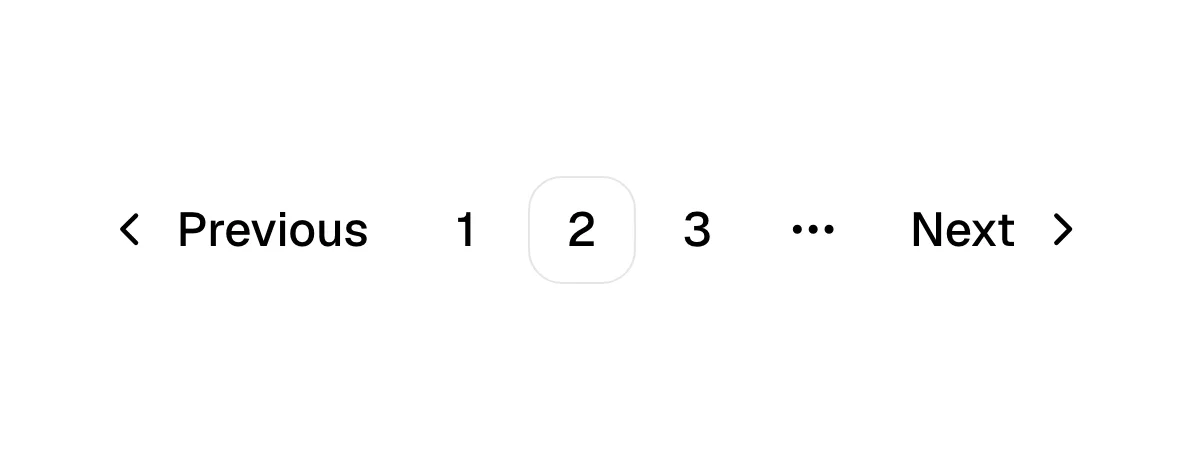 Pagination4 sitesPagination is a row of numbered links and next/previous arrows that splits a long list across several pages and lets readers jump between them.
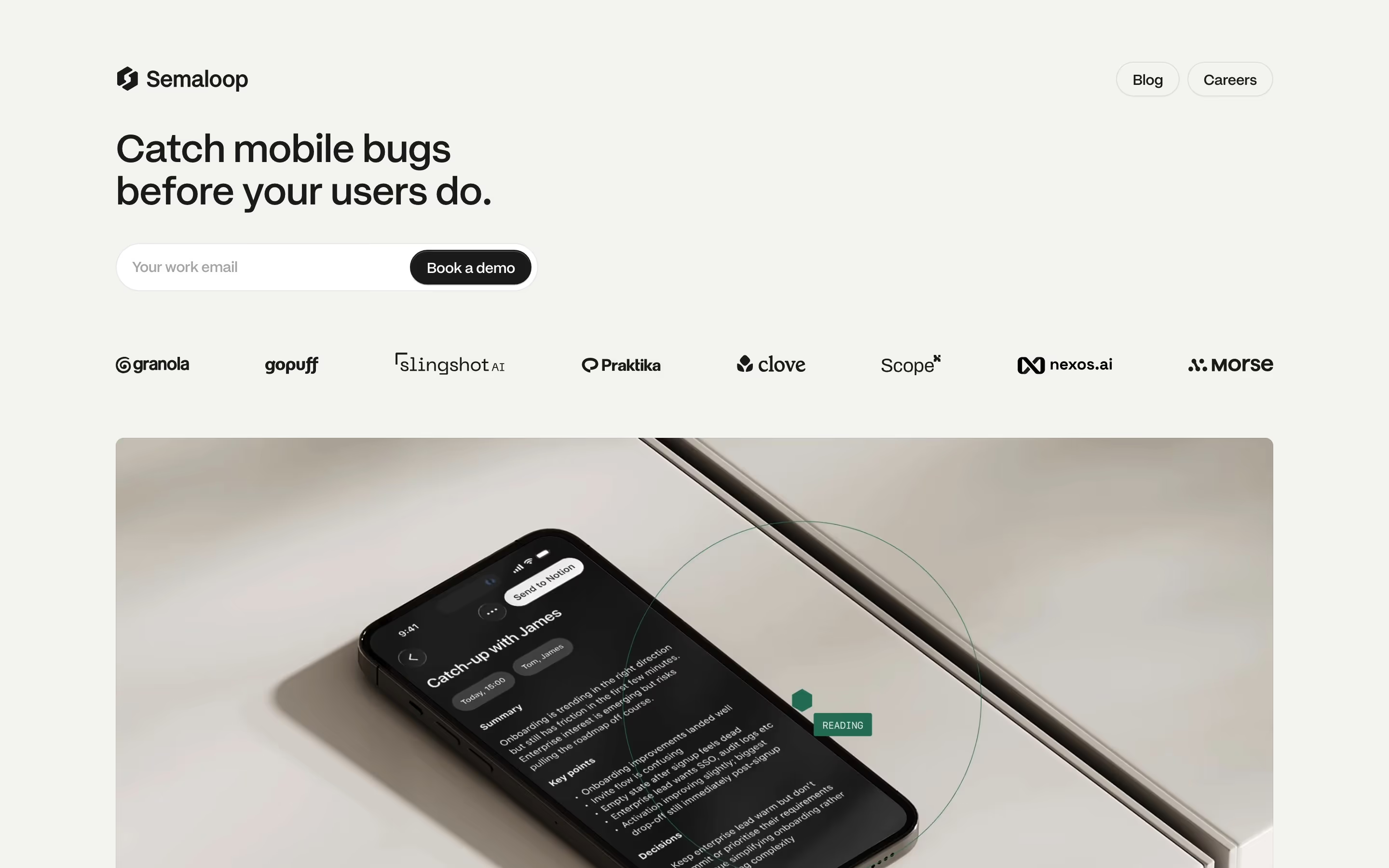 Pill233 sitesA pill is a small element with fully rounded ends, like a capsule, used for buttons, tags, filters, tabs or short announcements on a page.
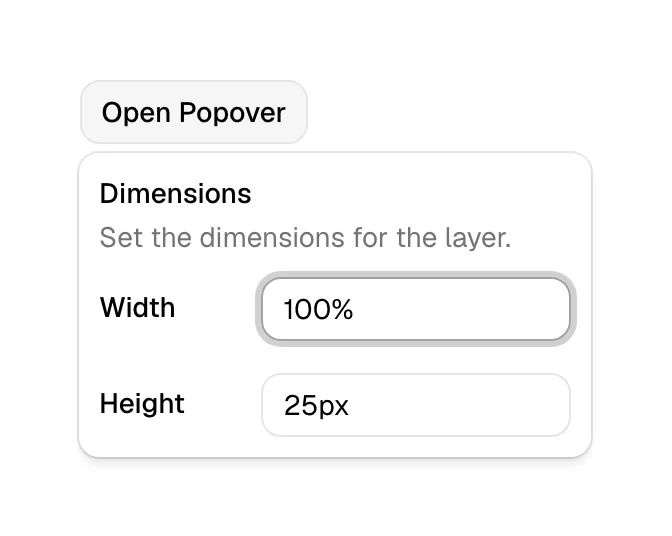 PopoverA popover is a small floating panel anchored to the element that opened it, showing extra content or controls without blocking the page.
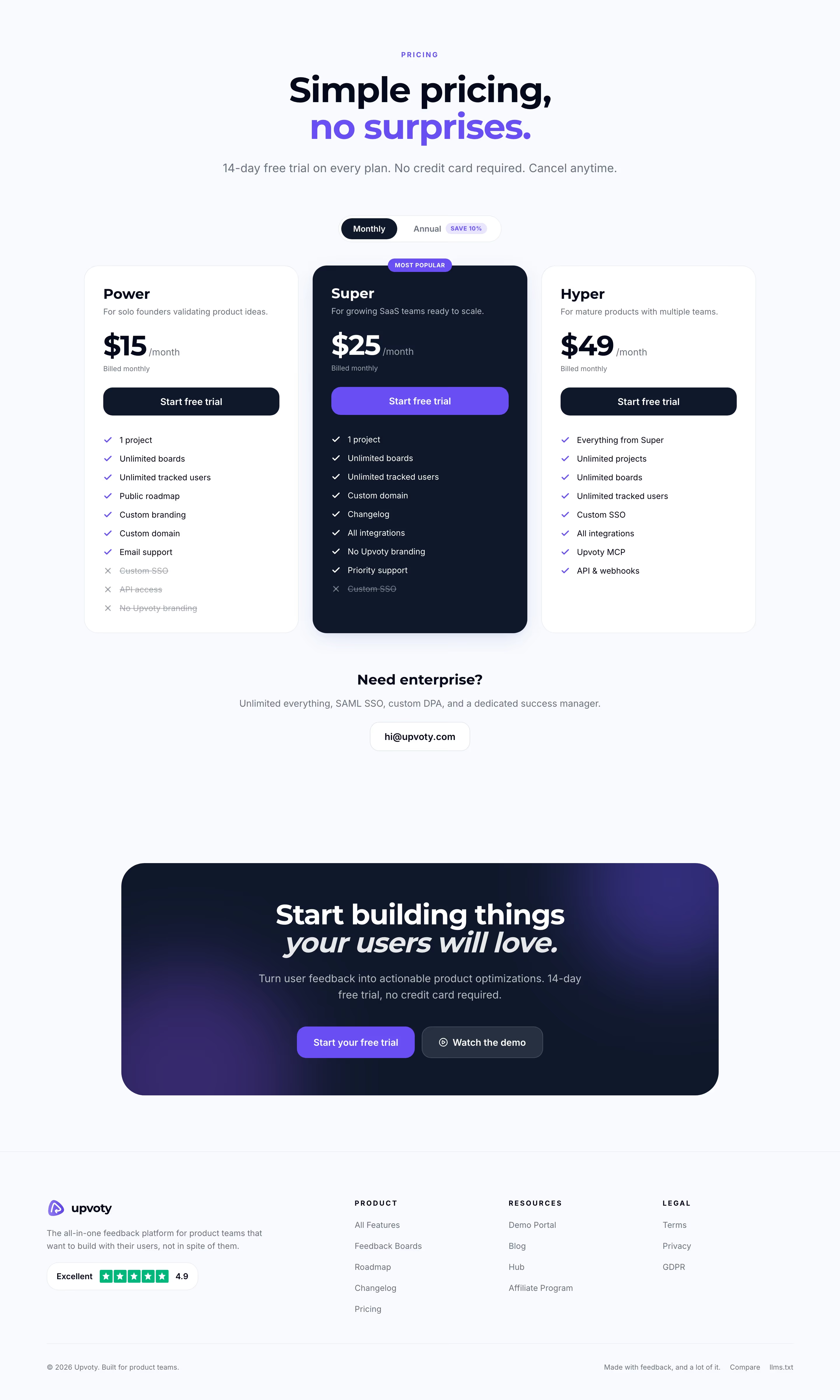 Pricing table43 sitesA pricing table is a row of side-by-side plan cards, each with a name, price, feature list and button, that lets visitors compare tiers at a glance.
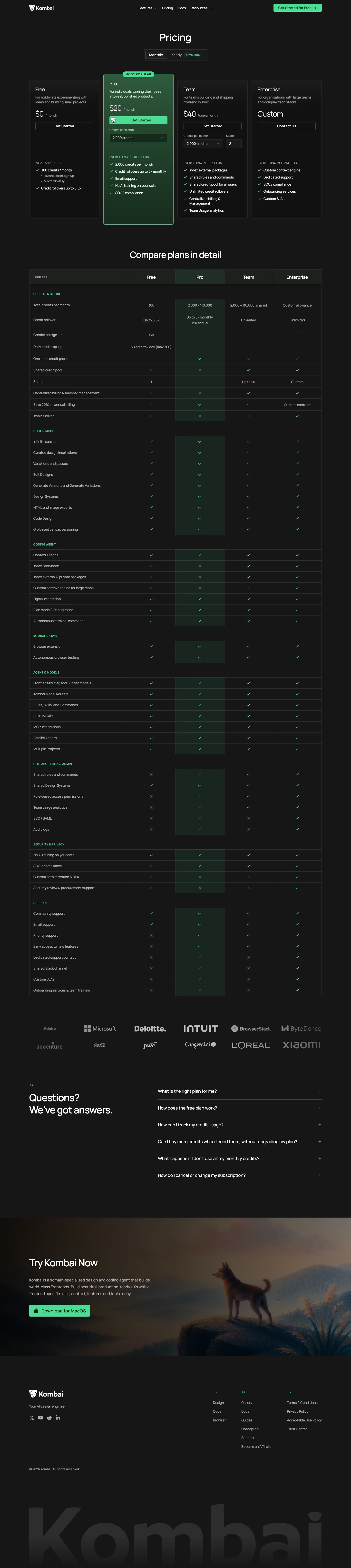 Pricing toggle19 sitesA pricing toggle is a two-option switch above a pricing table that flips every price between monthly and annual billing, usually showing the annual saving.
 Product screenshot239 sitesA product screenshot is an image of the software's real interface, often framed or simplified, shown on a marketing page as proof of what the product does.
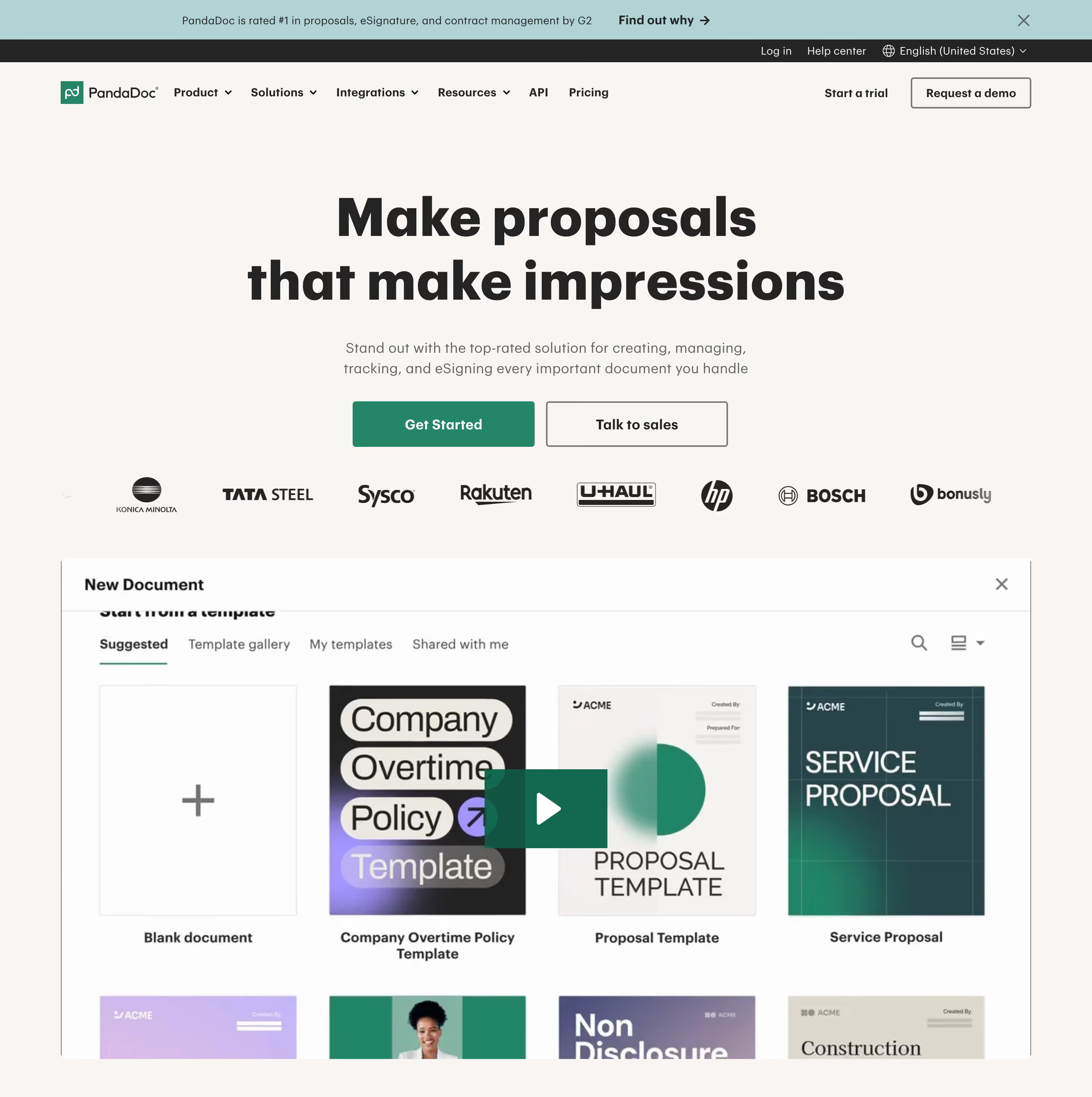 Product video38 sitesA product video is a demo, walkthrough or looping clip of the software embedded on a marketing page, showing the product in motion rather than as a still.
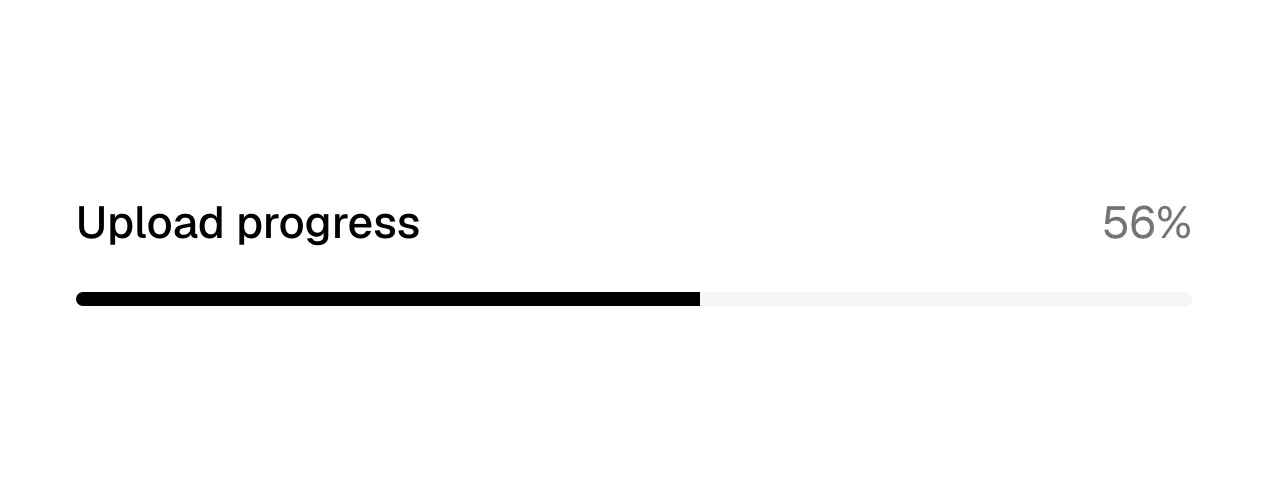 Progress indicator6 sitesA progress indicator is a bar, ring or step counter showing how much of a task or process is complete and how much remains.
R
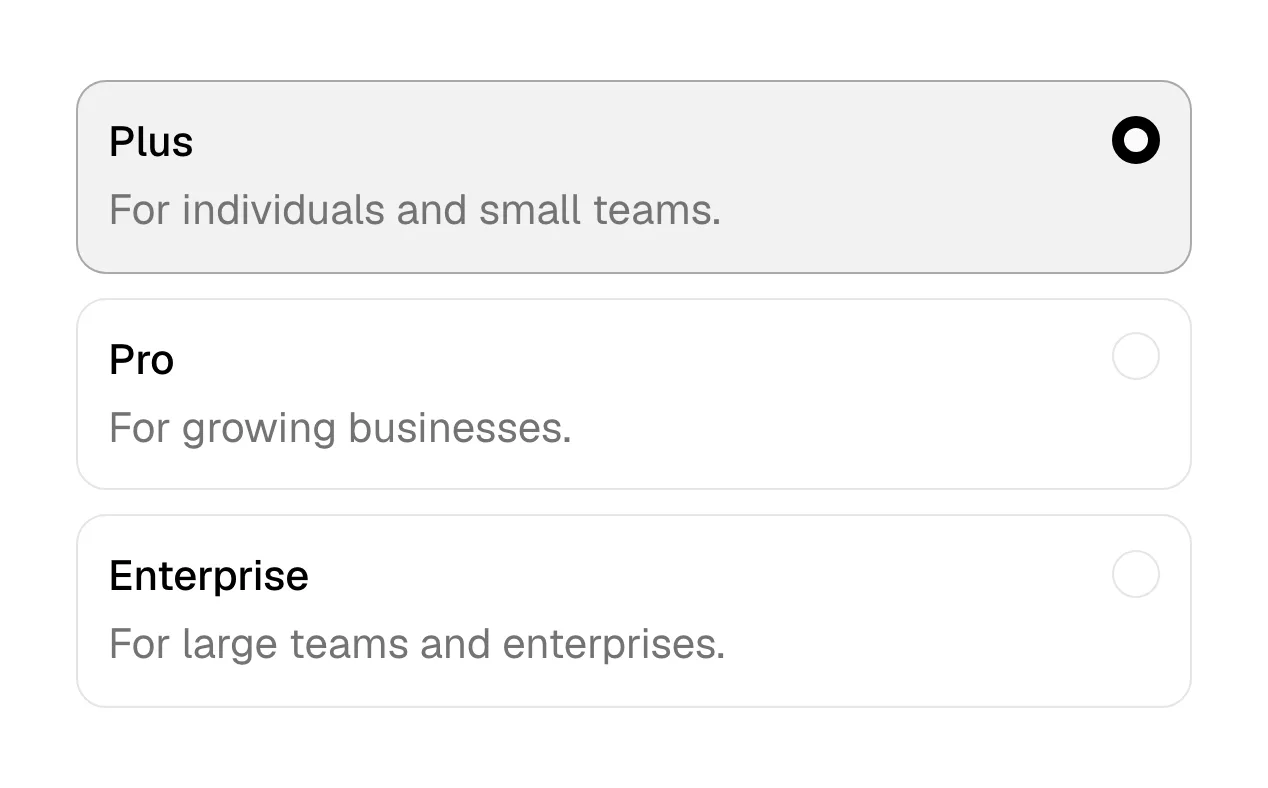
3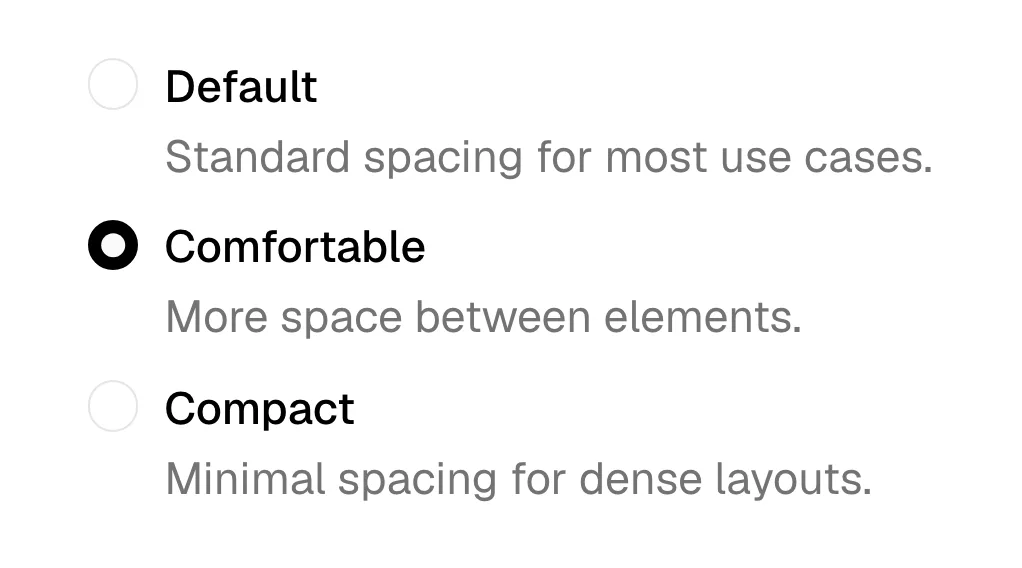 Radio buttonA radio button is a small circular input in a group of options where choosing one automatically clears the others, so exactly one answer is selected.
 Responsive design408 sitesResponsive design is the practice of building one page that reflows its layout, type and media to fit any screen width, from wide desktop down to phone.
 Review badge48 sitesA review badge is a small mark showing a product's rating or award on a review platform such as G2, Capterra, Trustpilot or Product Hunt, often with stars.
S
12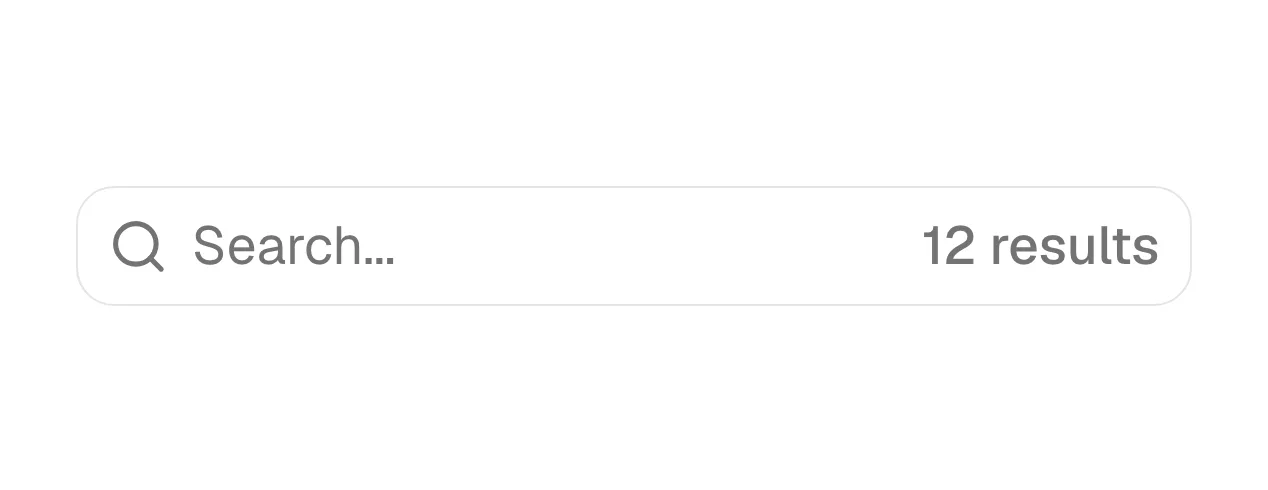 Search bar20 sitesA search bar is a text input, usually with a magnifying-glass icon, where a visitor types keywords to find pages, articles, docs or items on a site.
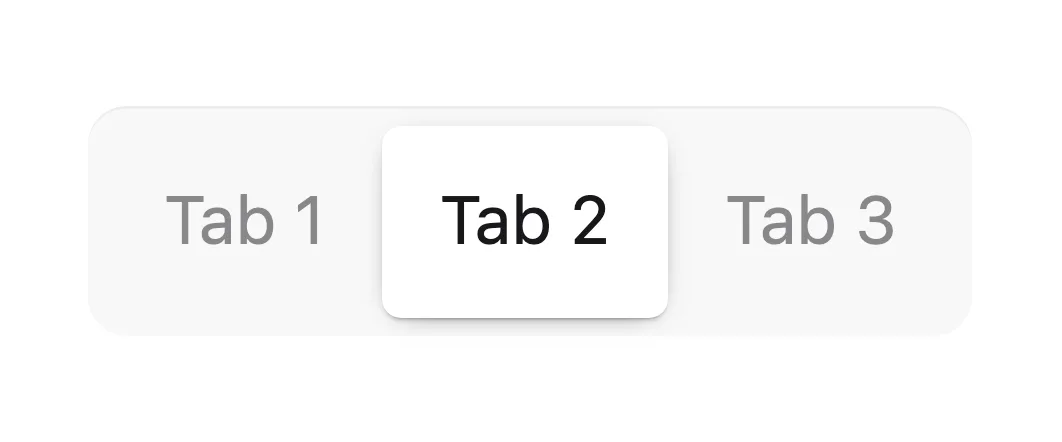 Segmented control3 sitesA segmented control is a row of two to five joined buttons where exactly one is selected, used to switch a view or setting between a few related options.
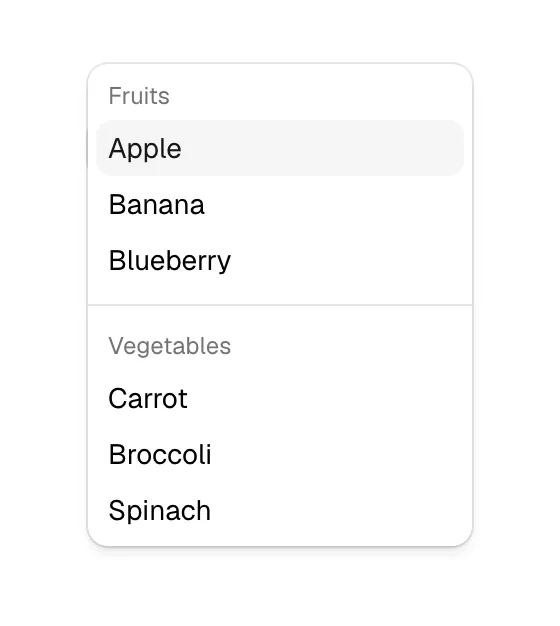 Select19 sitesA select is a form control that shows the current choice in a compact field and opens a list of fixed options when clicked, letting the visitor pick one.
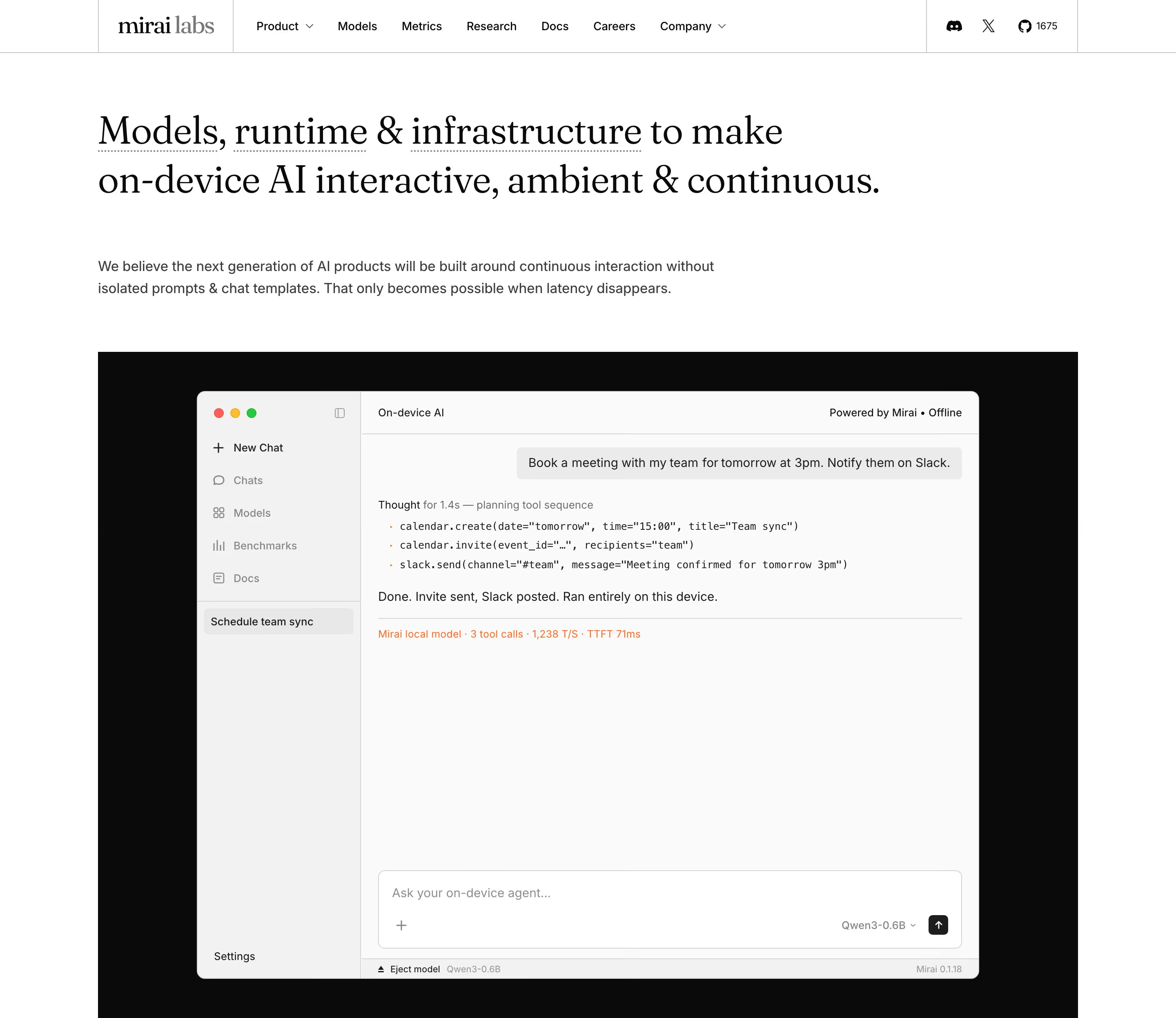 Serif headline71 sitesA serif headline is a large heading set in a typeface with small finishing strokes on its letters, usually paired with a sans-serif for body text.
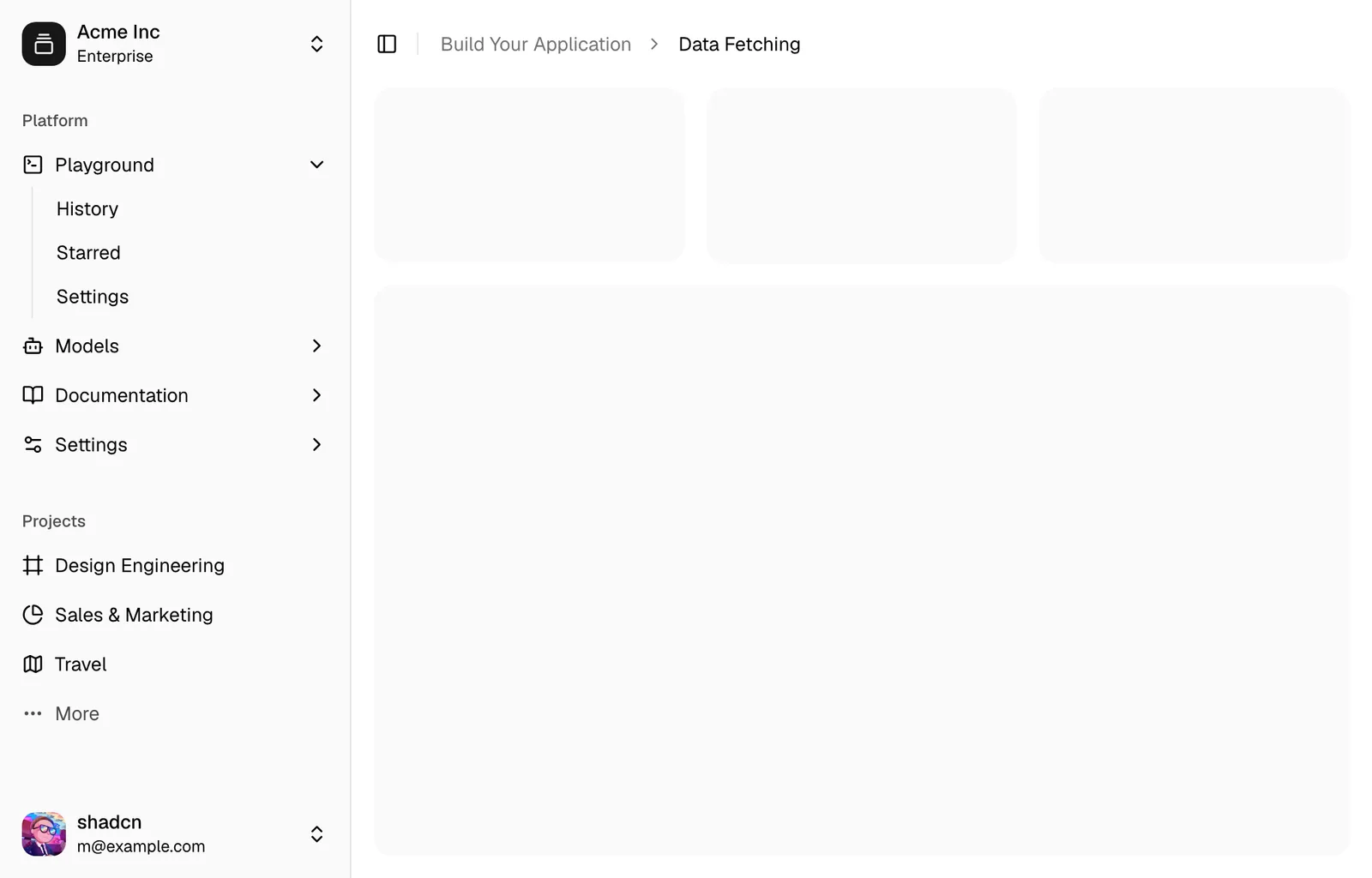 Sidebar26 sitesA sidebar is a vertical panel along the left or right edge of a layout that holds navigation, filters or context next to the main content area.
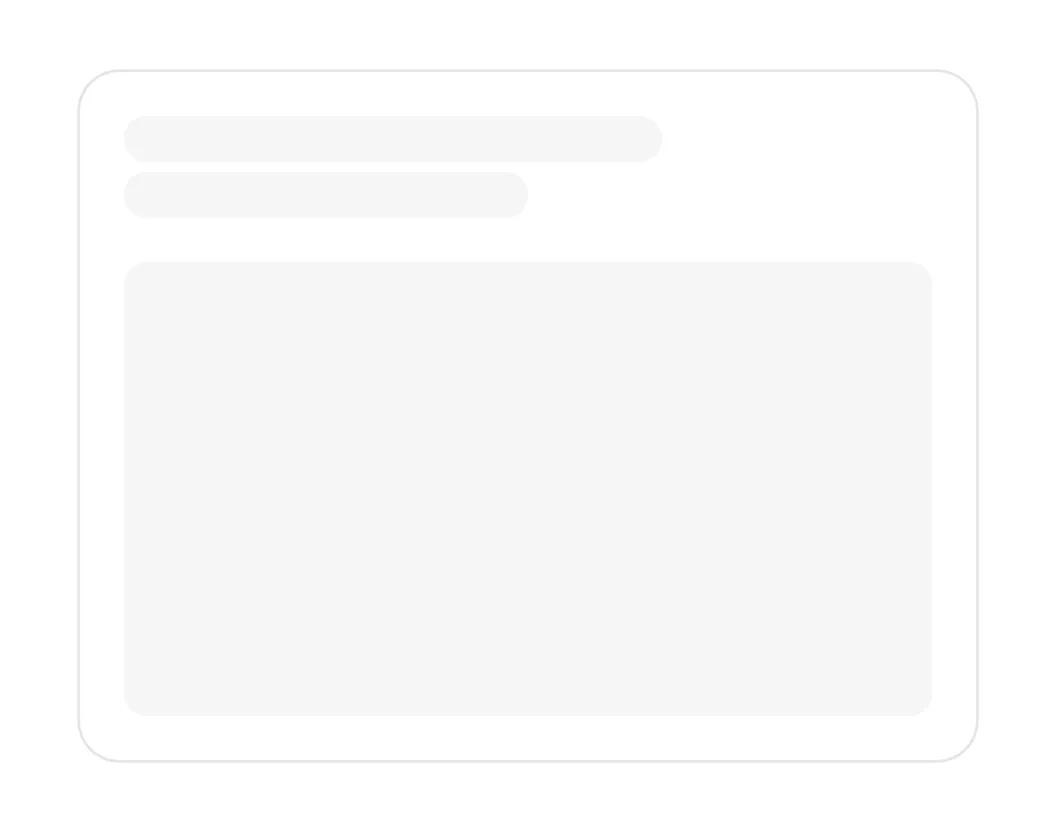 SkeletonA skeleton is a gray placeholder in the shape of content that is still loading, such as text lines, avatars and cards, often with a soft shimmer.
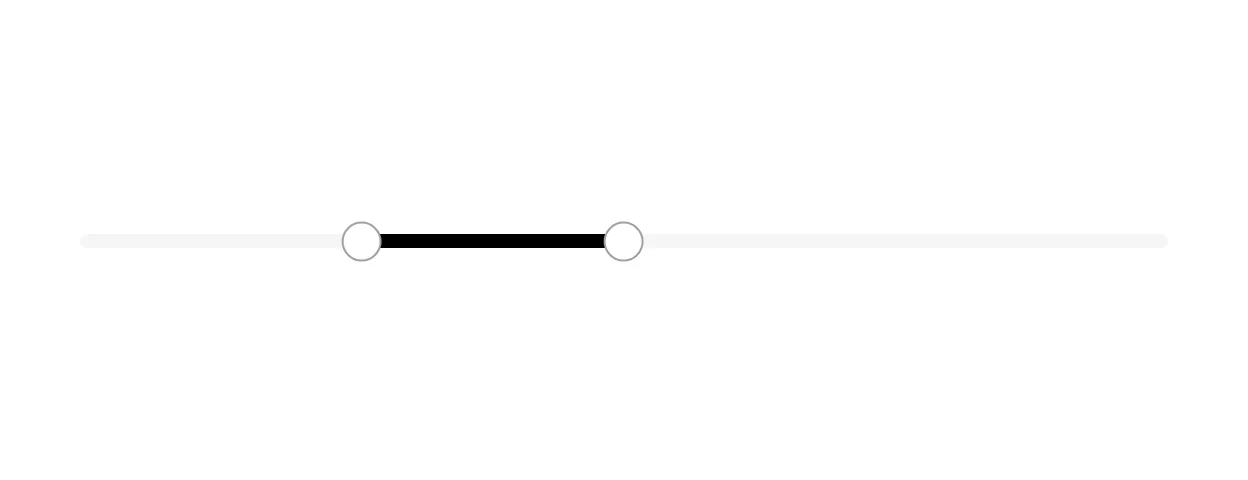 Slider8 sitesA slider is a control where a visitor drags a handle along a track to set a number within a range, such as seats, usage volume or a budget.
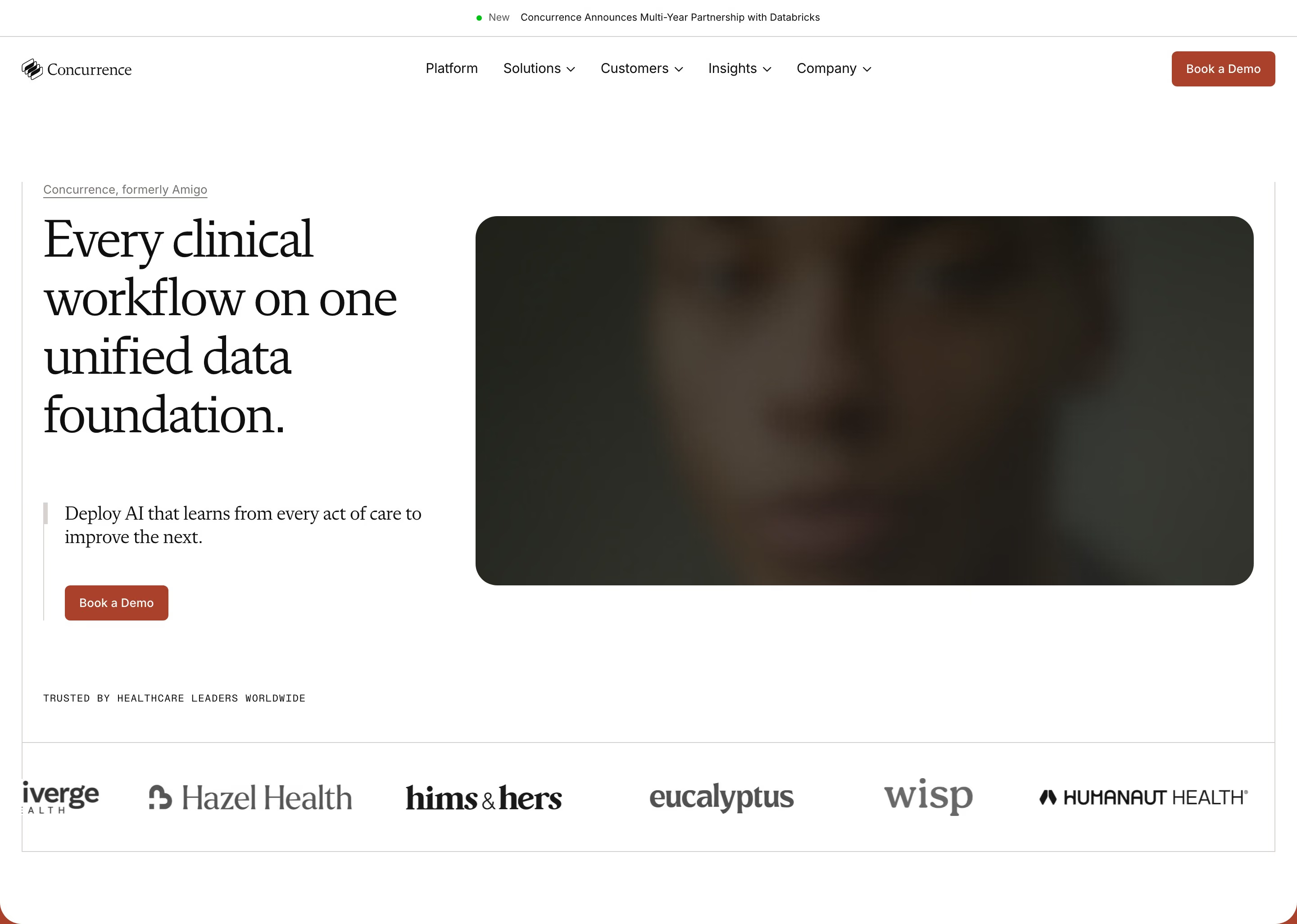 Social proof119 sitesSocial proof is evidence on a page that other people already use and value the product: customer logos, testimonials, ratings, user counts or results.
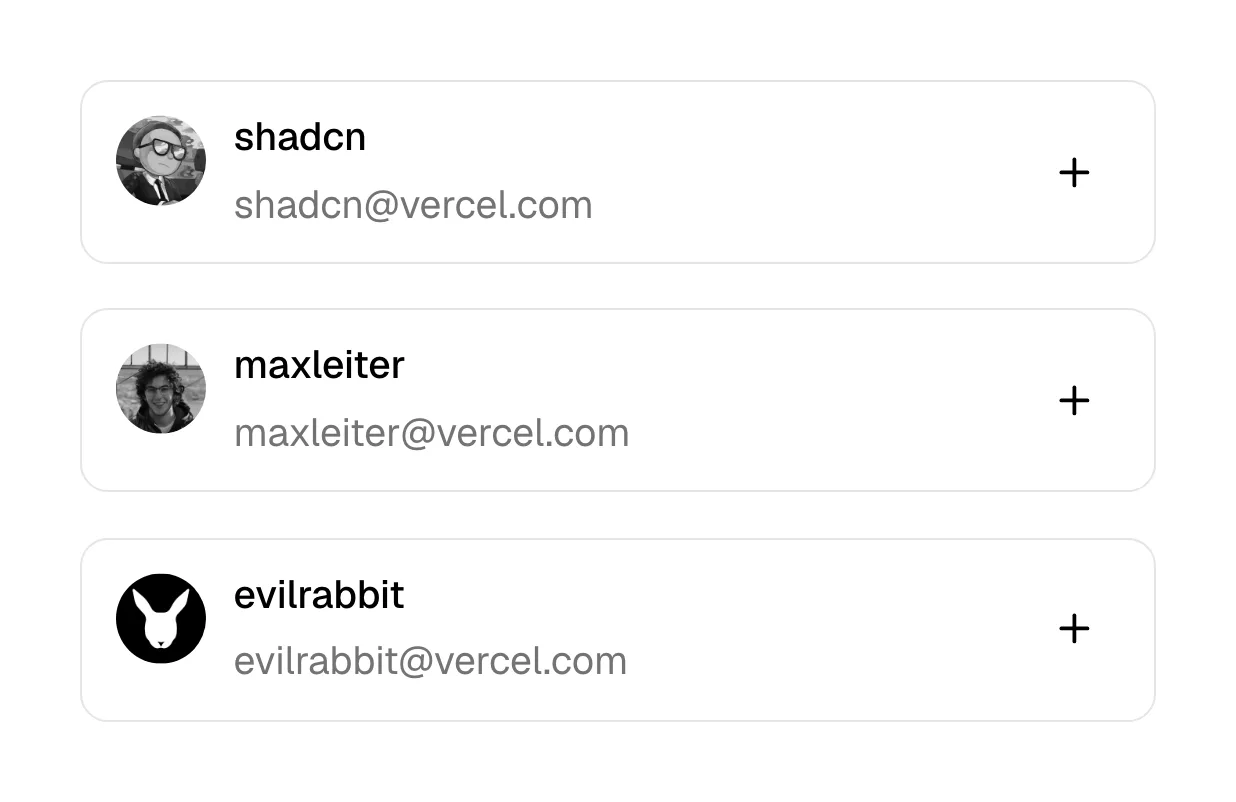 Stacked list19 sitesA stacked list is a vertical column of full-width rows, each holding one item's title and a few details, usually separated by thin dividers.
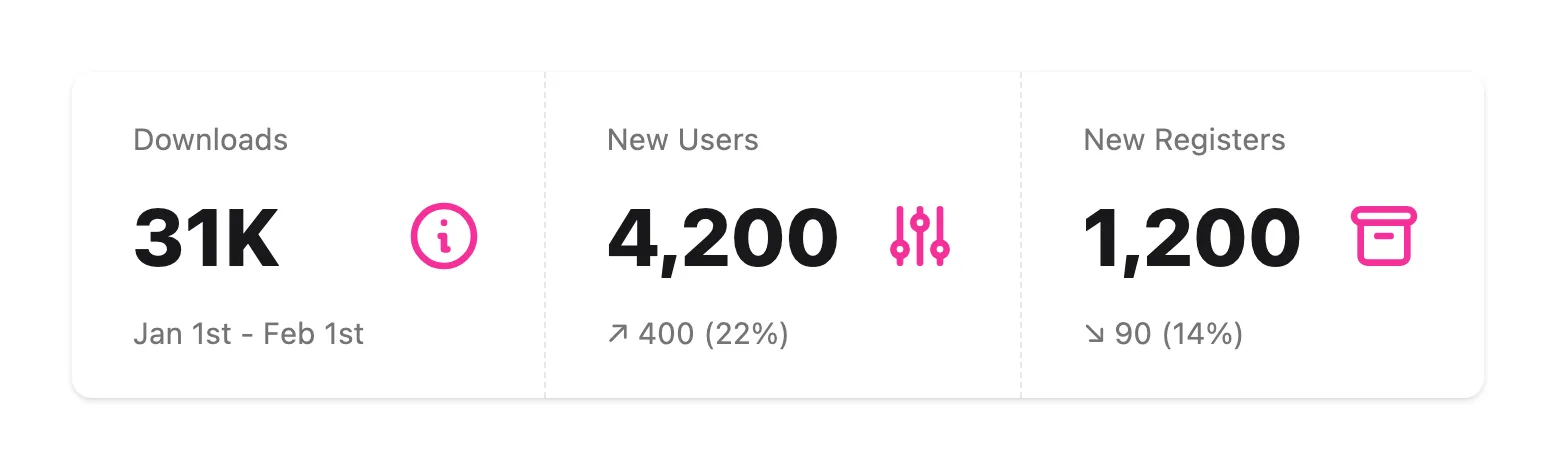 Stats section95 sitesA stats section is a band of three or four large numbers with short captions, such as customers, uptime or time saved, used as quick quantitative proof.
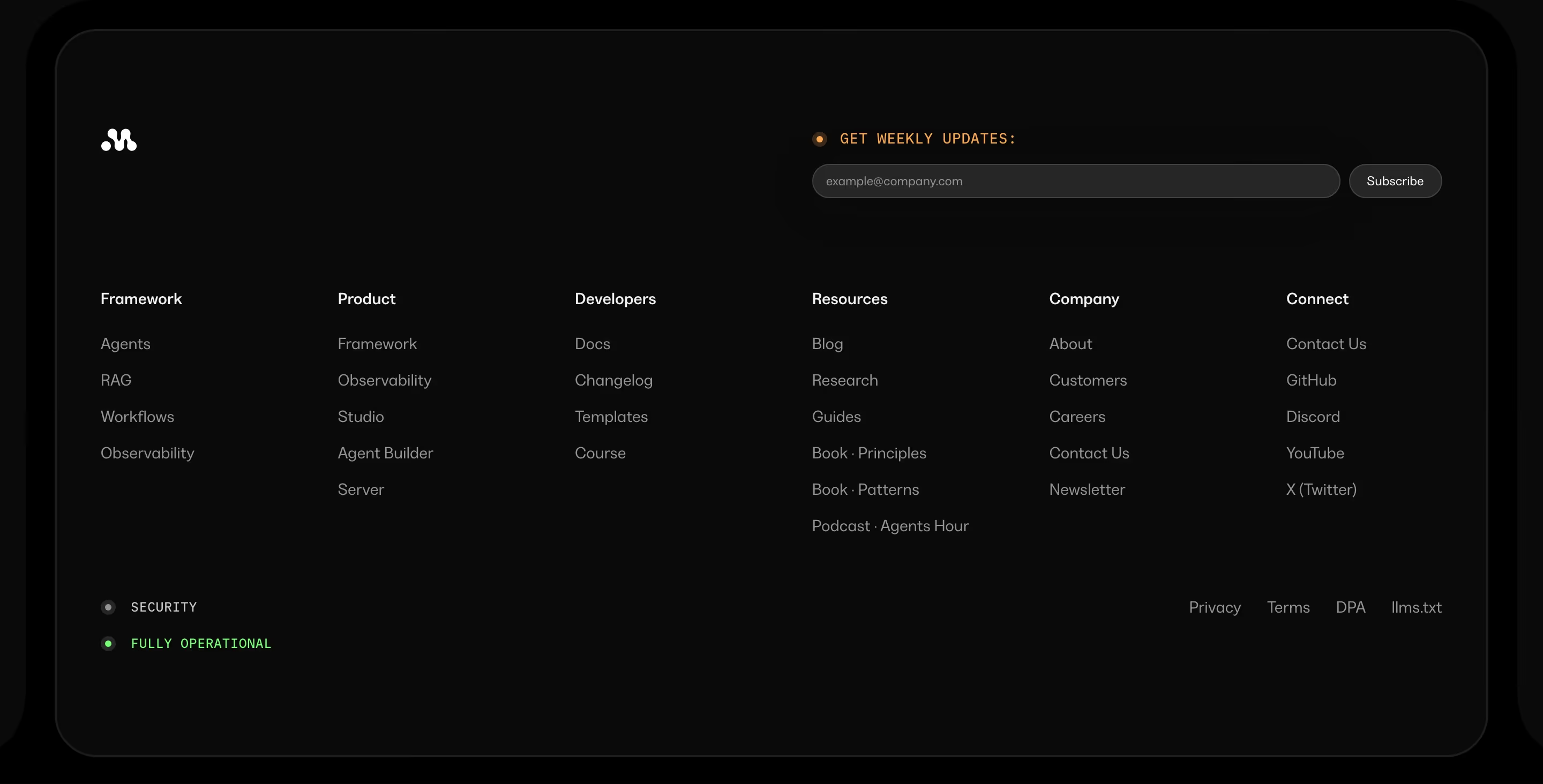 Status indicator30 sitesA status indicator is a small green dot or pill, usually in the footer, that reports live service health, such as "All systems operational".
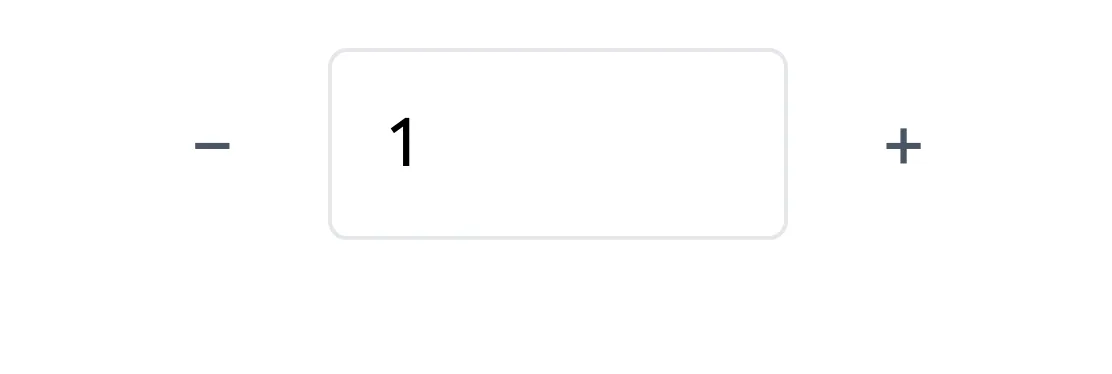 StepperA stepper is a small number input flanked by minus and plus buttons, letting a visitor raise or lower a value one step at a time, such as a seat count.
T
15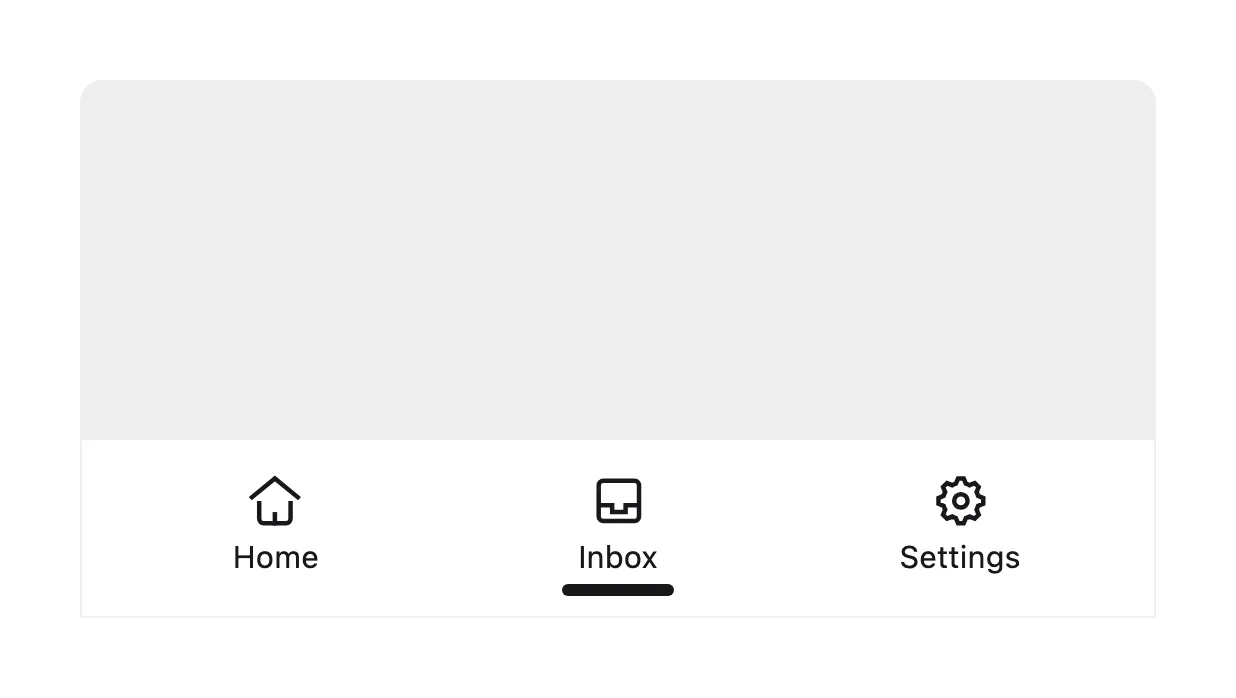 Tab barA tab bar is a row of three to five icon-and-label buttons fixed to the bottom of a mobile app screen, each switching to one top-level section.
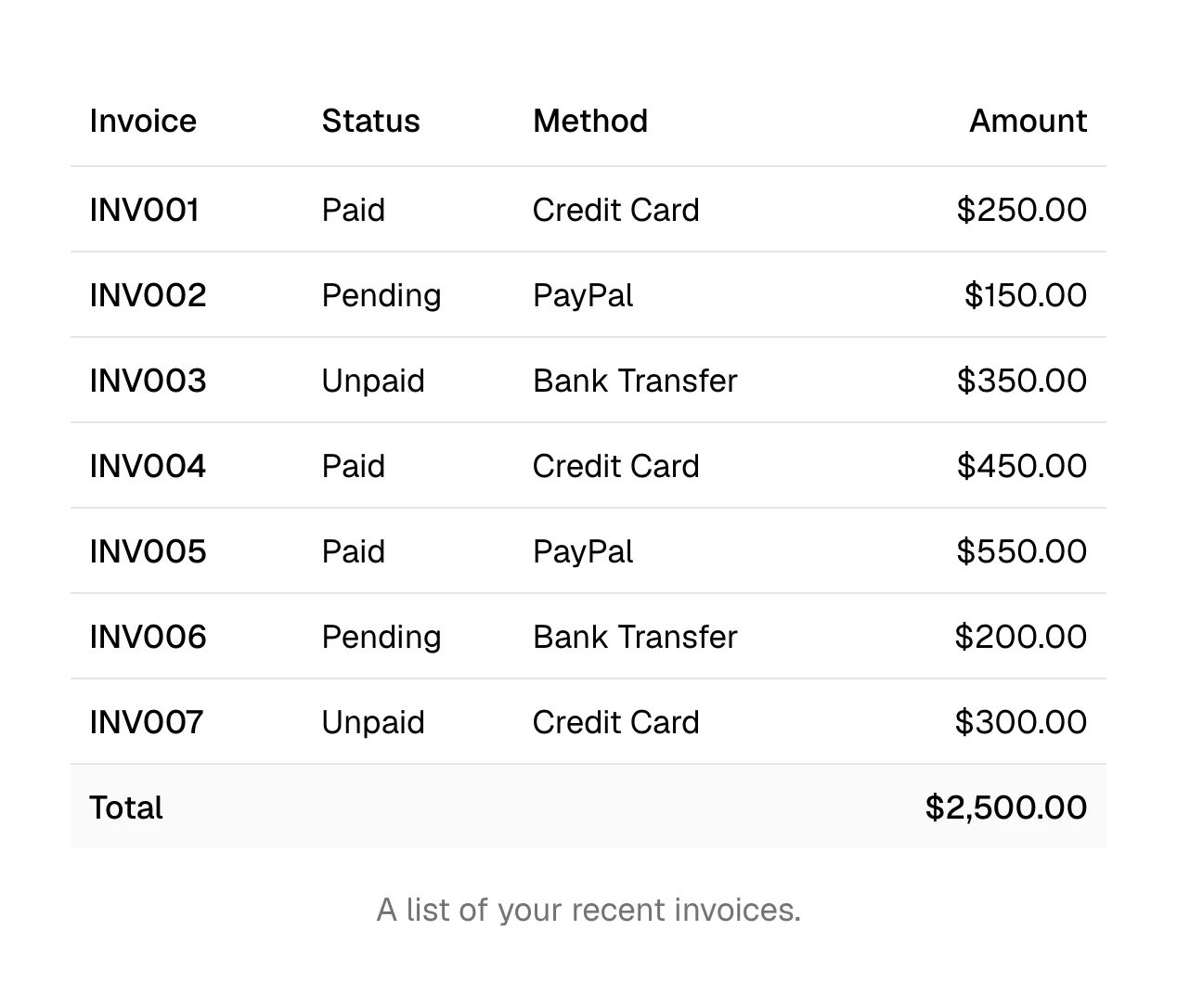 Table87 sitesA table is a grid of rows and columns with headers, used to compare values across items, such as plan features, prices or results, at a glance.
- Table of contentsA table of contents is a linked list of a page's own headings that shows a long article's structure and lets readers jump straight to one part.
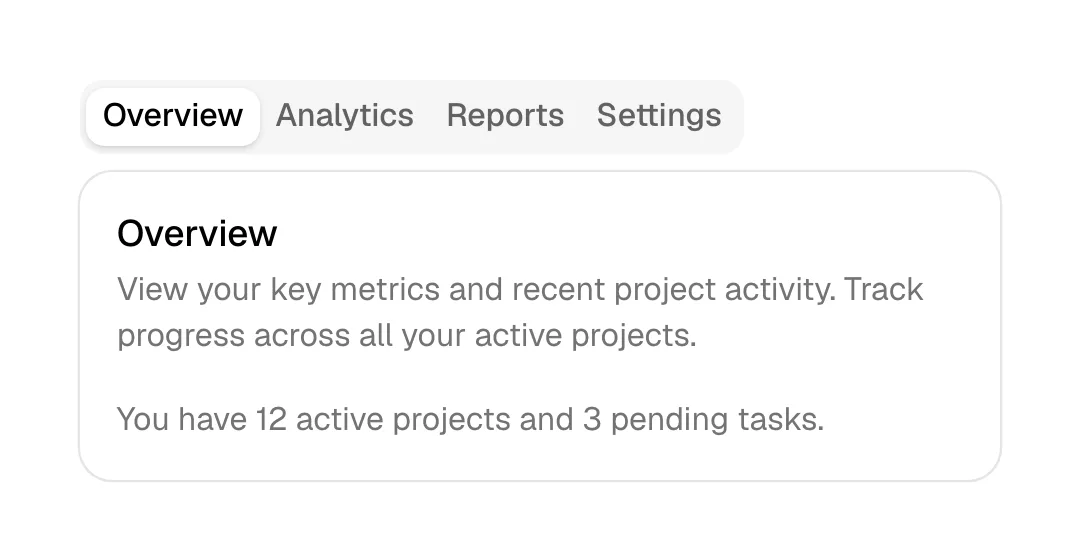 Tabs135 sitesTabs are a row of labeled controls that swap the content of one panel in place, so several views share the same spot on the page without scrolling.
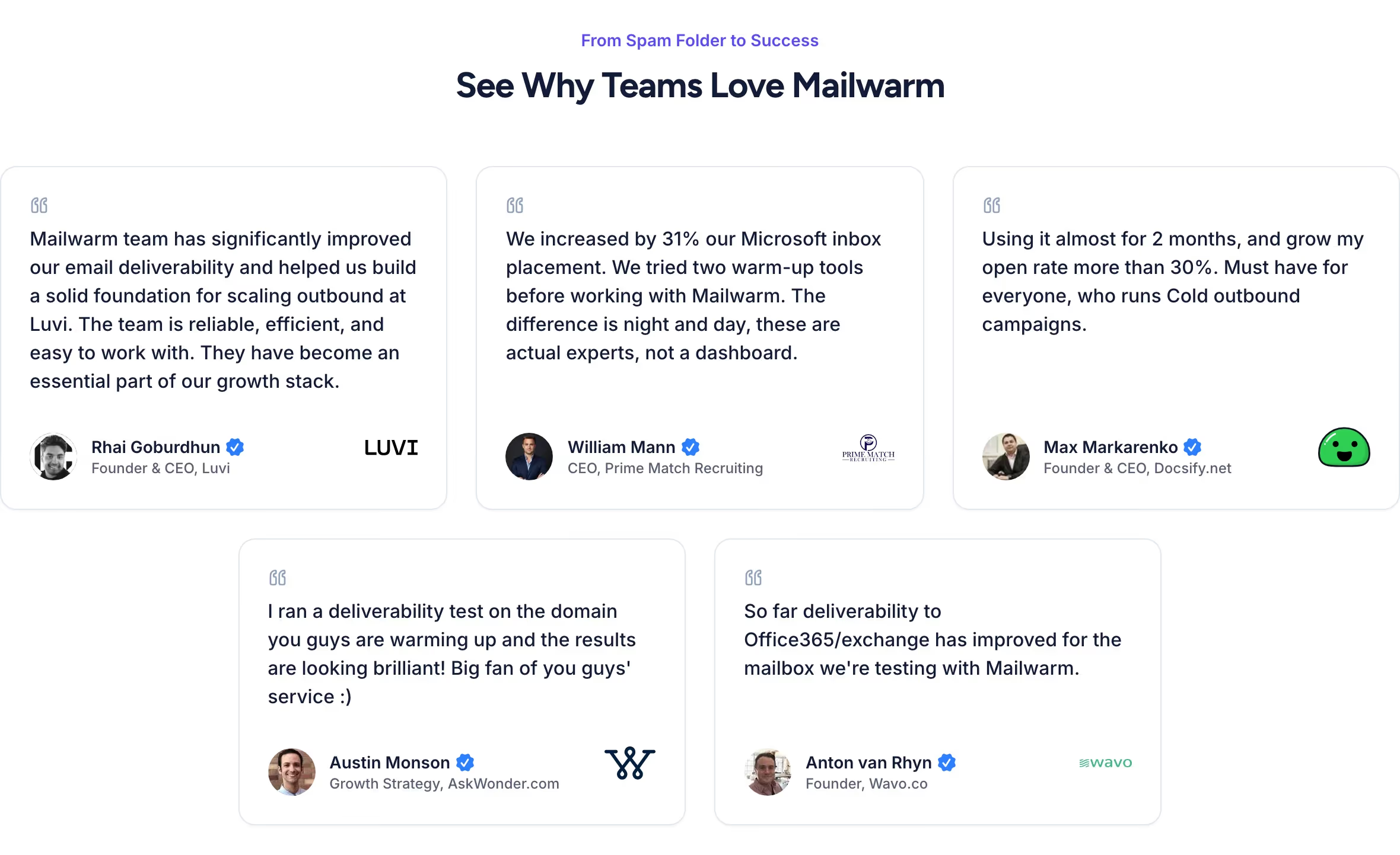
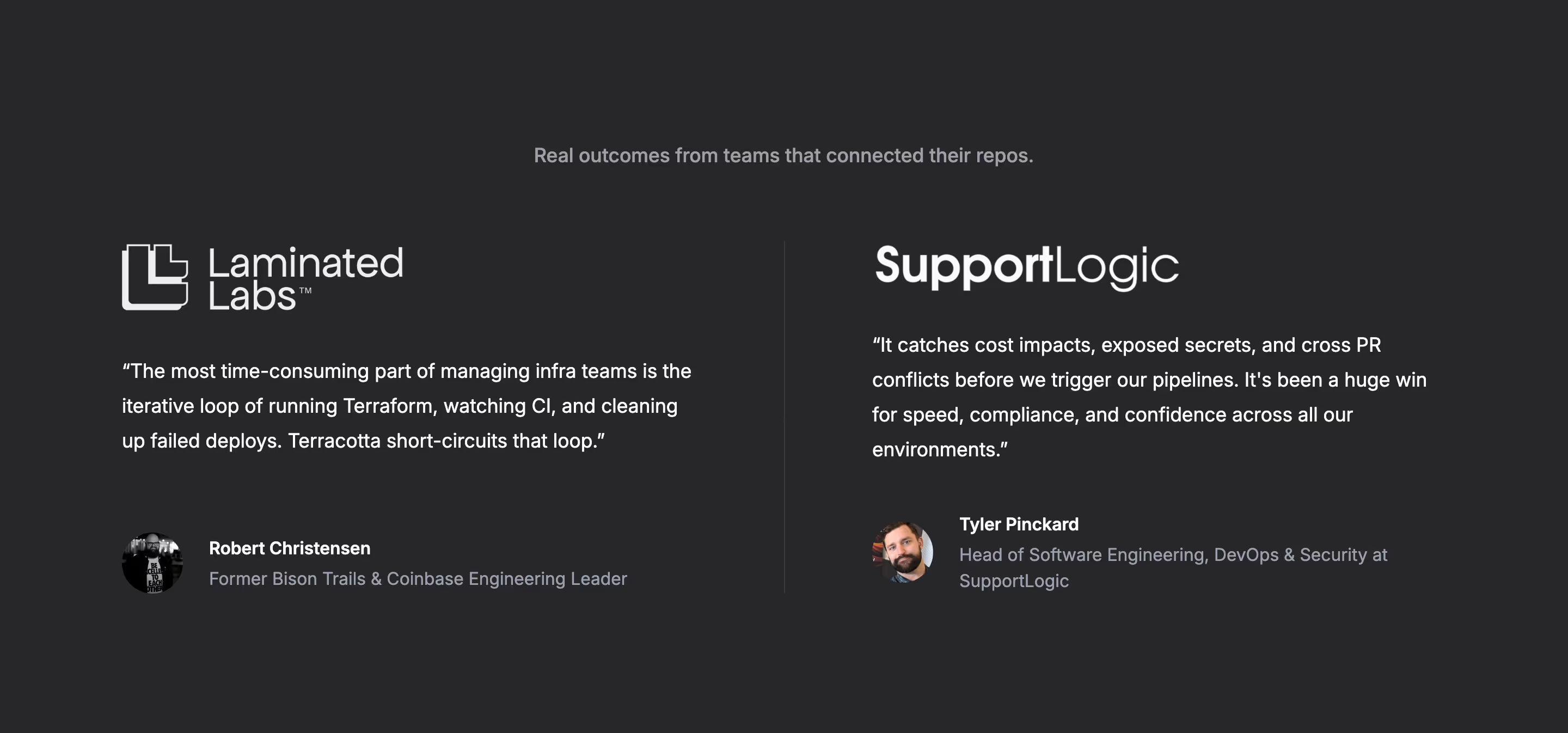 Testimonial section179 sitesA testimonial section is a block of customer quotes, each with a name, role, company and usually a photo, that lets real users vouch for the product.
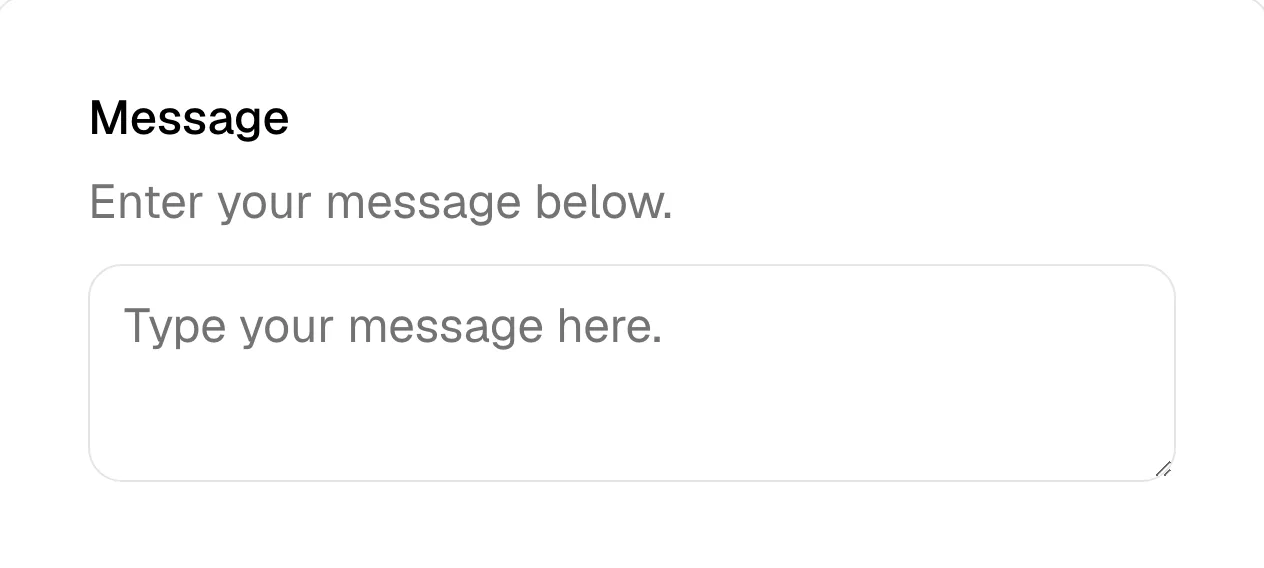 Text area35 sitesA text area is a multi-line input for longer free text, such as a message on a contact form or a prompt typed into an AI product's main input box.
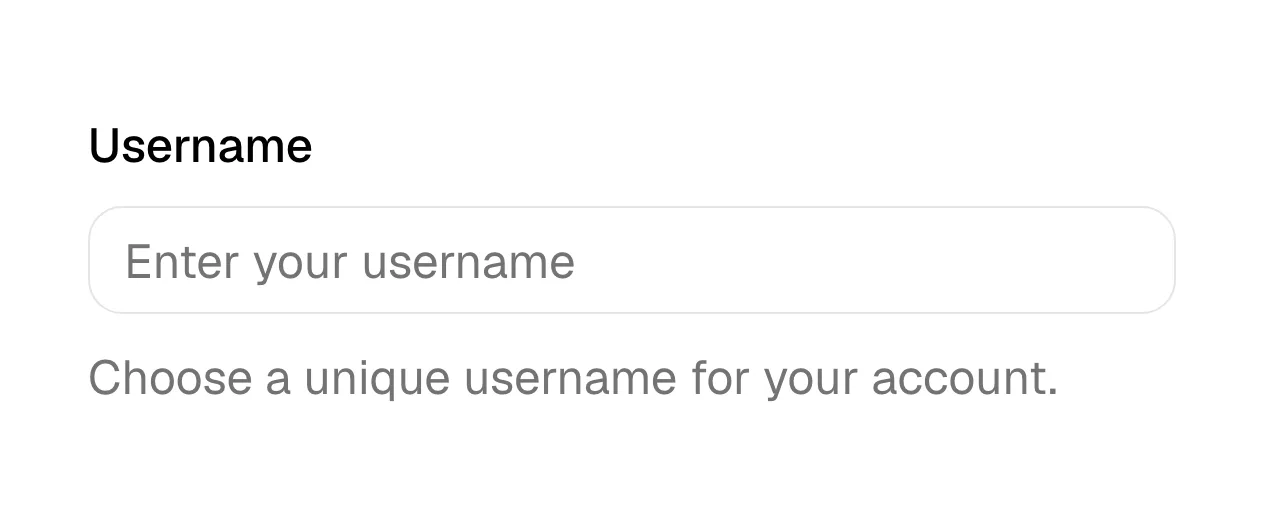 Text field49 sitesA text field is a single-line input where a visitor types a short value, such as an email address, name, company or website URL, usually with a label.
 Tile210 sitesA tile is a compact, usually square block in a tight grid, holding one logo, icon, stat or image, scanned as part of a set rather than alone.
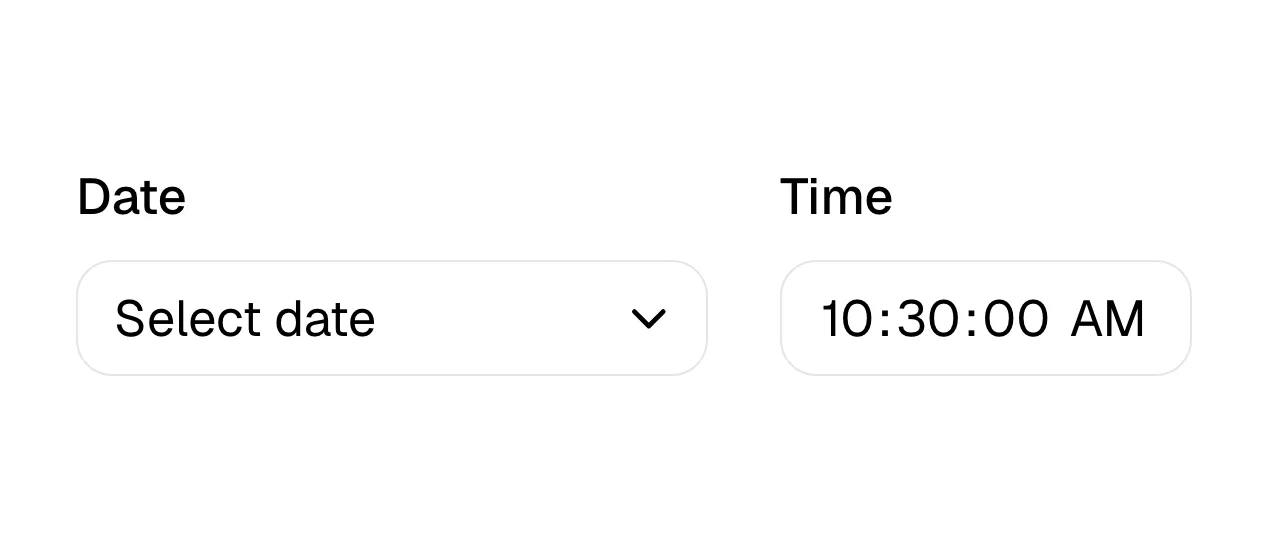 Time pickerA time picker is an input for choosing a time of day, shown as hour and minute fields, a scrolling list, a clock face or a set of available time slots.
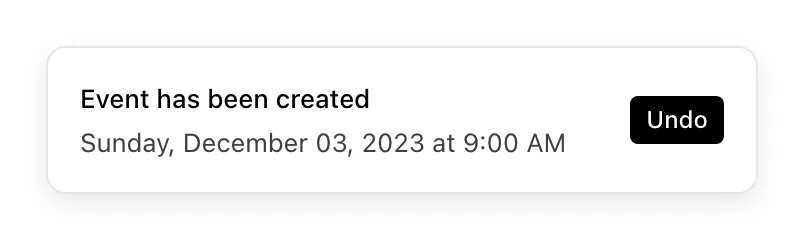 ToastA toast is a brief notification that slides into a corner of the screen to confirm an action or report an event, then disappears on its own.
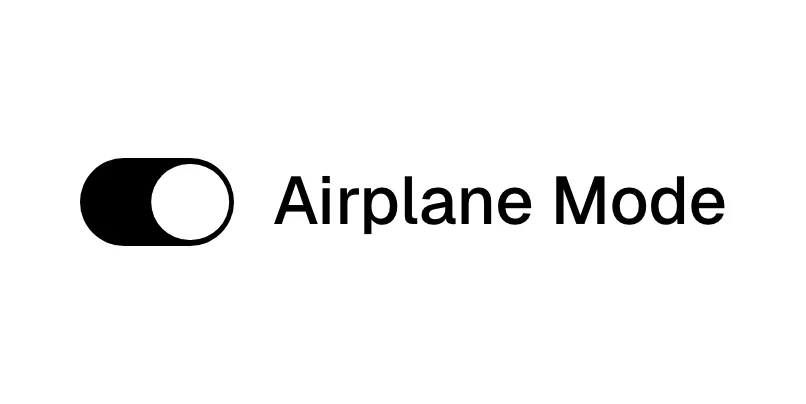 Toggle switch10 sitesA toggle switch is a two-state control, a knob sliding along a rounded track, that turns one setting on or off with one click, taking effect at once.
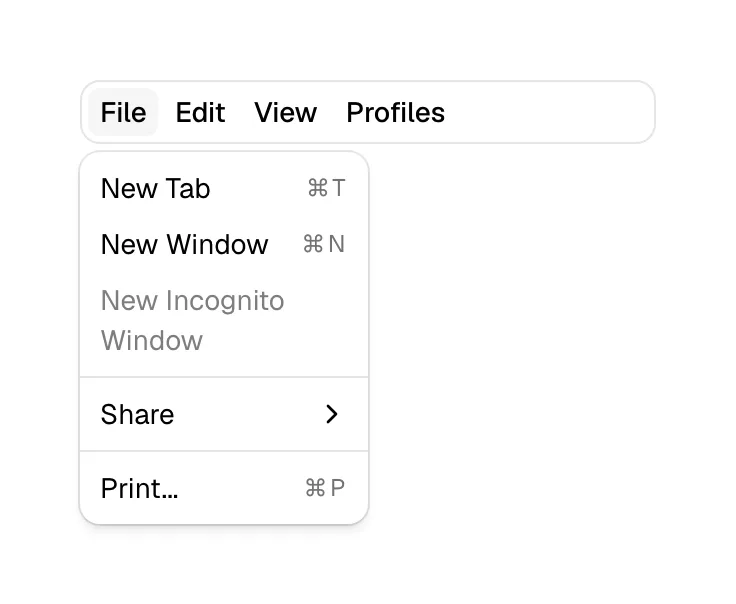 Toolbar7 sitesA toolbar is a compact strip of icon buttons and controls grouped together, giving quick access to the actions most often used in an editor or view.
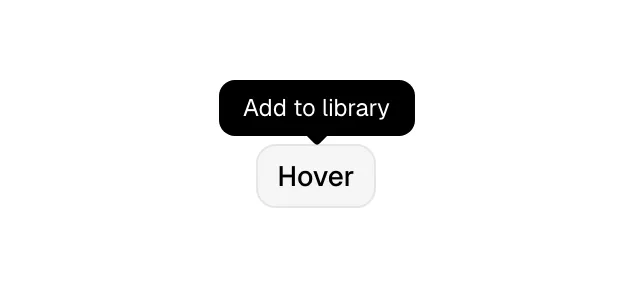 Tooltip3 sitesA tooltip is a short text label that appears next to an element when it is hovered or focused, naming or explaining it, then disappears.
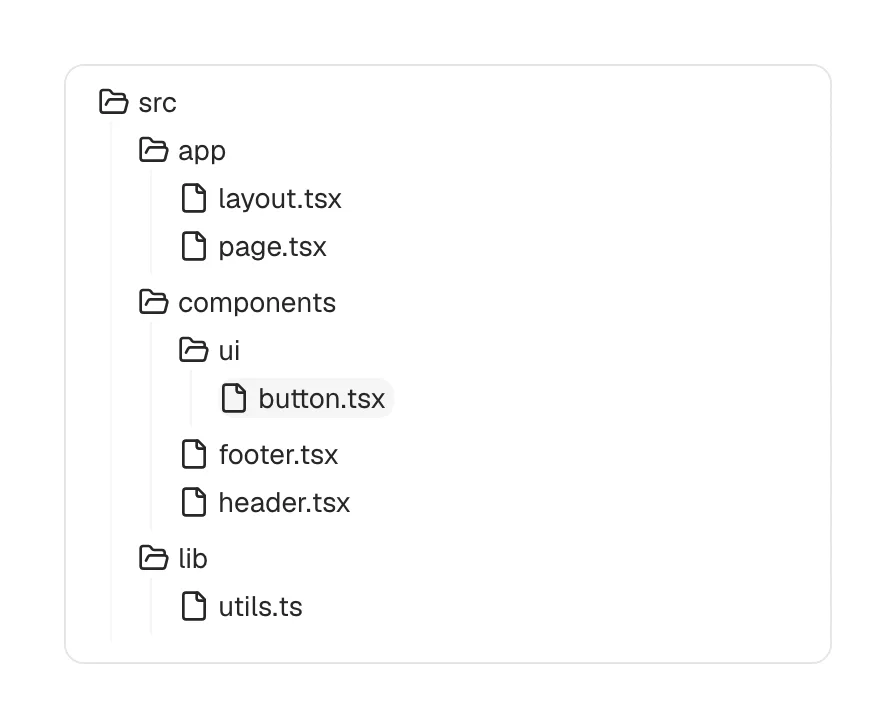 Tree6 sitesA tree is a nested list where items expand and collapse to reveal children, showing a hierarchy such as folders and files, docs pages or layers.
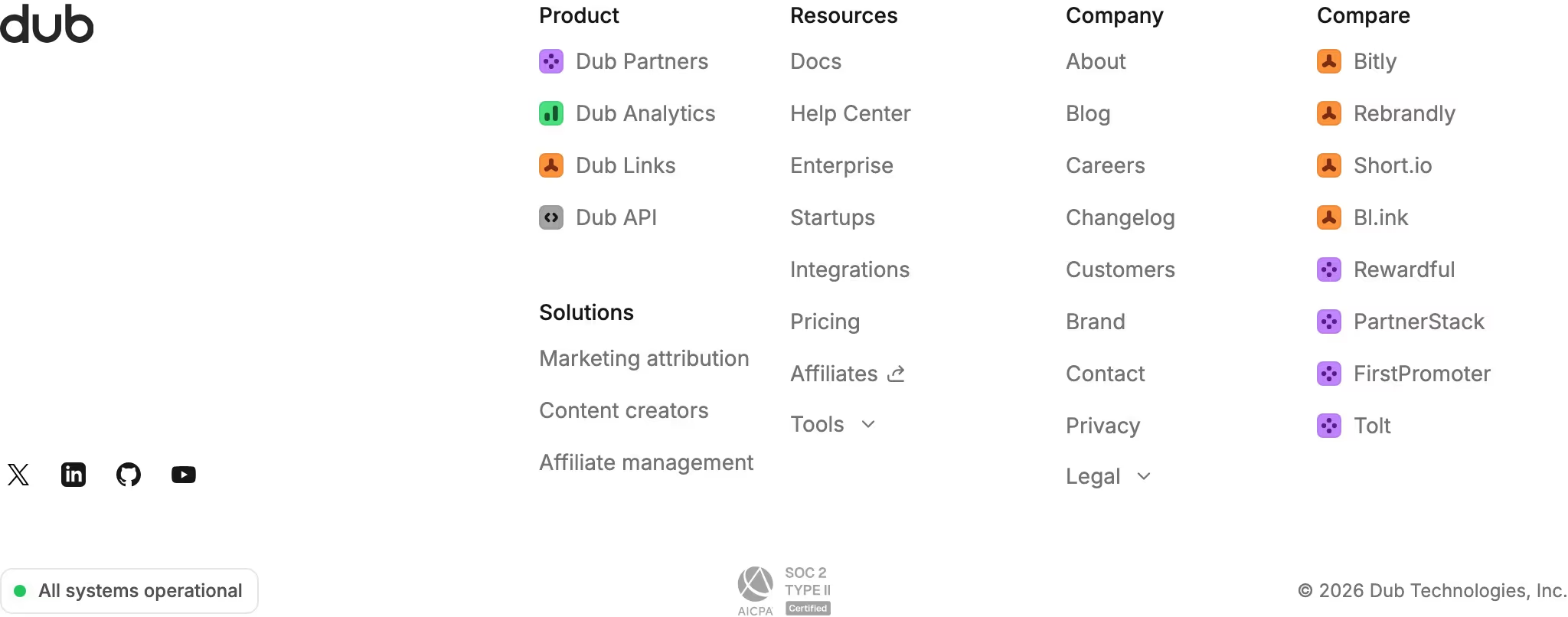 Trust badge95 sitesA trust badge is a small mark showing a security or compliance credential, such as SOC 2, ISO 27001, GDPR or HIPAA, to reassure buyers about their data.