
Navigation
Command palette
A command palette is a keyboard-opened search box, usually summoned with ⌘K or Ctrl+K, that lets users jump to any page or action by typing its name.
- Also called
- Command menu, Cmd+K menu, ⌘K, Quick switcher, Command bar
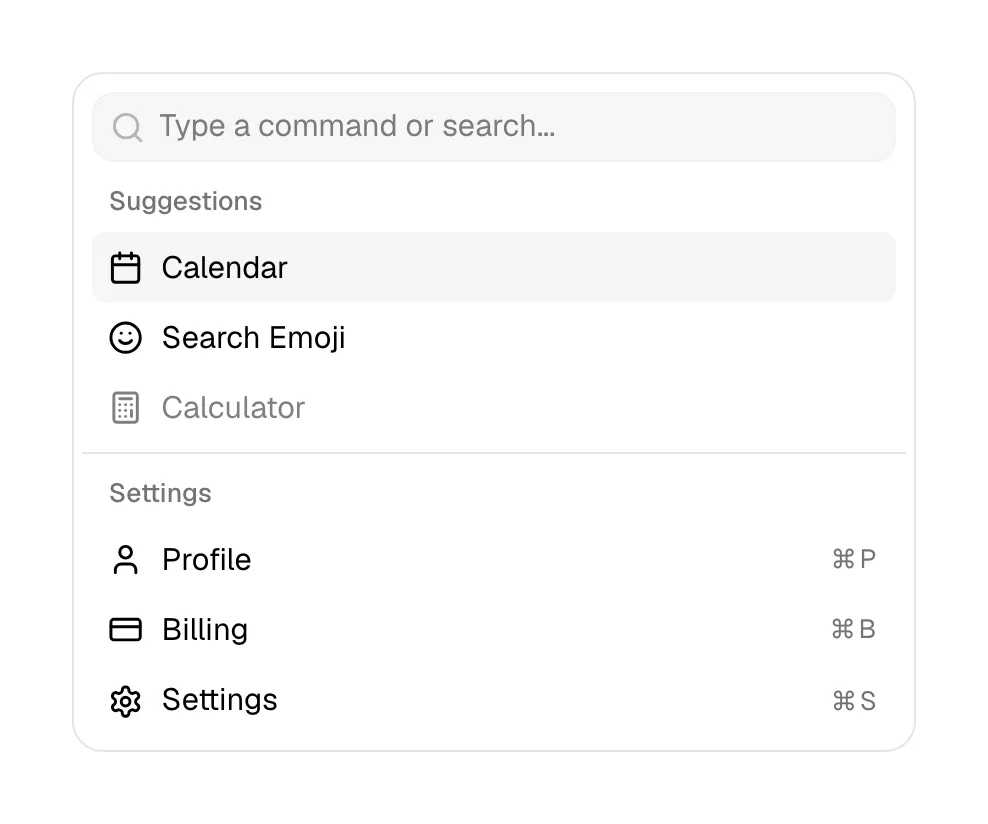
What is a command palette?
The command palette started as a power-user feature in code editors and moved into SaaS products, where ⌘K now opens search, navigation and actions in one place. On marketing sites it shows up in two ways: as a product visual, where a floating palette with a few typed results demonstrates that the app is fast and keyboard-first, and as a real feature on docs and developer sites, where ⌘K searches the documentation.
As a product visual it is one of the most efficient images a productivity or developer tool can show. One input, a highlighted result and a few shortcut hints say "built for people who live in this app" without any copy. The weak version is a decorative palette with generic entries ("Search…", "Settings") that could belong to any product.
As a real site feature it belongs where visitors search: docs, changelogs and large resource libraries. A small "⌘K" hint in the navigation tells keyboard users it exists, and the same box should still open with a click for everyone else.
When to use a command palette, and when not to
Use it for
- Keyboard-first productsDeveloper tools, editors and productivity apps where the palette is a core part of the experience.
- Large docs or resource hubsHundreds of pages where search is faster than browsing the navigation.
- Hero product visualsA palette with real, product-specific commands showing speed and control at a glance.
Avoid it for
- Small marketing sitesTen pages don't need a search layer; clear navigation is faster.
- Shortcut-only accessIf ⌘K is the only way to open it, mouse and touch users never find it.
- Generic mock entriesA palette listing "Search" and "Settings" says nothing specific about your product.
Anatomy of a command palette
- 1Trigger hintA small "⌘K" key badge in the navigation or search field.
- 2OverlayA dimmed or blurred backdrop that focuses attention on the palette.
- 3InputA large search field at the top with placeholder text describing what can be found.
- 4Results listGrouped pages and actions with icons, one highlighted, and keyboard shortcuts aligned right.
- 5Footer hintsOptional key labels for navigating, selecting and closing.
Common command palette variants
1. Docs search
A ⌘K search over documentation, often with AI answers above the page results.
2. Product mockup
A static palette in a hero or feature visual, showing typed commands inside the app.
3. Site-wide navigator
A palette on the marketing site itself that jumps to pages, posts and actions.
Often confused with
Command palette vs. navigation bar
The navigation bar shows a fixed set of links. A command palette hides everything behind a search field and finds it by name.
Command palette vs. interactive demo
An interactive demo lets visitors try a workflow. A command palette in a hero is usually a static picture of one feature.
Frequently asked
Should a marketing site have a ⌘K command palette?
Only if it has a lot to search, such as docs, a changelog or a large library. For a ten-page site the navigation bar is faster and more discoverable.
How do visitors know the palette exists?
Show the shortcut. A "⌘K" badge inside a visible search field or the navigation both advertises the shortcut and gives mouse users something to click.
Why do so many developer tools show a command palette in their hero?
Because it signals speed and keyboard control in one image, which is exactly what their audience is buying. It works when the commands shown are real ones from the product.