
Overlays & feedback
Drawer
A drawer is a panel that slides in from the left or right edge of the screen over the page, holding navigation, details or settings until closed.
- Also called
- Side drawer, Off-canvas menu, Side sheet, Slide-out panel
- Browse examples
- Mobile designs →
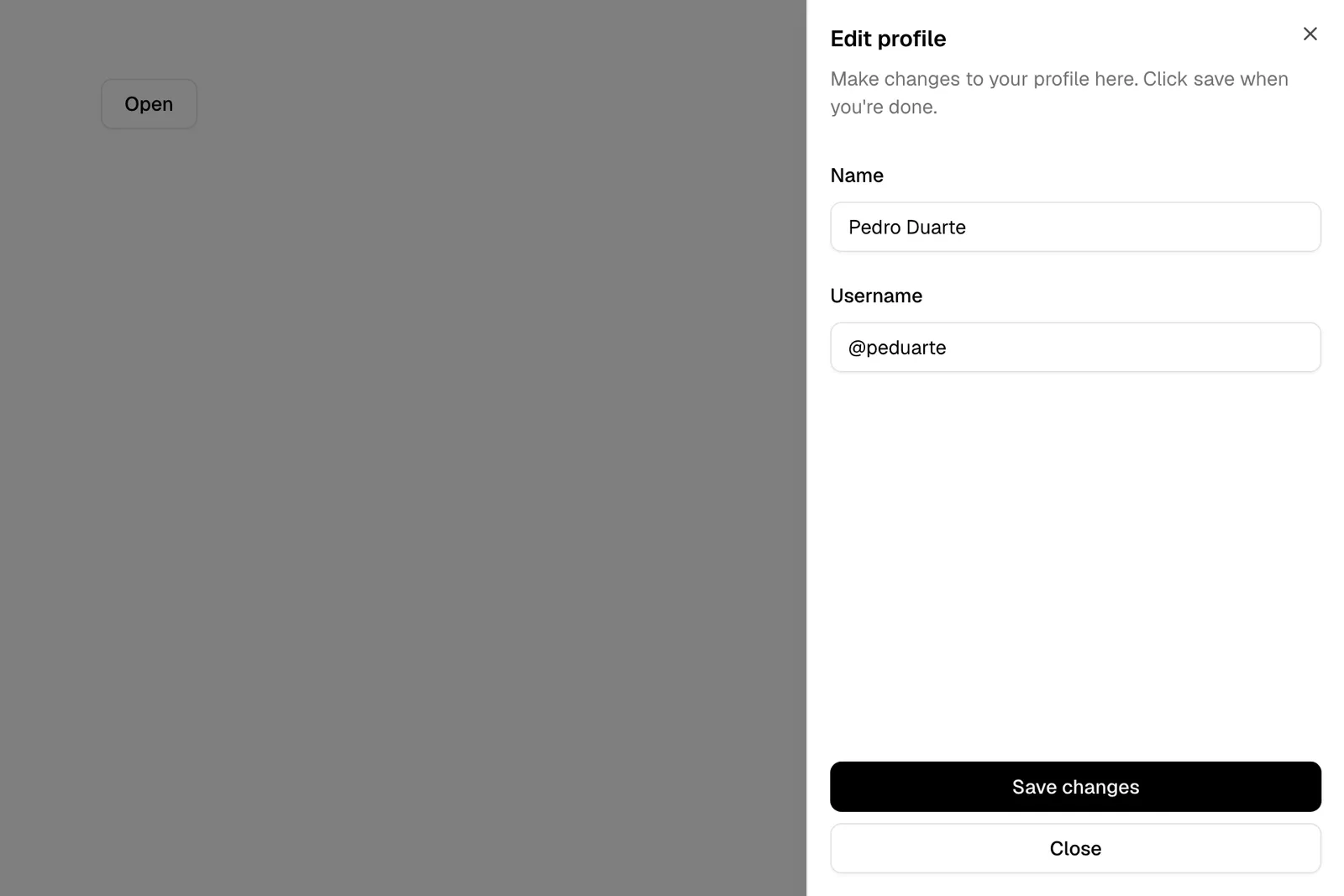
What is a drawer?
Drawers keep secondary content off the page until someone asks for it. The classic case on SaaS marketing sites is the mobile menu: tap the hamburger and a panel slides in from the side with the navigation links, grouped sections and a sign-up button at the bottom. On desktop, drawers show up as a cart in a self-serve checkout, a filter panel on a template gallery, or a details panel on an integrations directory.
In product visuals, a side panel is one of the most useful things to show because it reveals depth: a record list on the left, a drawer on the right with the selected item's details, comments or AI summary. It tells the visitor that clicking a row opens something rich without needing a second screenshot.
As an overlay, a drawer needs the same care as a dialog: a dimmed scrim, focus moved inside and trapped there, Escape and an outside click to close, page scroll locked, and a quick slide of around 200–300ms. A drawer that animates slowly or leaves the page scrolling underneath feels sluggish.
When to use a drawer, and when not to
Use it for
- Secondary navigationMany links that shouldn't take space on small screens but must stay one tap away.
- Details in contextShowing more about one item while the list it came from stays partly visible.
- Optional controlsFilters and settings that some visitors use and most can ignore.
Avoid it for
- Primary contentAnything most visitors need, such as pricing or the main CTA, shouldn't be hidden in a drawer.
- Few linksA desktop site with five nav links has room for all of them; a drawer only adds a click.
- Quick decisionsA yes/no confirmation is clearer in a small dialog than in a tall side panel.
Anatomy of a drawer
- 1ScrimA dimmed layer over the visible part of the page that closes the drawer when clicked.
- 2PanelA full-height panel, often 280–420px wide on desktop and up to full width on phones.
- 3HeaderThe logo or panel title with a close button.
- 4ContentNavigation links, filters or details, scrolling inside the panel when long.
- 5Footer actionsSign-in and primary CTA buttons, or an "Apply" button for filters.
Common drawer variants
1. Navigation drawer
The mobile menu that slides in from the left or right after a hamburger tap.
2. Details drawer
A right-side panel that shows one record's details over a list or table.
3. Push drawer
Moves the page aside instead of covering it, common on docs sites with a sidebar.
Often confused with
Drawer vs. sidebar
A sidebar is a permanent column that is part of the layout. A drawer is temporary and covers the page when opened.
Drawer vs. bottom sheet
A bottom sheet rises from the bottom edge and is a mobile pattern. A drawer slides in from the side and works on both mobile and desktop.
Drawer vs. full-screen overlay
A full-screen overlay takes the whole viewport. A drawer covers only one side and leaves the dimmed page visible.
Frequently asked
Should the mobile menu be a drawer or a full-screen overlay?
Both work. A drawer keeps a strip of the page visible, which reminds visitors where they are; a full-screen menu has more room for grouped links and large tap targets. Choose based on how many links you have.
Which side should a drawer open from?
The side its trigger is on. If the hamburger sits at the right of the header, a right-side drawer feels connected to the tap that opened it.