
Page sections
Feature section
A feature section is a block of a SaaS page that explains what the product does, usually as a grid of cards or alternating rows of copy and screenshots.
- Also called
- Features grid, Feature blocks, Product features, Benefits section
- Spotted on
- 196 of 422 homepages
- Browse examples
- Feature sections →
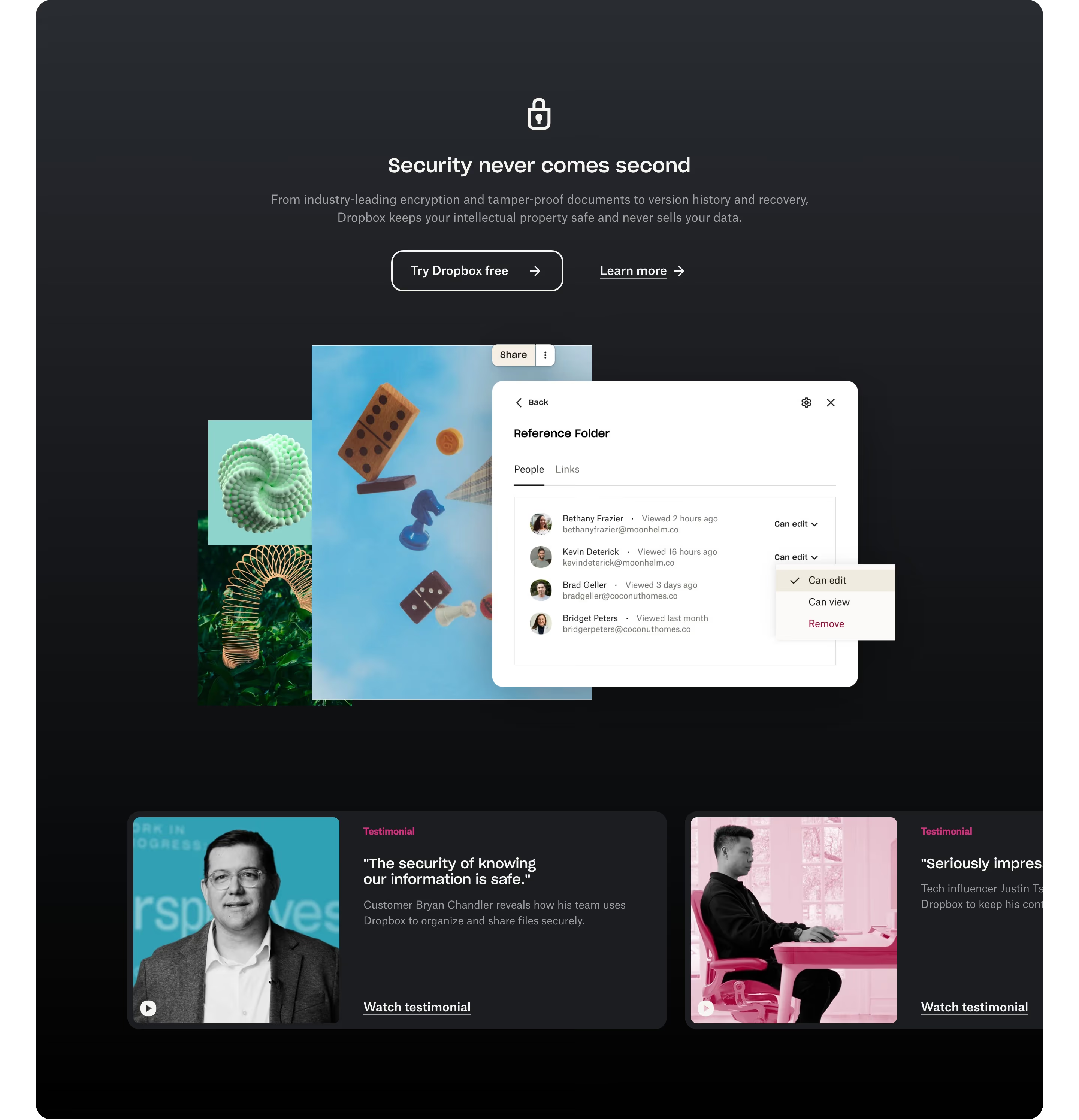
What is a feature section?
After the hero makes a claim and the logos back it up, feature sections do the explaining. On many SaaS homepages in our catalog they fill much of the page, stacked as a mix of card grids, alternating text-and-screenshot rows and tabbed panels.
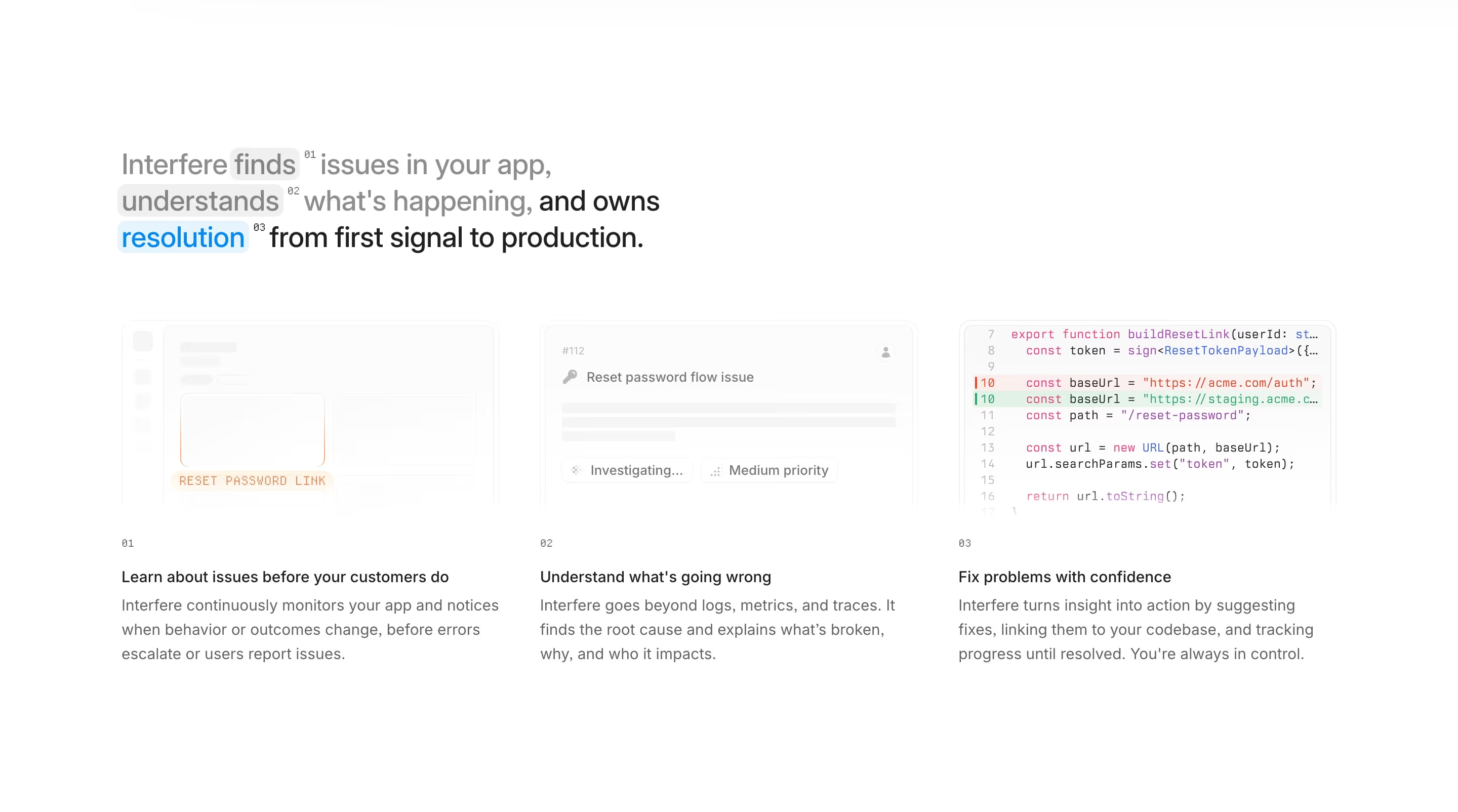
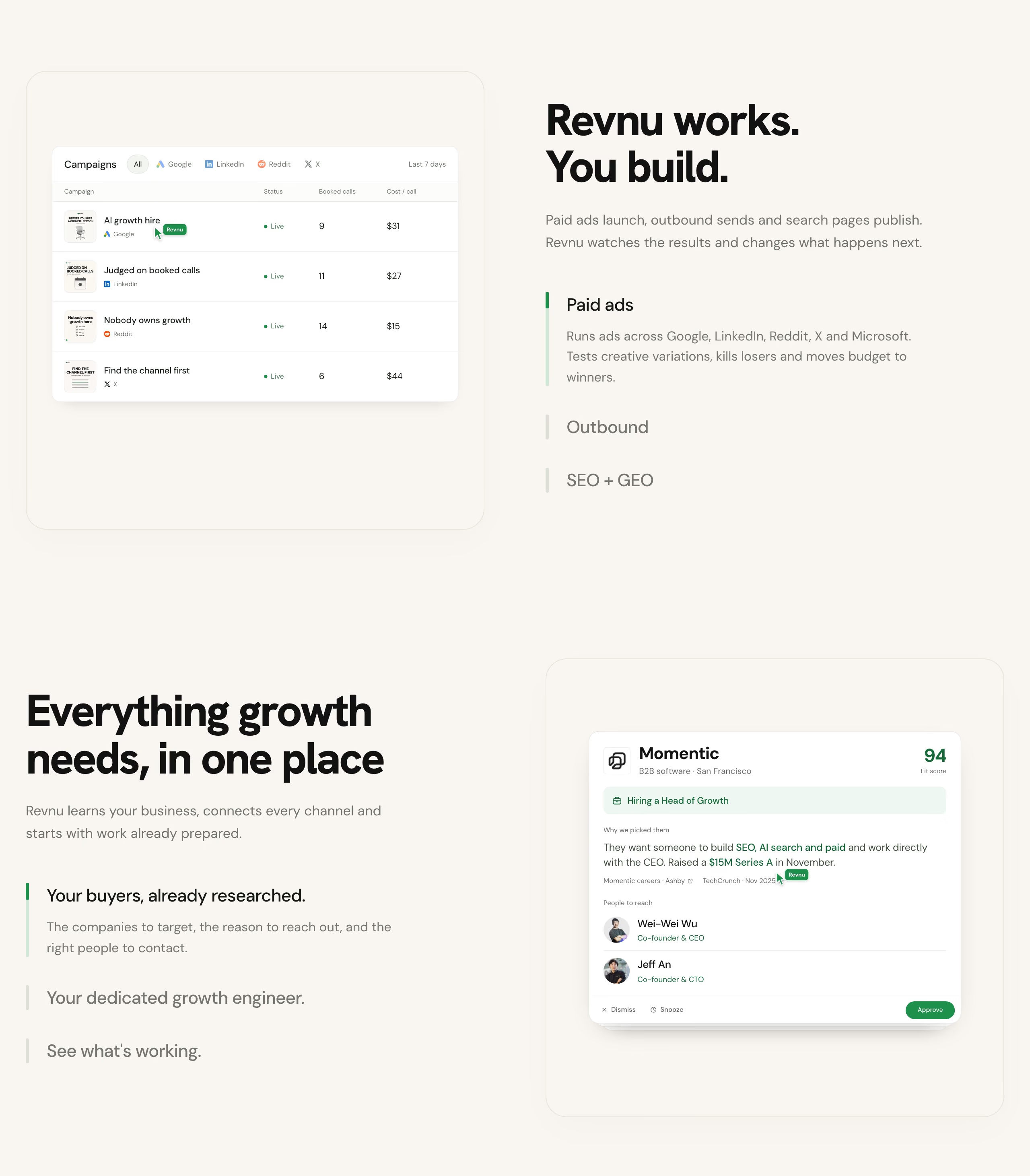
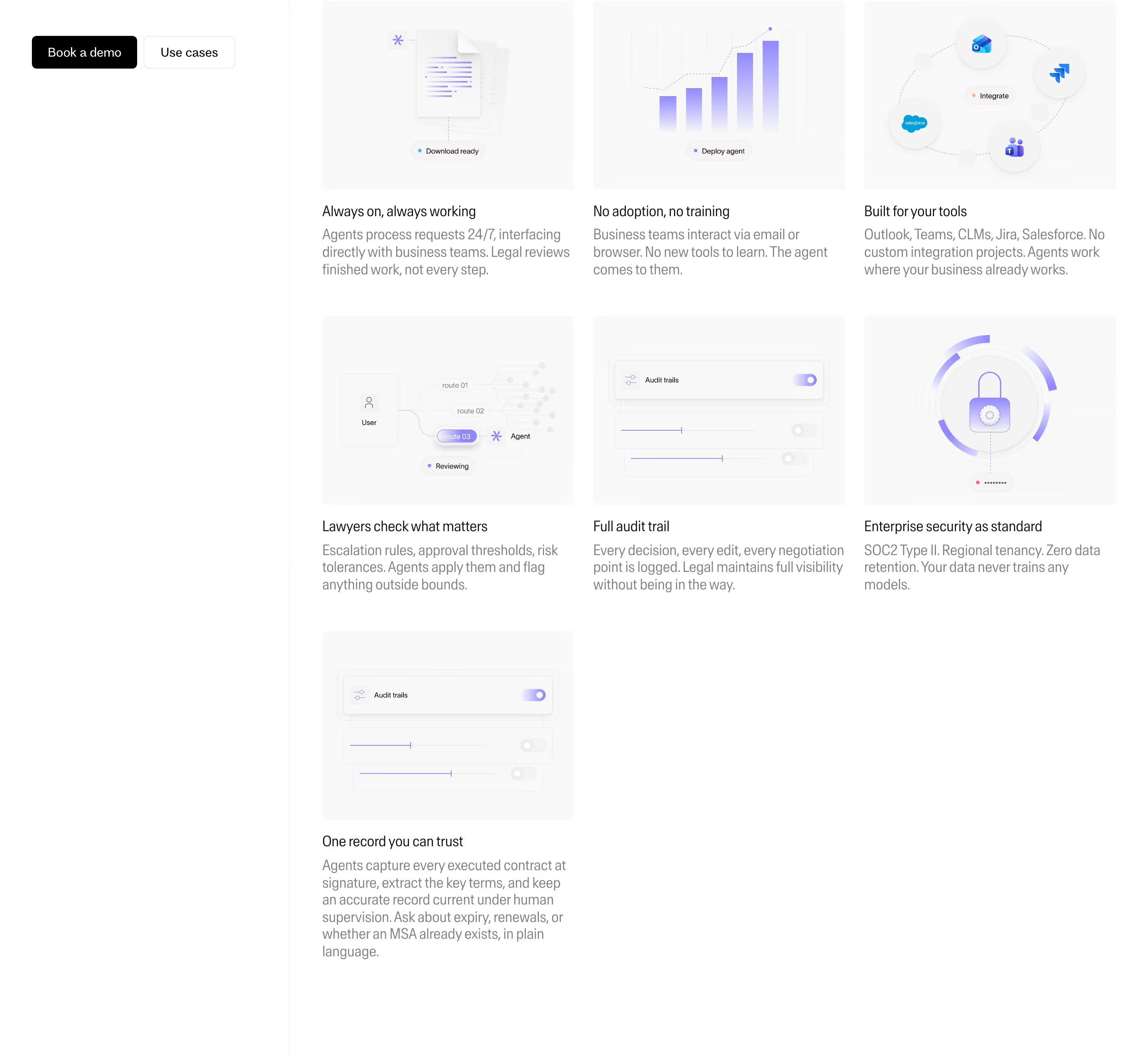
The two dominant layouts are the card grid (three to nine tiles, each an icon, title and one sentence) and the alternating row, where copy and a product visual swap sides down the page. Mixpanel runs five alternating feature blocks; Viktor uses four feature cards. Basecamp is the notable exception, with no feature grid on its homepage at all, only prose and link lists.
Weak feature sections list capabilities ("Real-time sync", "Advanced analytics"). Strong ones name the outcome and show the interface doing it, so a visitor sees the feature rather than reading about it.
Feature section examples from real SaaS sites
Features from the catalog.
When to use a feature section, and when not to
Use it for
- Several distinct capabilitiesA grid lets visitors scan six or nine features quickly and stop at the one they care about.
- Visual productsAlternating rows give each feature room for a real screenshot.
- Long consideration cyclesBuyers comparing tools want to see specifics before booking a demo.
Avoid it for
- Icon-and-adjective gridsNine identical cards with generic icons and vague titles read as filler; cut to the three that matter.
- Replacing a demoIf the product is easier to try than describe, an interactive demo may beat another feature block.
- Repeating the heroA feature section that restates the headline in smaller type adds length, not information.
Anatomy of a feature section
- 1Section headingA heading and optional eyebrow naming the theme of the features.
- 2Feature itemsCards or rows, each with a title and one or two sentences.
- 3VisualsIcons, screenshots, short videos or diagrams per feature.
- 4LinkOptional "Learn more" per item leading to a dedicated feature page.
Common feature section variants
1. Card grid
Three to nine equal tiles in rows of three.
2. Alternating rows
Copy and screenshot swap sides each row. See z-pattern layout.
3. Tabbed panel
One large visual with tabs switching between features.
4. Bento grid
Tiles of mixed sizes, one large feature surrounded by smaller ones. See bento grid.
Spotted in our design reviews
Our reviews describe a feature section on 196 of the 422 SaaS homepages in the catalog. A few of them:
The feature grid under "Turn AI search insights into new customers with Peec AI" has six tiles in three rows of two: "Set up Prompts", "Use Data to Pick Winners", "Add Brands", "Choose AI Models", "Find Key Sources" and "Act on Insights", each with a product crop.
Peec · Logos, metrics and feature grid
The first feature block follows, with an "AI SRE" pill, a two-line headline, a right-aligned description linking to "Explore AI SRE", and a framed root cause screenshot with a code diff, closed by a customer quote.
Rootly · Switching panel and AI SRE block
Below it, three feature cards stack in a single column offset to the right of the frame.
Hiro · Statement and three feature cards
Six feature rows alternate sides, each with a grey tag, a heading and a text link such as "Explore Workflows" and "Explore Insights".
Getnudge · About line, feature rows and workflow previews
Two-column feature rows alternate text and product panels.
Unsloth · Alternating feature rows
The first chapter, "It starts with a link", pairs a heading and "Explore Links" button with stacked domain cards, then three feature columns ("Custom domains", "Advanced link features", "QR codes") and a quote from Ian Mackey.
Dub · Logo strip, manifesto and Links chapter
The open Marketing tab pairs a cafe photograph with a chat card titled "daily-orders" and four feature rows, starting with "Writes blog posts and emails in your voice".
Stacker · Task tabs and the coworker grid
An "Introducing Default" eyebrow opens three stacked feature cards, each with a "Learn More" button: "One source of truth for every agent" shows a seven-row contact table, "Every tool you need to run your go-to-market" shows a workflow canvas, and "Turns prompts into insights and systems" shows a chat panel.
Default · Problem statement and three feature cards
Often confused with
Feature section vs. bento grid
A bento grid is one layout for a feature section, with tiles of different sizes; a feature section can be any layout.
Feature section vs. why choose us section
A feature section explains what the product does; a why-choose-us section argues why it beats alternatives.
Frequently asked
How many features should a homepage show?
Usually three to six headline features, with links out to dedicated pages for the rest. Listing everything turns the homepage into documentation.
Grid or alternating rows?
Grids suit many small capabilities; alternating rows suit a few big ones that need a screenshot each. Many SaaS homepages use both, rows first and a grid after.