
Navigation
Mega menu
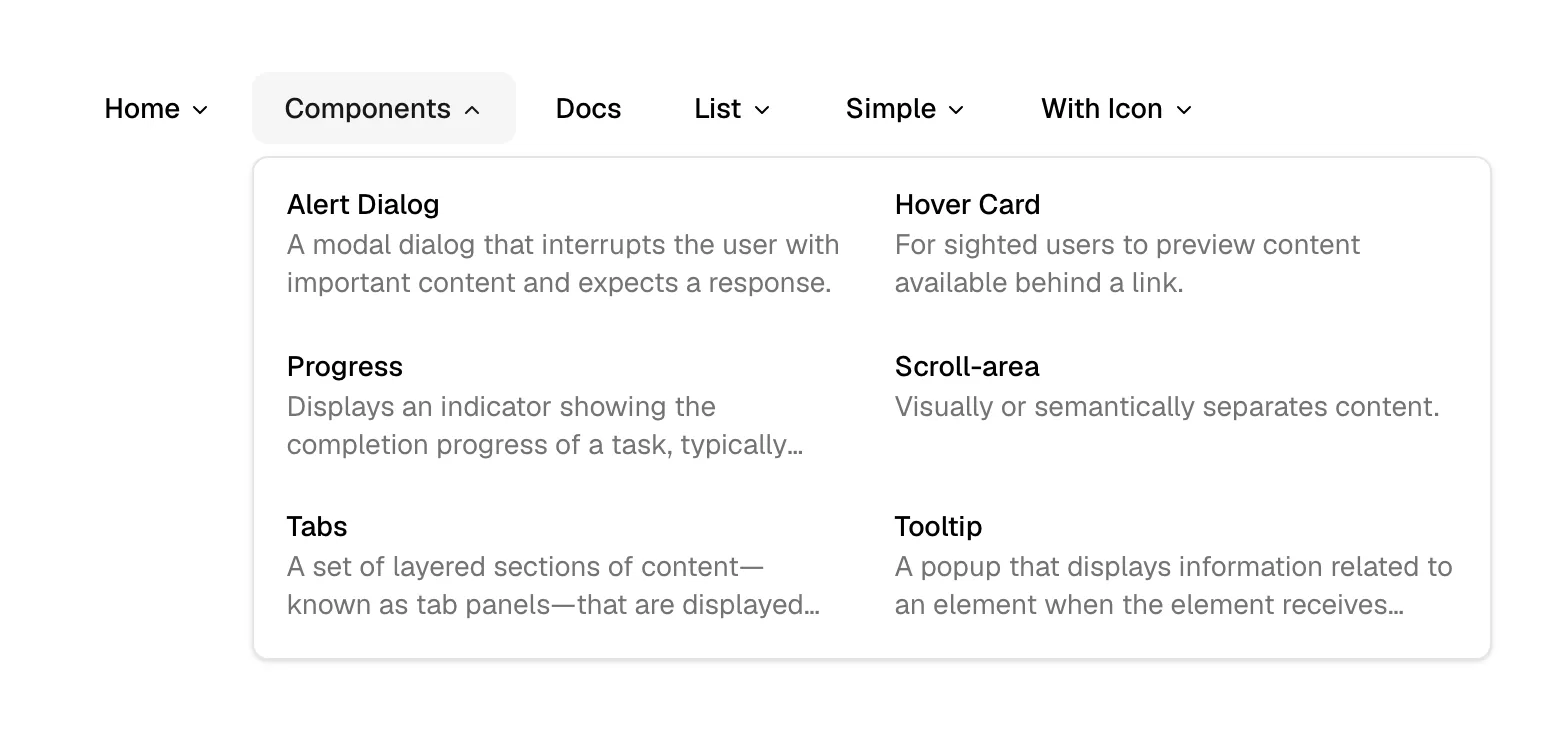
A mega menu is a large dropdown panel that opens from a nav link and lays out many pages at once in columns, often with icons and short descriptions.
- Also called
- Mega dropdown, Navigation dropdown, Flyout menu, Navigation menu
- Browse examples
- Hero sections →
What is a mega menu?
SaaS companies with several products, audiences or use cases outgrow a plain list dropdown quickly. A mega menu opens under "Product" or "Solutions" and shows the whole map in one panel: products in one column, use cases or industries in another, and often a featured card for a new launch or case study.
In the navigation bar itself, the only visible sign is a small chevron beside the link. June marks "Product" and "Content" with chevrons while "Customers", "Pricing" and "Changelog" stay plain; Chargebee's nav uses dropdown links next to its trial and demo buttons.
Good mega menus give every item a one-line description, so visitors can choose without opening each page, and keep the panel to two or three columns. A panel with forty undifferentiated links is a sitemap in disguise.
When to use a mega menu, and when not to
Use it for
- Several productsA platform with distinct products needs a place to name each one with a line of context.
- Two ways inVisitors browse by product and by role or industry; columns let both paths sit side by side.
- Deep resource sectionsDocs, guides, templates and community links fit in one grouped panel instead of six nav items.
Avoid it for
- Single-product sitesIf the menu would hold four links, a simple dropdown or plain nav links are faster.
- On mobile as-isA multi-column panel can't fit a phone; it needs to become an accordion inside the mobile menu.
- Hover-only accessPanels that open only on hover are unreachable by keyboard and touch; make the link clickable too.
Anatomy of a mega menu
- 1Trigger linkA nav item with a chevron that opens the panel on click or hover.
- 2PanelA wide container dropping below the nav bar, often full width or matching the content width.
- 3ColumnsTwo or three groups such as Products, Use cases and Resources, each with a small heading.
- 4ItemsLink, icon and a one-line description for each page.
- 5Featured cardAn optional promo slot for a launch, event or customer story.
Common mega menu variants
1. Columned list
Plain grouped links in two to four columns.
2. Icon cards
Each item is a small card with an icon, title and description.
3. Menu with promo
Link columns on the left and a featured image card on the right.
Often confused with
Mega menu vs. navigation bar
The navigation bar is the strip always on screen; the mega menu is a panel inside it that only appears when opened.
Mega menu vs. hamburger menu
A hamburger menu hides the whole navigation behind one icon, mainly on mobile; a mega menu expands one link into a large panel on desktop.
Frequently asked
Should a mega menu open on hover or click?
Click is more reliable across touch screens and keyboards. If you open on hover, add a short delay so the panel doesn't flash open as the cursor crosses the bar.
How do mega menus work on mobile?
They become nested accordions inside the full-screen mobile menu, one group expanding at a time.