
Forms & inputs
Time picker
A time picker is an input for choosing a time of day, shown as hour and minute fields, a scrolling list, a clock face or a set of available time slots.
- Also called
- Time input, Time selector, Time slot picker
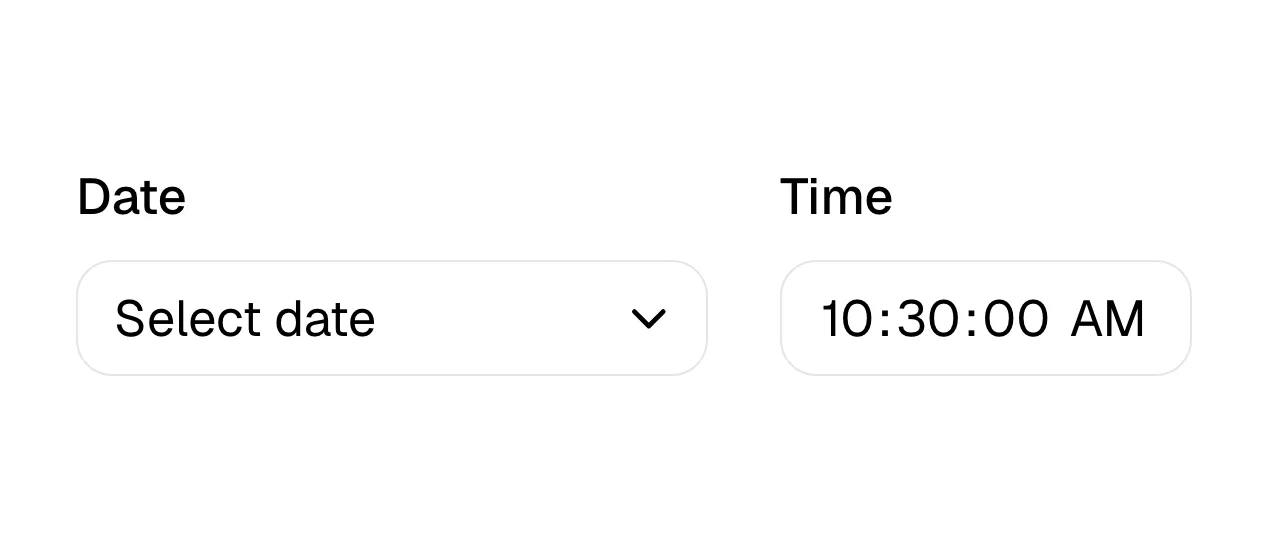
What is a time picker?
On SaaS marketing sites the time picker almost always appears as a list of slots in a demo-booking step: after the visitor picks a day, a column of times like 9:30, 10:00 and 10:30 appears, and one click books the call. Scheduling, booking and calendar products also show slot lists in hero mockups, because a column of open times is instantly understood.
Slots beat free time entry for booking because they only show what is actually available. The essentials are a clear timezone (detected automatically, with a way to change it), a sensible interval such as 15 or 30 minutes, and confirmation of the full date and time before the visitor commits.
For forms that need any time, not a slot (an event start, a report schedule), the native time input is a solid default on mobile. Custom hour and minute dropdowns should still accept typed input and respect 12- or 24-hour formats based on locale.
When to use a time picker, and when not to
Use it for
- Booking a meetingShow available slots after a date is picked, so visitors can't choose a busy time.
- Scheduling productsSlot lists in a hero or feature mockup explain the product at a glance.
- Recurring settingsInside the product, setting when a digest or report is sent.
Avoid it for
- Before interest existsAsking for a time in a first lead form adds friction; offer booking once someone wants a call.
- Precise timestampsExact-to-the-second times are better typed into a field than picked from a list.
- Hidden timezoneA time without a visible timezone causes missed meetings; don't ship one.
Anatomy of a time picker
- 1TimezoneThe detected timezone, shown near the times with a way to change it.
- 2Slot list or fieldsAvailable times as buttons, or hour and minute inputs for free entry.
- 3Format toggleAn optional 12h/24h switch, ideally defaulted from the visitor's locale.
- 4Selected stateThe chosen slot highlighted, often with a "Confirm" button beside it.
Common time picker variants
1. Slot list
A column of available times next to a calendar, the standard booking pattern.
2. Hour and minute fields
Two small inputs or selects, used for settings and event forms.
3. Native time input
The browser control, which opens the system's wheel or clock on phones.
Often confused with
Time picker vs. date picker
A date picker chooses the day; a time picker chooses the hour. Booking flows show them side by side.
Time picker vs. select
Some time pickers are just a select of times; a full time picker adds typing, formats and timezone handling.
Frequently asked
Should a booking page show time slots or a time input?
Slots. They show only real availability and need one click. A free time input makes the visitor guess when you are free.
How should time pickers handle timezones?
Detect the visitor's timezone, show it clearly next to the times and let them change it. Confirm the final booking with both date and time zone spelled out.