
Overlays & feedback
Toast
A toast is a brief notification that slides into a corner of the screen to confirm an action or report an event, then disappears on its own.
- Also called
- Snackbar, Toast notification, Notification pop-up
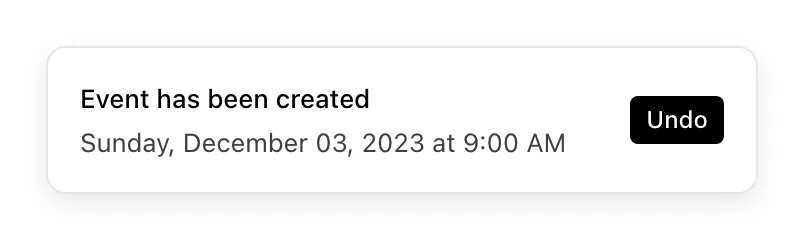
What is a toast?
Toasts give feedback without interrupting. A form submits, a link is copied, a file uploads, and a small card appears at the bottom or top corner saying so: "Link copied", "Thanks, we'll be in touch". It doesn't block anything, needs no response and fades out after roughly four to six seconds.
On marketing sites real toasts are limited to small moments: confirming a newsletter signup without reloading, "Copied" after clicking an install command, an error when a form fails. They show up far more often inside hero and feature mockups, where a success message makes a static screenshot feel like a working product. Default's hero, for instance, shows a toast reading "Workflow published successfully!" over its workflow builder.
A good toast says what happened in a few words, sits in a consistent corner, is announced to screen readers through a live region, and pauses its timer while hovered. Avoid toasts for errors that need fixing (put those next to the field) and for the social-proof kind that pops up "Someone in Ohio just signed up": visitors increasingly read those as fake.
Toast examples from real SaaS sites
Each one is a hero capture whose design review mentions the toast.

When to use a toast, and when not to
Use it for
- Confirming an actionThe visitor did something and deserves a quick, non-blocking "done".
- Undoable changesA short window to reverse an action, with an "Undo" link inside the toast.
- Showing a live productA mockup where a success message makes a workflow look finished and real.
Avoid it for
- Errors that need fixingForm validation errors belong beside the field, where the visitor can act on them.
- Important informationAnything visitors must read shouldn't vanish on a timer; use a banner or dialog.
- Fake activity feeds"Someone just signed up" pop-ups erode trust more than they add social proof.
Anatomy of a toast
- 1ContainerA compact card or pill, often dark, placed in a bottom or top corner.
- 2Status iconA check, warning or info icon that signals the outcome.
- 3MessageA short sentence stating what happened.
- 4ActionAn optional "Undo" or "View" link.
- 5Close controlAn optional close icon for visitors who want it gone sooner.
Common toast variants
1. Success toast
Confirms that something worked, usually with a green check.
2. Error toast
Reports a failure that isn't tied to one field, such as a network error.
3. Stacked toasts
Several notifications stacking in one corner, a common motif in product mockups.
Spotted in our design reviews
Where our reviews mention a toast:
A toast reads "Workflow published successfully!".
Default · Above the fold
Often confused with
Toast vs. banner
A banner is part of the page layout and stays put. A toast floats above the page and disappears by itself.
Toast vs. dialog
A dialog blocks the page until handled. A toast never blocks and needs no response.
Toast vs. error message
An error message sits next to the field or form that caused it. A toast is detached from any element.
Frequently asked
How long should a toast stay on screen?
Long enough to read it twice, usually four to six seconds, longer if it contains an action like Undo. Pause the timer while the pointer or focus is on it.
Where should toasts appear?
Pick one corner and keep it consistent. Bottom center or bottom right are the most common; avoid placing them over a chat widget or cookie banner.
Is a toast the same as a snackbar?
Practically, yes. "Snackbar" is the name some design systems use for the same brief, bottom-of-screen message, sometimes with a single action.